The CapCut AI video generator turns a text prompt or a written script into a finished video — complete with AI clips, avatars, voiceover, subtitles, and music — without filming a single frame. You type what you want, pick an AI model, and CapCut builds the video inside its free online editor. This guide shows exactly how to use it step by step, what the free and Pro tiers cost in 2026, whether it is safe and commercially usable, and the best alternative when you need to dub or translate that video into other languages.
The CapCut AI video generator is a suite of text-to-video and script-to-video tools built into CapCut's editor (web, desktop, and mobile). Owned by ByteDance, it generates short AI clips from prompts, assembles full draft videos from scripts, and offers 100+ AI avatars — aimed at creators making social content, ads, and faceless videos fast.
By the end, you will know how to generate a video in a few minutes, what it really costs, and when a dedicated tool like VideoDubber.ai is the better fit for reaching a global audience.
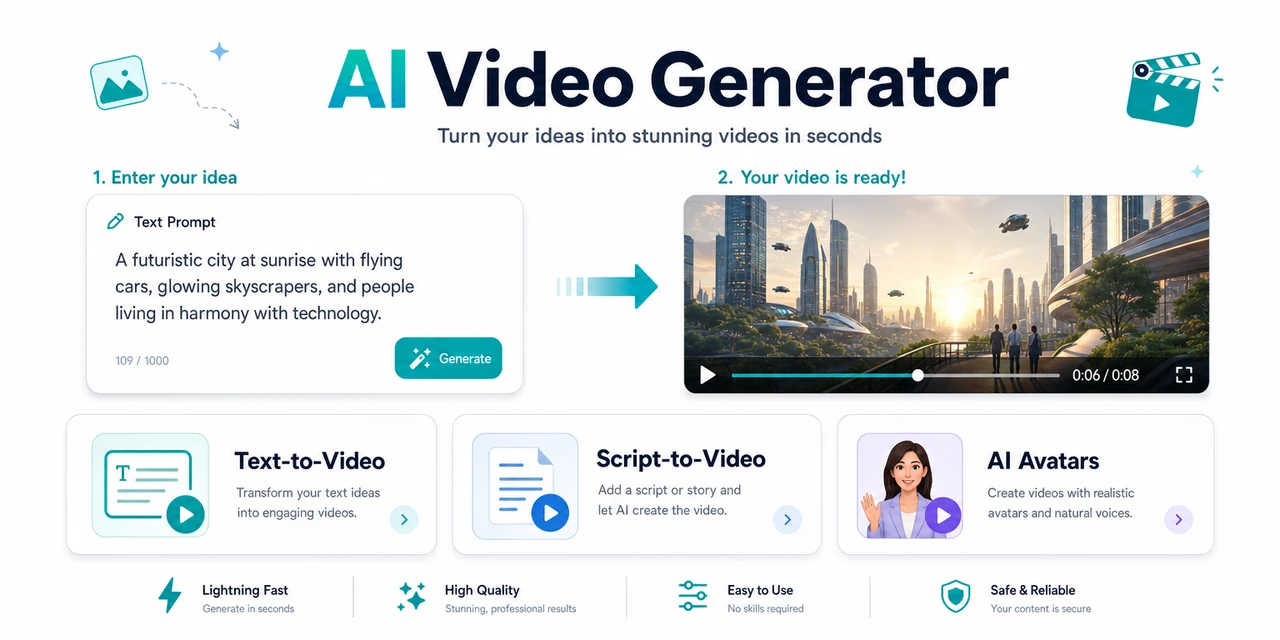
The CapCut AI video generator turns text and scripts into videos — here is how to use it and what to switch to for multilingual dubbing.
Quick Answer: CapCut AI Video Generator
- What it is: A free AI video generator inside CapCut that creates videos from a text prompt or a full script.
- How to access it: In the CapCut editor, open Media → AI media → AI video, then choose Text to video (or use the Script to video maker from the workspace).
- Models: Text-to-video models like Video 4.0, Video 3.0, and Video 2.0, plus access to premium models such as VEO and Sora on paid plans.
- Clip length: Text-to-video typically returns short clips (about 3–5 seconds each), which you stitch on the timeline.
- Cost: Free tier with a watermark and limited generations; CapCut Pro is roughly $6–8/month with 600 monthly credits and no watermark.
- Biggest catch: It generates and edits video well, but it is not built to dub or translate a finished video into many languages with natural voices.
- Best alternative: VideoDubber's AI video generator — turn a script into a faceless video with your own voice and captions, then dub it into 150+ languages with voice cloning.
What Is the CapCut AI Video Generator?
The CapCut AI video generator is a set of AI tools inside the CapCut editor that create videos from text — either a short prompt (text-to-video) or a full script (script-to-video). It is part of CapCut, the editing app owned by ByteDance, so it runs in the same workspace where you cut, caption, and export.
It is designed for creators who want video fast without a camera: short-form social clips, faceless YouTube videos, product ads, and B-roll. Instead of recording footage, you describe a scene and the AI generates it, then you edit the result with CapCut's normal filters, effects, transitions, and audio tools.
The generator bundles several related AI features:
- Text-to-video — type a prompt and get a short AI-generated clip from a chosen model (Video 4.0, 3.0, 2.0, or premium VEO/Sora models).
- Script-to-video — paste a script and CapCut suggests visuals, adds a voiceover, and assembles a draft video automatically.
- AI avatars — pick from 100+ digital presenters, or clone your own avatar from a short recording, to narrate without appearing on camera.
- AI extras — auto-generated scripts, subtitles, AI voices, and background music to finish the video in one place.
How to Use the CapCut AI Video Generator (Step by Step)
Generating a video takes a few minutes once you are signed in. Here is the full text-to-video workflow in the online editor; the desktop and mobile apps follow the same idea.
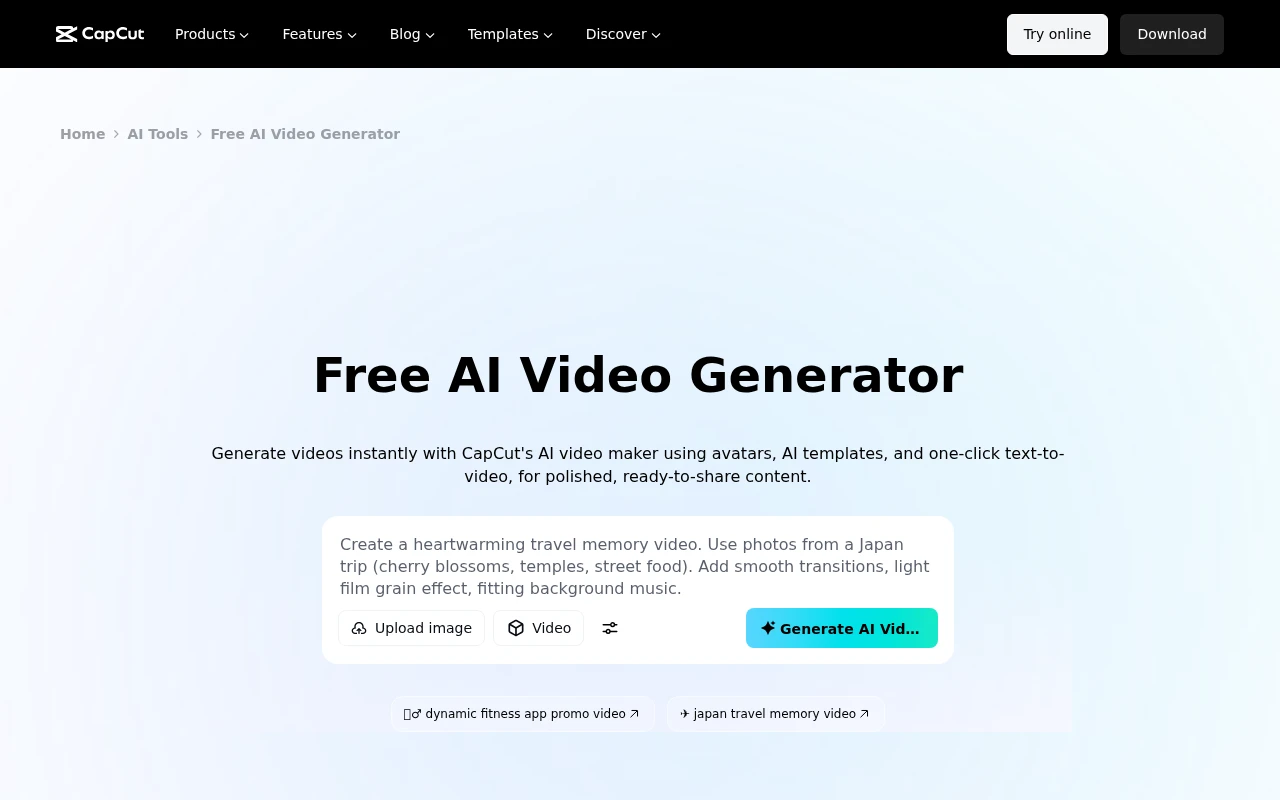
The CapCut AI Video Generator: type a prompt, pick a model, and click Generate AI Video — captured from CapCut's tool page.
Step 1: Open CapCut and start a new project
Sign in at capcut.com (or open the desktop/mobile app) and create a New project to land in the editor.
Step 2: Open the AI video tool
In the top-left toolbar, select Media, then under AI media choose AI video. This opens the generation panel.
Step 3: Choose Text to video and write your prompt
Select Text to video and describe the clip you want — be specific about subject, setting, mood, and camera movement. A detailed prompt ("a slow aerial shot of a coastal city at sunrise, warm light") produces a far better result than a vague one.
Step 4: Pick an AI model
Choose a model such as Video 4.0, Video 3.0, or Video 2.0. Newer models give higher fidelity and better motion; premium models like VEO and Sora are available on paid plans for the highest quality. Note that each generation usually returns a short clip of roughly 3–5 seconds.
Step 5: Generate the clip
Click Generate and wait for CapCut to render. If the result misses the mark, refine the prompt or regenerate — each attempt consumes credits, so iterate on the wording before re-rolling.
Step 6: Edit on the timeline
Drag the generated clip to your timeline and treat it like any footage: trim it, add filters, effects, stickers, transitions, text, subtitles, and AI voiceover or music to build the full video.
Step 7: Export
Click Export in the top-right, pick your resolution and format, and download. On the free tier the export carries a watermark; CapCut Pro removes it and unlocks higher resolutions.
CapCut AI Video Generator: Features at a Glance
| Feature | CapCut AI Video Generator |
|---|---|
| Type | Text-to-video, script-to-video, AI avatars |
| Access | Media → AI media → AI video (or Script to video maker) |
| AI models | Video 4.0 / 3.0 / 2.0; VEO and Sora on paid plans |
| Clip length (text-to-video) | ~3–5 seconds per generation |
| AI avatars | 100+ presets; clone your own from a short video |
| Voiceover & subtitles | Built-in AI voices and auto-captions |
| Languages (dubbing existing video) | Limited — not its core focus |
| Free tier | Yes, with watermark and limited generations |
| Pro pricing (2026) | ~$6–8/month, 600 credits, no watermark, up to 4K |
| Best for | Fast social/ad clips and faceless videos |
Pricing, credits, and model availability reflect CapCut's publicly listed 2026 terms and change often — confirm current details in the app.
Is the CapCut AI Video Generator Free?
Yes — the CapCut AI video generator has a free tier, but serious use needs a paid plan. The free version lets you try text-to-video and script-to-video with limited generations, restricted templates, and a watermark on exports.
What the paid tier unlocks:
- CapCut Pro costs roughly $6–8/month and includes about 600 AI credits per month, watermark-free exports, the full template library, and up to 4K export on desktop.
- Credits are consumed per generation — a simple AI video runs about 20–40 credits, while complex videos with avatars can cost 50–100 credits, so 600 credits is roughly 6–30 finished projects a month depending on complexity.
- Premium models like VEO and Sora and longer durations are gated behind paid plans or extra credit purchases.
So it is free to try, but heavy or watermark-free production will push you onto Pro. For a wider set of no-cost options, see our roundup of the best free AI video generators.
Is the CapCut AI Video Generator Safe?
CapCut is safe to use as software, but it carries real data-privacy trade-offs because it is owned by ByteDance. This is the angle most "how-to" guides skip, and it matters before you upload brand or client footage.
- Data collection: CapCut collects device information, usage data, and the content you upload and create — standard for free editing apps, but broad.
- Content rights: CapCut's terms grant it wide rights over content you make with its tools, including to host, modify, and reproduce it for operating and promoting the service. Read the current terms before using AI output in sensitive client work.
- Regulatory uncertainty: As a ByteDance product, CapCut has faced availability and regulatory questions in some regions. We track this in our CapCut ban status explainer.
The practical takeaway: CapCut is fine for everyday creator content, but if data residency or content ownership is critical, factor that in and keep originals backed up.
Can You Use CapCut AI Videos Commercially?
Yes — CapCut allows commercial use of videos made with its AI tools on both free and paid plans, and it markets AI models like VEO and Sora as suitable for brand ads and e-commerce. Two caveats:
- Remove the watermark. Commercial work generally needs the clean, watermark-free export that CapCut Pro provides.
- Confirm model and stock licensing. Some premium stock assets, music, and AI models have their own usage terms — verify them in CapCut's current license before publishing a paid campaign.
For marketing teams comparing editors, our guide to the best AI video editing tools puts CapCut next to its main rivals.
Limitations of the CapCut AI Video Generator
CapCut is excellent at creating and editing video. It runs into walls when your goal is reach and localization:
- No true multilingual dubbing. CapCut can add a voiceover, but it is not built to take a finished video and dub it into many languages while keeping timing and background music intact.
- Short generated clips. Text-to-video returns a few seconds at a time, so longer narratives mean many generations and a lot of stitching.
- Credits run out fast. Avatar-heavy or premium-model videos burn through the 600-credit Pro allowance quickly.
- Watermark on free exports. The free tier is not truly free for publishing.
- Voice cloning and language coverage are limited compared with dedicated dubbing and voice tools.
If your video needs to reach audiences in other languages, that is exactly where a dedicated dubbing tool takes over.
Best CapCut AI Video Generator Alternative: VideoDubber.ai
VideoDubber's AI video generator is the best alternative to the CapCut AI video generator, especially when your video needs to reach more than one language. Like CapCut, it turns a script into a finished faceless video — visuals, AI voiceover, background music, and customizable captions — built for YouTube Shorts and TikTok. Unlike CapCut, it then dubs that video into 150+ languages with cloned voices and gives you the raw files.
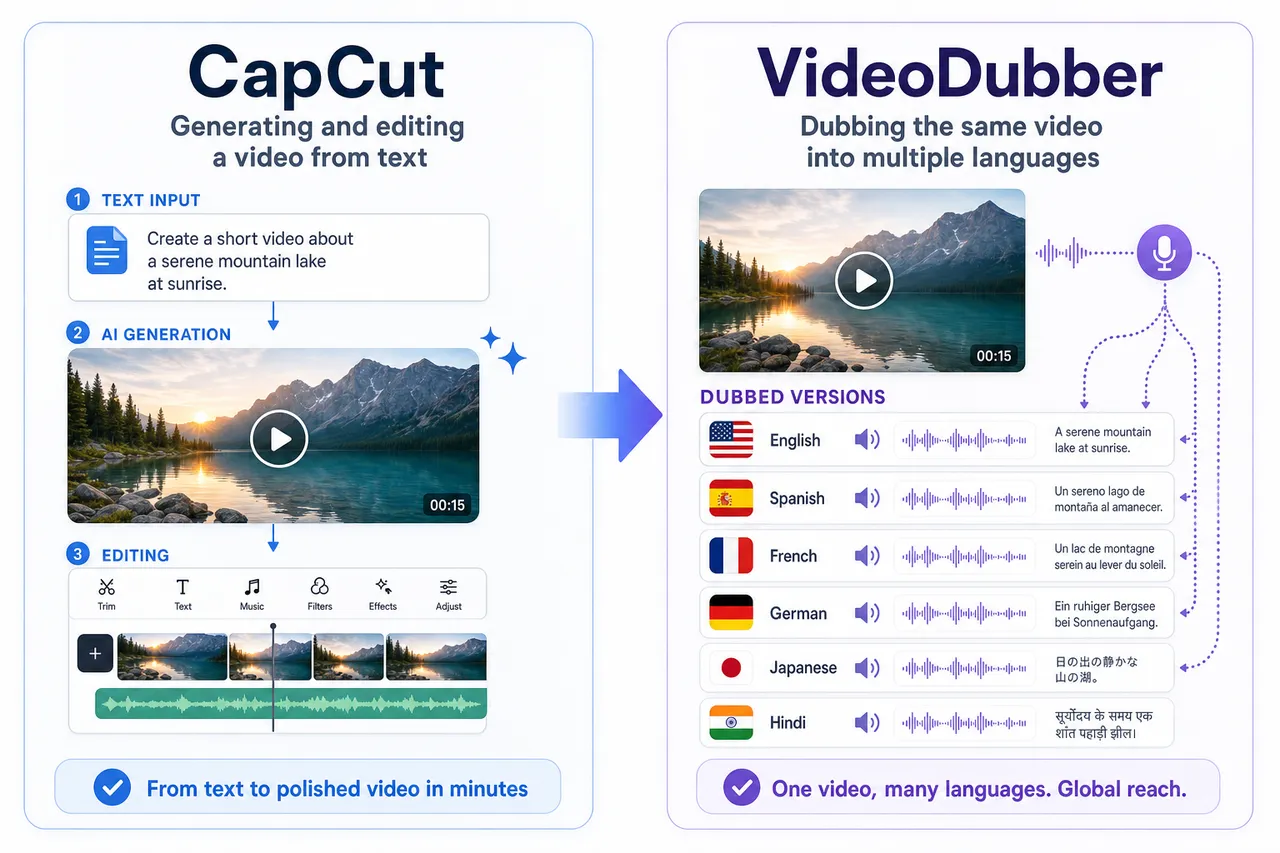
Both generate video from text; VideoDubber adds dubbing into 150+ languages and exportable audio and subtitles.
What VideoDubber does that CapCut does not:
- Generate faceless videos from a script — turn text or images into a video with your own voice and captions, on auto-pilot for Shorts and TikTok.
- Dub video into 150+ languages — translate the audio and regenerate natural voices while keeping background music and timing.
- Voice cloning ~20× cheaper than ElevenLabs — clone one voice and reuse it across every language version.
- Export real audio and subtitles — download MP3/WAV plus SRT/VTT, not just an MP4.
- No watermark, even on your free first video — a genuine free entry point, no credit card required.
You can create and dub your first video for free with no credit card. New to the idea? Start with what is video translation or our step-by-step how to translate a video guide.
CapCut AI Video vs VideoDubber
| Factor | CapCut AI Video | VideoDubber.ai |
|---|---|---|
| Text-to-video / faceless videos | Yes | Yes (Shorts & TikTok) |
| AI voiceover & captions | Yes | Yes (your own voice + captions) |
| Multilingual dubbing | Limited | 150+ languages, keeps music |
| Voice cloning | Limited | ~20× cheaper than ElevenLabs |
| Standalone audio/subtitle export | Limited | MP3/WAV + SRT/VTT |
| Watermark | On free tier | None, even on free first video |
| Free tier | Limited, watermarked | First video free, no credit card |
Verdict: Choose CapCut for in-editor clip generation and full timeline editing. Choose VideoDubber when you want to generate a video and reach a Spanish, Hindi, or Portuguese audience in a natural voice — without re-recording.
CapCut vs Other AI Video Generators
CapCut is one of several strong options. Here is how it sits next to other popular AI video tools in 2026.
| Tool | Best For | Standout |
|---|---|---|
| CapCut AI Video | Fast social clips + full editing | All-in-one free editor with AI generation |
| Synthesia | Talking-avatar training/explainer videos | Realistic avatars in 160+ languages |
| VideoDubber.ai | Generating + dubbing video | Faceless videos plus 150+ languages, no watermark |
| Canva | In-design social videos | Voiceovers and design in one tool |
For deeper comparisons, see our Synthesia AI video generator review and the full best free AI video generators roundup.
How to Choose the Right Tool
Match the tool to the job:
| Your Goal | Best Pick |
|---|---|
| Generate a short clip and edit it in one app | CapCut AI Video |
| Make a talking-avatar explainer | Synthesia |
| Generate a faceless video for Shorts/TikTok | VideoDubber.ai |
| Dub a finished video into many languages | VideoDubber.ai |
| Clone one voice for every language | VideoDubber.ai |
| Export standalone audio/subtitle files | VideoDubber.ai |
If your content needs a multilingual audience, VideoDubber can both generate the video and dub it into 150+ languages — without re-recording.
Frequently Asked Questions
How do I use the CapCut AI video generator?
Open CapCut and start a new project, then go to Media → AI media → AI video. Choose Text to video, write a detailed prompt, pick a model (Video 4.0/3.0/2.0 or a premium VEO/Sora model), and click Generate. Drag the clip to the timeline, edit it with filters, voiceover, and subtitles, then Export.
Is the CapCut AI video generator free?
It has a free tier with limited generations, restricted templates, and a watermark on exports. Watermark-free, higher-volume use needs CapCut Pro (about $6–8/month with roughly 600 AI credits). Premium models and longer durations cost extra credits.
How long are CapCut AI-generated videos?
Text-to-video usually returns short clips of about 3–5 seconds per generation. To make a longer video, generate multiple clips and stitch them on the timeline, or use Script to video to assemble a longer draft from a full script.
Is the CapCut AI video generator safe to use?
The app itself is safe, but CapCut is owned by ByteDance and collects device, usage, and uploaded-content data, and its terms grant broad rights over content you create. It is fine for everyday content; weigh the privacy trade-offs before uploading sensitive brand or client material, and keep originals backed up.
Can I use CapCut AI videos commercially?
Yes. CapCut permits commercial use on free and paid plans, and markets models like VEO and Sora for ads and e-commerce. For commercial work, use a Pro plan to remove the watermark and confirm the license terms for any premium stock, music, or AI models you include.
How do I translate or dub a CapCut video into another language?
CapCut can add a voiceover but is not built to dub an existing video into many languages while keeping music and timing. Make the video in CapCut, then run it through VideoDubber.ai to dub it into 150+ languages with cloned voices and exportable subtitles — the first video is free with no credit card.
Start Creating — and Localizing — Your Videos
The CapCut AI video generator is one of the fastest ways to turn a text prompt or script into a finished video, with AI clips, avatars, voiceover, and captions in one free editor. Its limits appear when you need watermark-free output at scale — and especially when you need that video to reach audiences in other languages.
That is where VideoDubber's AI video generator picks up: generate a faceless video from a script, dub it into 150+ languages, clone a voice for ~20× less than ElevenLabs, and export real audio and subtitles with no watermark — the first video free. Go further with our guides on how to translate a video, the best video translator, and the best free AI video generators for 2026.
Further Reading
Best Free AI Video Generators in 2026: Ranked & Compared
Best free AI video generators in 2026, ranked and honestly compared: Veo 3, DeeVid, HeyGen, VideoDubber, Kling, Seedance — free tiers, watermarks, commercial use.
Best AI Video Editing Tools in 2026: Ranked & Compared
Best AI video editing tools in 2026, ranked and tested: Descript, CapCut, VideoDubber, OpusClip, Premiere, DaVinci Resolve — pricing, free tiers, and workflow.
Synthesia AI Video Generator Review 2026 (+ Alternatives)
Hands-on Synthesia AI video generator review for 2026: how it works, 2026 pricing, avatars, 160+ languages, pros and cons, plus the best alternatives for cheaper avatar videos and translating or dubbing video into 150+ languages.
Is CapCut Banned? Complete Global Status, Data Risks, and Best Alternatives (2026)
Is CapCut banned in 2026? Country-by-country status, €530M EU fine, June 2025 ToS IP risks, biometric data facts, and best privacy-safe alternatives.
How to Translate Your Video Using VideoDubber.ai
Learn how to dub your video into multiple languages effortlessly with VideoDubber.ai. This guide walks you through the easy steps of uploading, translating, and adding voiceovers to your video for multilingual audiences.