

How to Edit Translated Videos Online: Complete Editing Guide
December 26, 2025 8 mins read
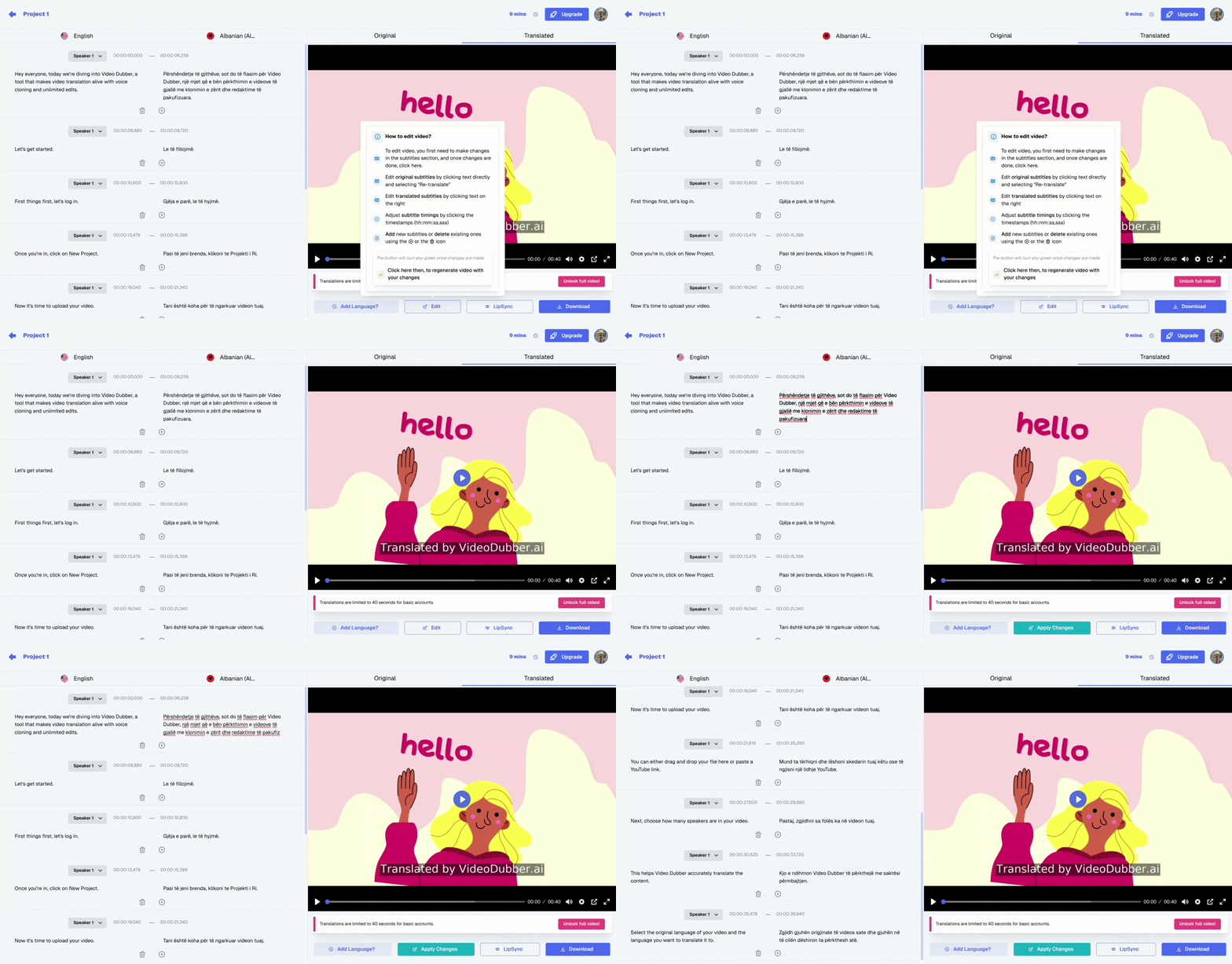
The VideoDubber.ai editor - Choose voiceover styles, edit subtitles, and perfect your translations with an intuitive interface
After translating your video with VideoDubber.ai, you have complete control to perfect your content. The built-in editor provides professional-grade tools to ensure your translated videos meet the highest quality standards.
| Reason | Benefit |
|---|---|
| Fix Translation Errors | Correct AI mistakes for technical terms, names, or idioms |
| Adjust Timing | Sync subtitles perfectly with speech |
| Change Voice Style | Select different voices or adjust voice characteristics |
| Brand Consistency | Ensure translations match your brand voice |
| Cultural Adaptation | Localize content beyond literal translation |
| Feature | Description | Cost |
|---|---|---|
| Subtitle Editing | Full text control | Free |
| Timestamp Adjustment | Precise timing control | Free |
| Voice Style Selection | Multiple voice options | Free |
| Voice Cloning | Clone original speaker's voice | Included |
| Re-generation | Regenerate audio after edits | Free |
| Unlimited Revisions | Edit as many times as needed | Free |
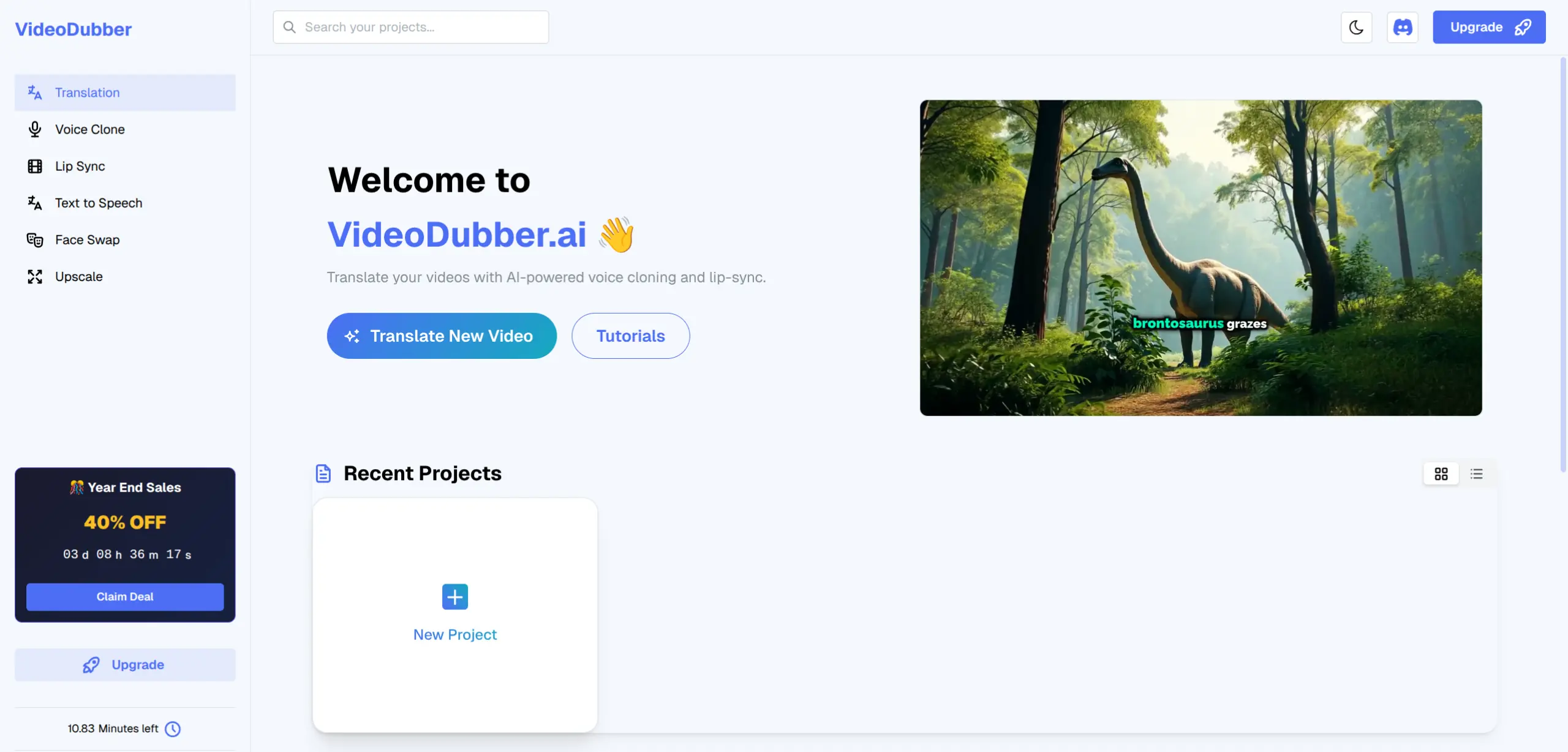
Access your translated projects from the main dashboard - click on any project to open the editor
Once you've found your project:
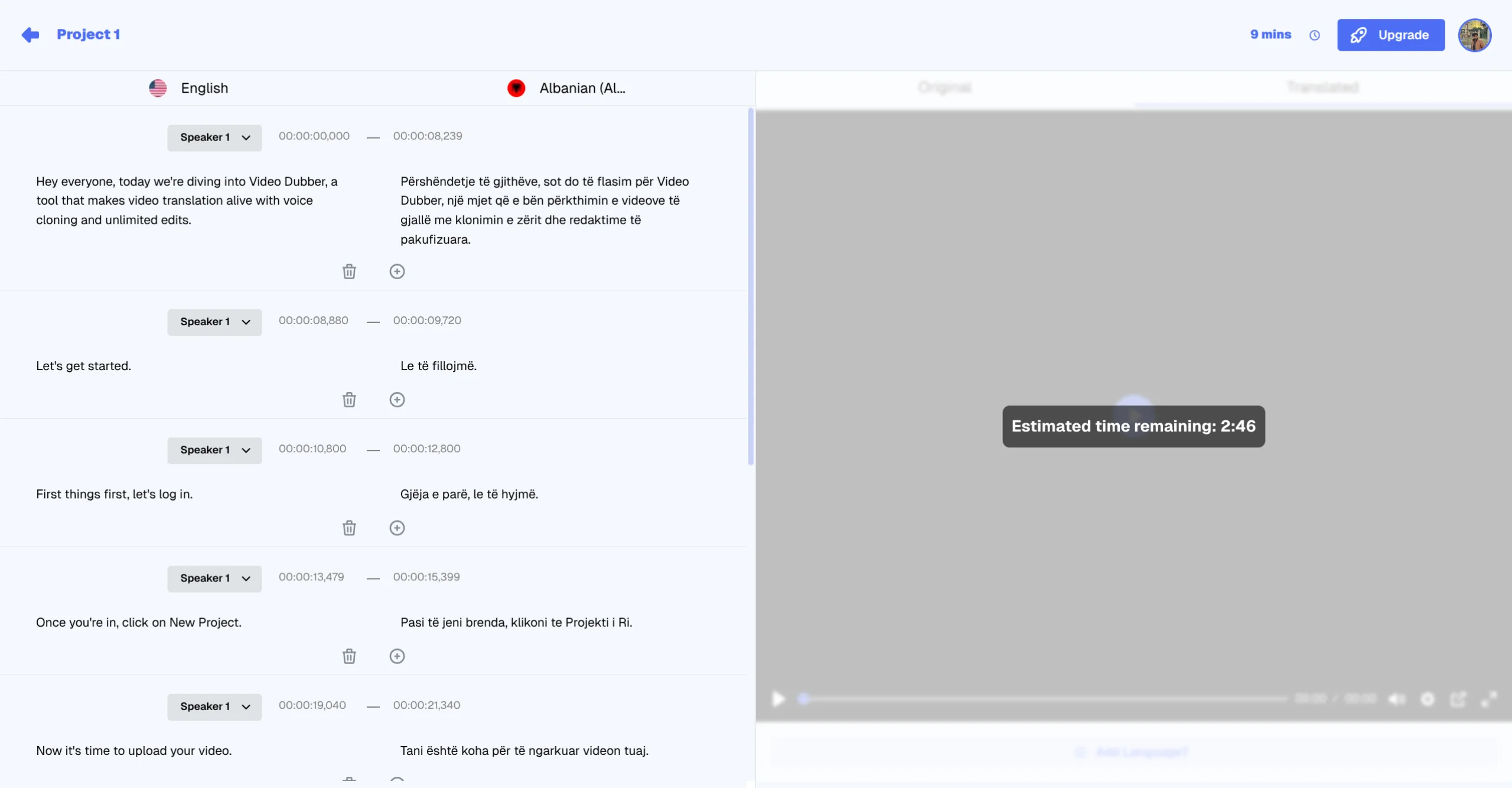
The VideoDubber editing panel - Full control over subtitles, translations, and timing
The VideoDubber editor is organized into intuitive sections:
The fastest way to edit subtitles:
For more detailed editing:
| Issue | Example | Solution |
|---|---|---|
| Technical Terms | "API" translated literally | Keep original term or use accepted localization |
| Brand Names | "iPhone" changed | Preserve original brand names |
| Idioms | "Break a leg" translated word-for-word | Use equivalent local expression |
| Numbers/Dates | Format differences | Adjust to target locale format |
| Proper Nouns | Names incorrectly translated | Restore original names |
VideoDubber.ai allows you to customize how each speaker sounds in your translated video.
The "Choose Voiceover for Speakers" dialog lets you configure Speaker Name, Voice Style, and Voice Cloning options
Select from various AI voices:
| Voice Type | Best For |
|---|---|
| Natural Male | Professional, corporate content |
| Natural Female | Narration, educational content |
| Young/Energetic | Social media, entertainment |
| Mature/Authoritative | Documentaries, news |
| Setting | Description |
|---|---|
| On | Clone the original speaker's voice characteristics |
| Off | Use a standard AI voice |
Fine-tune the speaking pace:
| Speed | Use Case |
|---|---|
| 0.8x | Complex topics, elderly audience |
| 1.0x | Standard - natural pace |
| 1.2x | Quick updates, energetic content |
Perfect timing is crucial for professional subtitles.
Drag the end marker to change when it disappears
Fine-Tune Controls
| Guideline | Recommendation |
|---|---|
| Reading Speed | 150-180 words per minute |
| Minimum Duration | At least 1 second per subtitle |
| Gap Between Subtitles | 0.2-0.5 seconds |
| Sync Point | Subtitle appears slightly before speech |
After making text changes, you'll need to regenerate the audio:
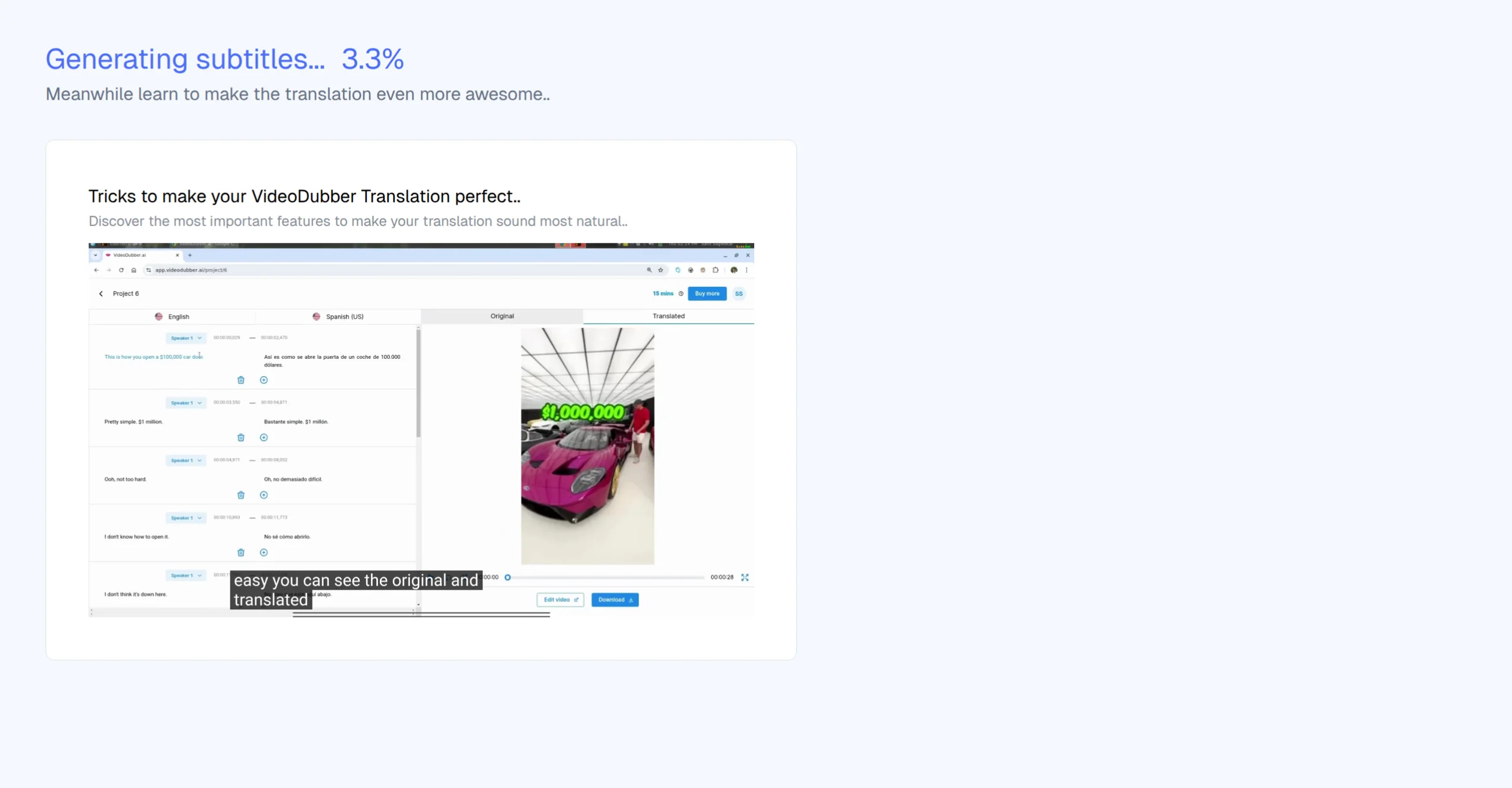
The system automatically detects changes and prompts you to regenerate audio with updated translations
Before finalizing your edited video, verify:
For efficient editing, follow this workflow:
VideoDubber.ai's editor empowers you to create perfect translated videos with unlimited free edits. Whether you need to fix a single word or completely restructure your subtitles, the tools are at your fingertips.
| Feature | What You Get |
|---|---|
| Unlimited Edits | No additional charges for revisions |
| Intuitive Interface | Easy-to-use editing tools |
| Voice Customization | Full control over speaker voices |
| Real-time Preview | See changes instantly |
| Professional Quality | Export broadcast-ready content |
| Task | How To |
|---|---|
| Edit subtitle text | Click on subtitle → Type changes |
| Adjust timing | Drag timeline markers |
| Change voice | Open Voice Settings → Select style |
| Regenerate audio | Edit text → Click "Regenerate" |
| Export video | Click "Export" → Choose format |
| Resource | Link |
|---|---|
| How to Translate Videos | Translation Guide |
| Pricing Plans | VideoDubber Pricing |
| Help & Support | Support Center |
| More Tutorials | VideoDubber Blog |
Ready to perfect your translated videos? Start Editing Now

With a background in AI and a passion for clear technical communication, I enjoy breaking down complex tools and processes. Exploring new software and sharing insights is a key focus.
Learn how to translate videos into 150+ languages using VideoDubber.ai. Complete step-by-step guide with voice cloning, lip-sync, and professional-quality dubbing.
Learn how to change and assign different speaker voices in video translations using VideoDubber.ai. Control voice selection for each speaker in your dubbed videos.
Learn what video translation and AI dubbing are, how they work, and why VideoDubber.ai is the best solution for translating videos while preserving voice, tone, and emotion. Complete guide covering benefits, use cases, and best practices.
Upscale image quality online with AI in seconds. Step-by-step guide, tool comparison, 2×/4× tips, and how to avoid blur. Free options, print & 4K covered. Try VideoDubber.
Explore the best SRT translators for video translation in 2024. Discover tools that help convert subtitles into multiple languages and learn how video dubbing solutions can elevate your content for global audiences.