Canva AI Voice Generator: How to Use It (+ Alternative)
June 25, 2026 14 mins read
Yes, Canva has a built-in Canva AI voice generator — a text-to-speech tool that turns any script into a natural AI voiceover without leaving your design. You type your text, pick a voice and language, and Canva generates spoken audio you can drop straight onto your video timeline. This guide shows exactly how to use it step by step, what it costs, where it falls short, and the best alternative when you need to export the raw audio or dub into more languages.
The Canva AI voice generator is text-to-speech (TTS) software inside Canva that converts written text into spoken AI audio, then adds it to your design as a voiceover track. It is built for short social content created end-to-end inside Canva — reels, TikToks, ads, and slide videos.
By the end, you will know how to generate a voiceover in under a minute, when Canva is the right call, and when a dedicated tool like VideoDubber.ai is the better fit.
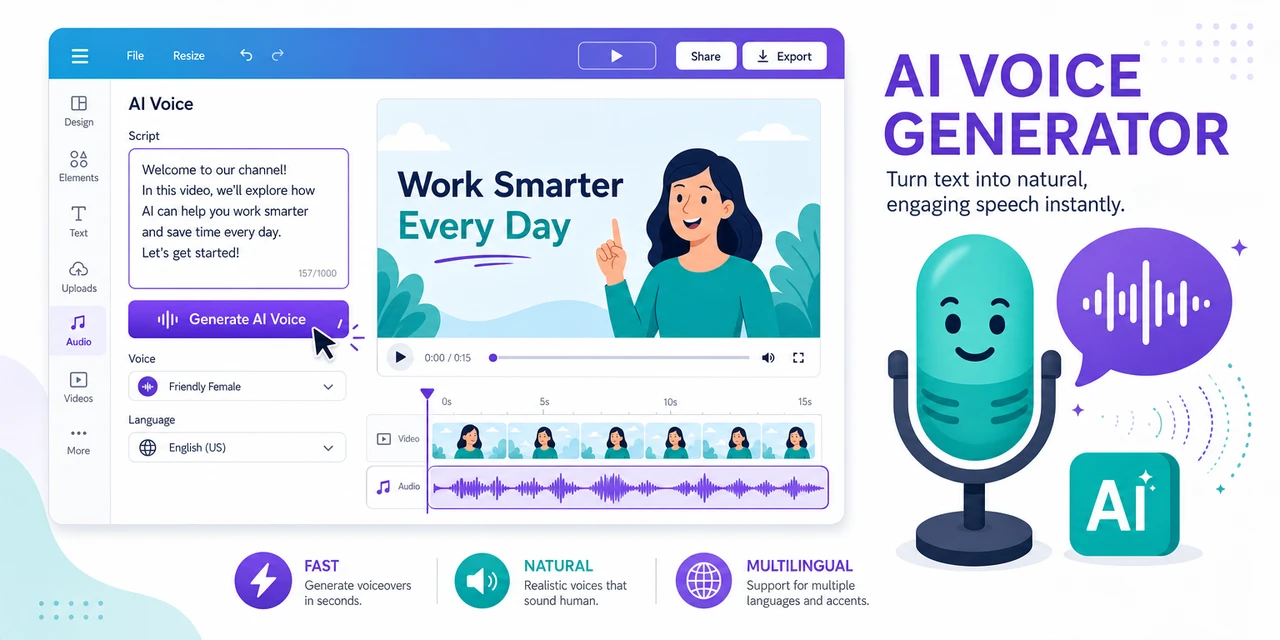
The Canva AI voice generator turns text into voiceovers inside your design — here is how to use it and what to switch to when you hit its limits.
The Canva AI voice generator is a built-in text-to-speech feature that converts your written script into a natural-sounding AI voiceover and places it directly on your design's audio timeline. It is part of Canva's editor, so there is no separate app, account, or download.
It is designed for creators who build their content inside Canva — short videos, Instagram Reels, TikToks, presentations, and ads — and want narration without recording their own voice or hiring a voice actor. You can choose from a library of AI voices across multiple languages and tones, then fine-tune speed, pitch, and emotion to fit the mood of your video.
Canva also offers two related, more advanced voice features: AI voice cloning (recreate a specific voice from a sample) and partner voice apps (Murf AI, AiVOOV, and others) inside the Apps tab for extra voices and controls.
Generating a voiceover in Canva takes well under a minute once your design is open. Here is the full workflow.
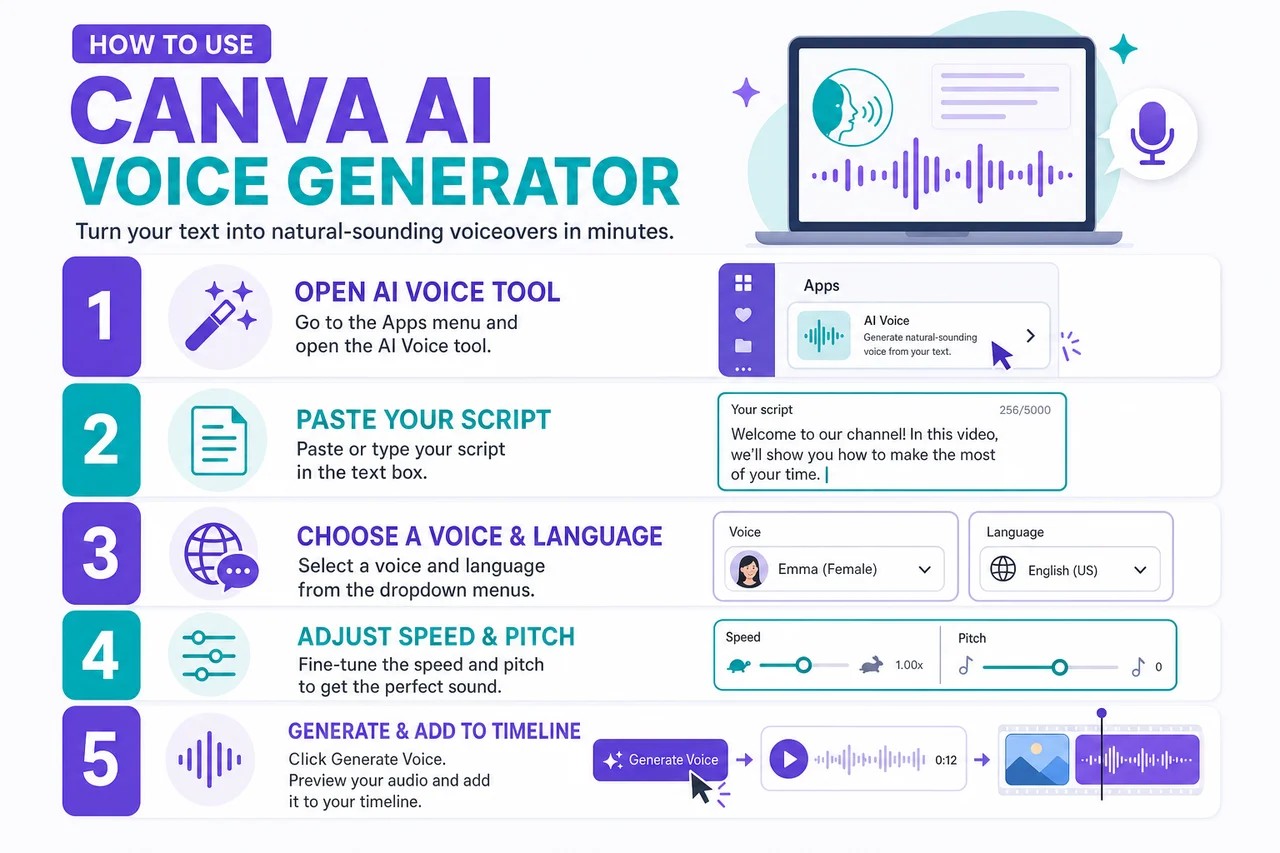
The Canva AI voice workflow: open the tool, paste your script, pick a voice, generate, and add it to the timeline.
Open or create a video, presentation, or social post in the Canva editor. Then access the AI voice generator one of two ways:
In the AI Voice text box, enter or paste the text you want spoken. Canva accepts up to roughly 1,000 characters per generation, so for longer scripts you will split the narration into multiple clips.
Under Select Voice, browse the available AI voices. You can filter by language and by tone — masculine, feminine, conversational, professional, or playful — to match your brand and content. Free voices are marked separately from those that require Canva Pro.
Use the available controls to fine-tune speed, pitch, and emotion so the delivery fits the pace of your video. Preview the result before committing — testing names, numbers, and acronyms here saves re-work later.
Select Generate. Canva creates the audio and adds it to your design as a voiceover track. Drag it along the timeline to sync it with your scenes, and trim or reposition it like any other audio clip.
When the design is finished, download it as an MP4 or share it directly to your connected social accounts. Note that the voiceover exports as part of the video — pulling out the audio on its own is the main friction point, covered below.
| Feature | Canva AI Voice |
|---|---|
| Type | Text-to-speech inside Canva |
| Access | Elements → Audio → Add AI Voice, or Apps → AI Voice |
| Character limit | ~1,000 characters per generation |
| Voices | Large library of AI voices (more with Pro) |
| Languages | Multiple languages and accents (built-in), 100+ via voice cloning/partner apps |
| Tone controls | Speed, pitch, emotion, voice style |
| Voice cloning | Yes, via Canva's AI Voice Cloning feature |
| Standalone audio export | Limited — audio is tied to the design |
| Free tier | Yes (selection of free voices) |
| Best for | Short social videos made entirely in Canva |
Feature availability and limits reflect Canva's publicly listed June 2026 terms and change often — confirm current details in the app.
Yes — the Canva AI voice generator is free to use on any Canva plan, including the free tier, with a selection of free voices and the ability to preview before generating. You can create AI voiceovers for short videos without paying.
What costs money:
For commercial use, Canva's standard content license generally covers AI voiceovers used inside Canva designs — but if you plan to use the audio in ads or client work, confirm the current license terms in Canva's help center before publishing.
Beyond stock voices, Canva offers AI voice cloning — recreating a specific voice from an audio sample and using that cloned voice for text-to-speech. Canva states its voice cloning supports a wide range of languages for multilingual output.
Voice cloning is the right choice when the narration must sound like you (personal branding, a consistent series voice) rather than a generic stock voice. If you are new to the concept, see our explainer on what is voice cloning for how it works and where it is worth using.
Canva's AI voice is excellent for one specific job — narrating short videos inside Canva. It runs into walls outside that lane:
If any of these describe your project, a dedicated voice and dubbing tool is the better choice.
VideoDubber.ai is the best alternative to the Canva AI voice generator when you need exportable audio, affordable voice cloning, or to turn a video into many languages. It is a dedicated AI text-to-speech, voice cloning, and video dubbing platform — built for exactly the jobs Canva's in-design tool stops short of.
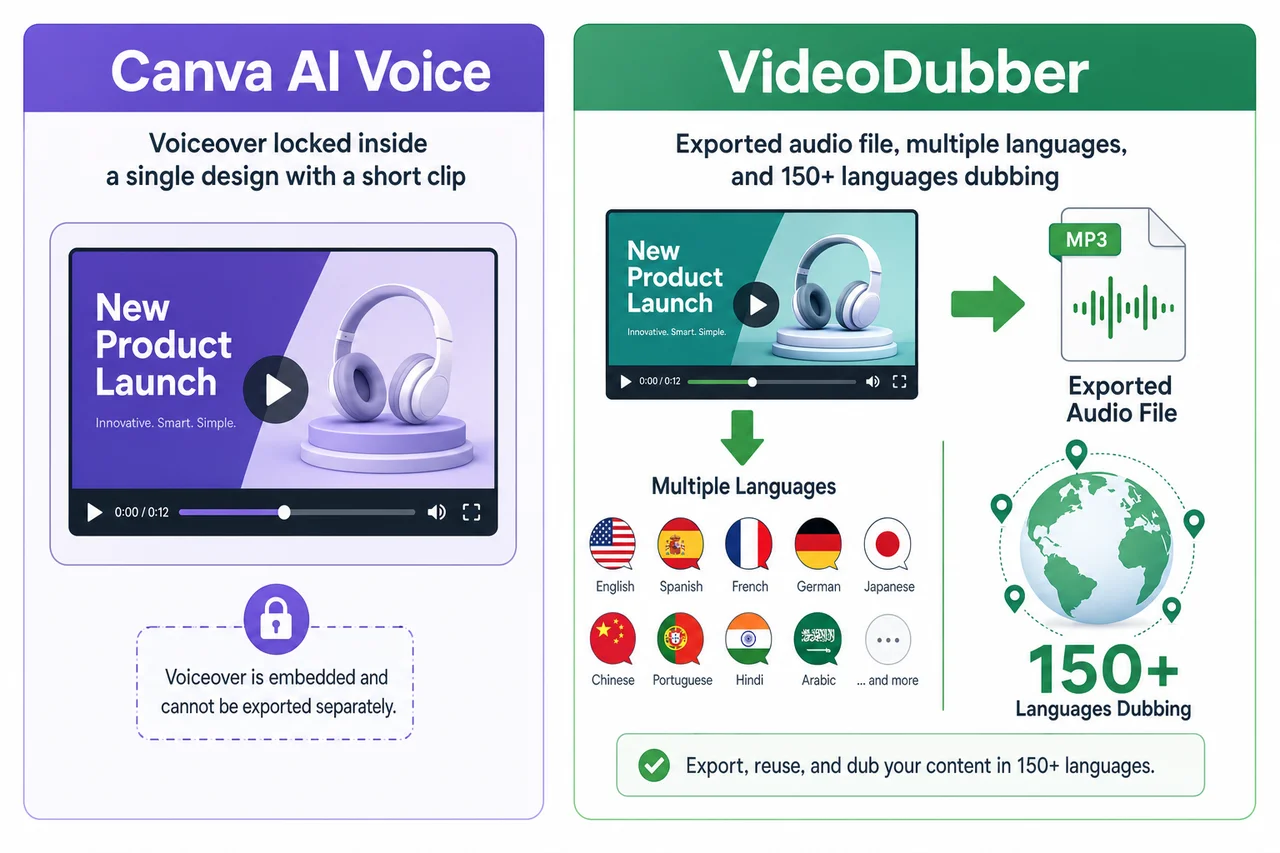
Canva is built for short voiceovers inside a design; VideoDubber is built to export audio and dub video into 150+ languages.
Where Canva keeps the audio locked inside your design, VideoDubber gives you the finished file and the multilingual versions:
You can convert text to speech and translate your first video for free with no credit card. New to the workflow? Start with our guide on how to convert text to speech online.
| Factor | Canva AI Voice | VideoDubber.ai |
|---|---|---|
| Best for | Short videos made inside Canva | Exportable voiceover + multilingual video dubbing |
| Standalone audio (MP3/WAV) | Limited | Yes |
| Character limit | ~1,000 per clip | Built for long-form |
| Languages | Multiple (built-in) | 150+ with regional accents |
| Video dubbing | Not its focus | Core feature (keeps background music) |
| Voice cloning cost | Pro feature | ~20× cheaper than ElevenLabs |
| Watermark | N/A (in-design) | None, even on free first video |
| Free tier | Free voices in-app | First video free, no credit card |
Verdict: Stay in Canva when the voiceover never needs to leave a Canva design. Switch to VideoDubber the moment you need the audio file itself — or want one script to reach a Spanish, Hindi, or Portuguese audience.
Canva is not your only option. Here is how it compares to other popular AI voice tools, including the partner apps available inside Canva itself.
| Tool | Best For | In Canva? | Standout |
|---|---|---|---|
| Canva AI Voice | Short in-design voiceovers | Built-in | Fastest path inside Canva |
| VideoDubber.ai | Exportable audio + dubbing | No (web app) | 150+ languages, cheap cloning, no watermark |
| ElevenLabs | Maximum voice realism | No | Most expressive AI voices |
| Murf AI | Business/marketing voiceover | Yes (partner app) | Studio workflow, commercial rights |
| AiVOOV | Extra voices/languages | Yes (partner app) | Wide voice library inside Canva |
For a full, tested ranking, see our best text to speech software in 2026 guide.
Match the tool to the job:
| Your Goal | Best Pick |
|---|---|
| Narrate a short video without leaving Canva | Canva AI Voice |
| Export a standalone MP3/WAV voiceover | VideoDubber.ai |
| Dub an existing video into many languages | VideoDubber.ai |
| The single most realistic voice | ElevenLabs |
| Marketing/e-learning studio workflow | Murf AI |
| Clone your own voice affordably at volume | VideoDubber.ai |
The fastest creators use Canva for quick in-design narration and a dedicated tool like VideoDubber when the audio needs to travel beyond a single design or a single language.
Yes. Canva has a built-in AI voice generator (AI Voice) that converts text to speech and adds the voiceover to your design. Access it via Elements → Audio → Add AI Voice or the Apps tab. Canva also offers AI voice cloning and partner voice apps like Murf AI and AiVOOV.
Yes, the Canva AI voice generator is free on any plan, including the free tier, with a selection of free voices and the ability to preview before generating. Canva Pro unlocks more premium voices, and Canva's overall AI usage limits apply — heavier use is more comfortable on Pro.
Open your design, go to Elements → Audio → Add AI Voice (or Apps → AI Voice), type or paste your script, choose a voice and language, adjust speed and tone, then select Generate. Canva adds the voiceover to your timeline, where you can sync, trim, and reposition it.
Canva's AI voice generator accepts roughly 1,000 characters of text per generation. For longer narration, split your script into multiple voice clips and place them sequentially on the timeline.
The Canva AI voiceover is tied to your design and exports as part of the video (MP4), so extracting a clean standalone MP3/WAV is awkward. If you need the raw audio file for a podcast, YouTube voiceover, or external editor, use a dedicated tool like VideoDubber.ai, which exports audio and subtitles directly.
For short, in-design clips the Canva AI voice is convincing and fast. For longer YouTube videos the voices can sound flat over several minutes, and you cannot easily extract the audio. For long-form or multilingual YouTube content, a dedicated TTS and dubbing tool produces better, exportable results.
Canva can generate a voice in another language, but it is not built to dub an existing video — translating the audio, matching timing, and keeping background music. To dub a finished video into 150+ languages, run it through VideoDubber.ai; the first video is free with no credit card.
The Canva AI voice generator is the fastest way to add narration to a short video you are already building in Canva — free, simple, and three clicks away. Its limits show up the moment you need the audio file itself, longer narration, affordable voice cloning, or true multilingual video dubbing.
When you hit that wall, VideoDubber.ai is the natural next step: export real audio, clone your voice for ~20× less than ElevenLabs, and dub one script into 150+ languages with no watermark — the first video free. Explore how to convert text to speech online, the best text to speech software in 2026, and our best video translator guide to go further.
Best text to speech software in 2026, tested and ranked: ElevenLabs, VideoDubber, Murf, Speechify, NaturalReader, and free tools. Compare voices, languages, pricing & commercial rights.
How to convert text to speech online: step-by-step, cost data, TTS vs voice cloning, best practices for natural-sounding audio. AI TTS in 150+ languages. 2026.
Voice cloning explained: how AI replicates any voice from 3 seconds of audio. Best 2026 models, pricing comparison, ethical guide, and use cases.
Best video translators in 2026 compared: VideoDubber, CAMB.AI, HeyGen, Synthesia & more. Features, pricing, voice cloning, lip-sync verdicts — choose the right tool.
Best free AI video generators in 2026, ranked and honestly compared: Veo 3, DeeVid, HeyGen, VideoDubber, Kling, Seedance — free tiers, watermarks, commercial use.