
How to Stream on Twitch: The Complete Beginner's Guide (2026)
April 24, 2026 24 mins read
Twitch is the world's dominant live streaming platform, with over 35 million daily active users and more than 7 million streamers going live every month. Whether you want to build a gaming community, share your creative process, or connect with like-minded people in real time, the combination of real-time interaction, category-based discovery, and a mature monetization system makes Twitch uniquely powerful for creators building loyal audiences.
How to stream on Twitch in 2026: Create a Twitch account, install and configure OBS Studio (free), connect your stream key, set a video bitrate of 4,000–6,000 Kbps with a hardware encoder, build at least four scenes, test privately, then go live consistently on a fixed schedule. The full process takes most beginners 2–4 hours to complete.
A professional Twitch streaming setup — reachable for beginners with the right configuration
Twitch is a live streaming platform owned by Amazon, launched in 2011 and purpose-built for real-time audience interaction. In 2026, it remains the default destination for gaming, creative arts, and "Just Chatting" live content worldwide, with a category-based discovery model that gives new streamers a realistic path to their first viewers in ways YouTube Live and Kick still struggle to match.
| Metric | Twitch (2026) |
|---|---|
| Daily active users | 35+ million |
| Active monthly streamers | 7+ million |
| Hours watched (Q3 2023) | 5.3 billion |
| Unique visitors (Nov 2023) | 241.7 million |
Sources: TwitchTracker, Semrush, Statista
| Feature | Why It Matters |
|---|---|
| Real-time interaction | Synchronous chat builds deeper loyalty; brands pay premium sponsorship rates relative to reach |
| Bits, subscriptions, and channel points | Direct revenue independent of algorithmic performance or CPM fluctuations |
| Category-based discovery | New streamers found organically by people browsing a specific game or topic |
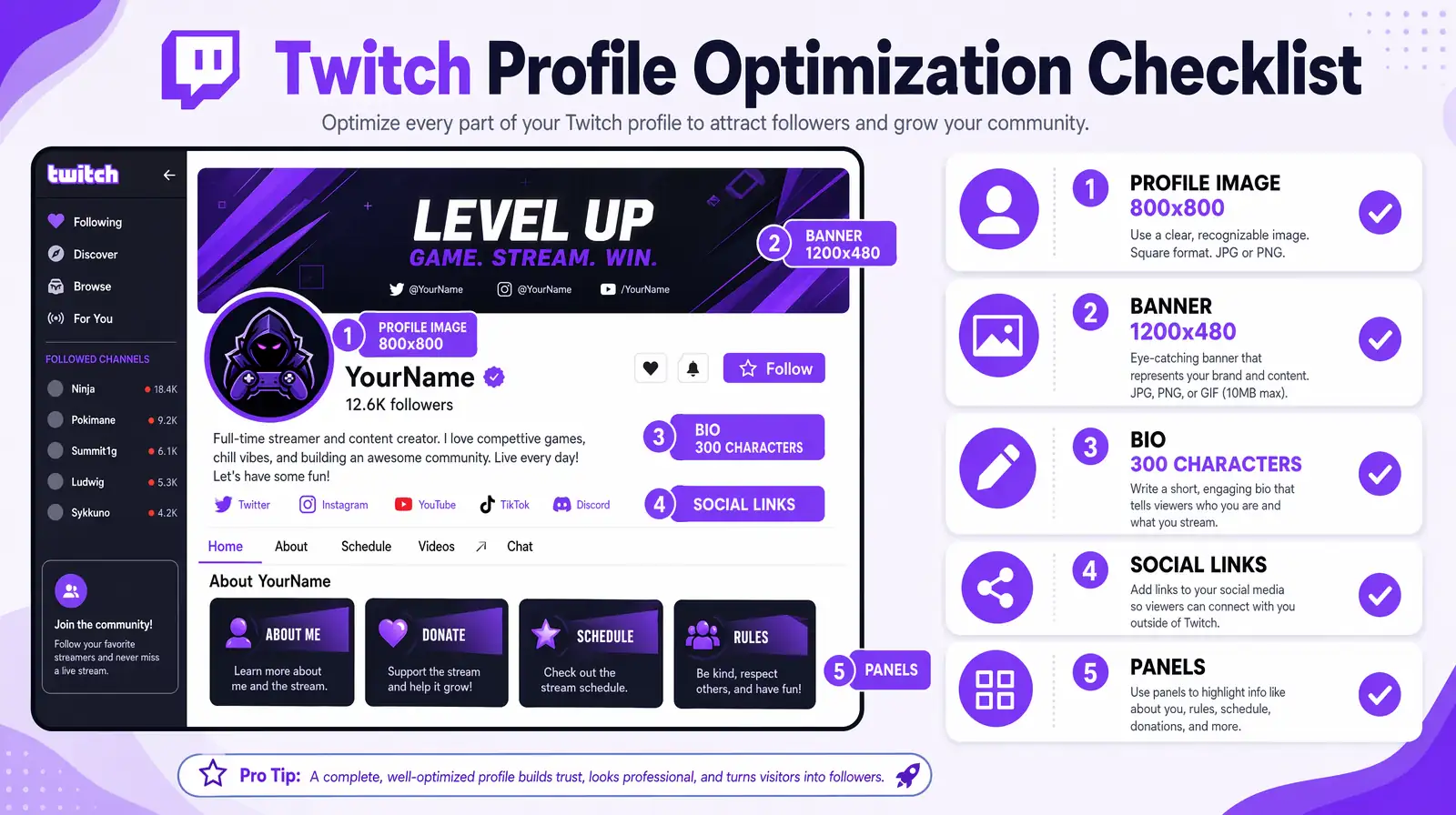
Optimize every element of your Twitch profile — 800x800 avatar, 1200x480 banner, a 300-character bio, and custom panels — before your first broadcast.
| Profile Element | Specification | Purpose |
|---|---|---|
| Profile image | 800x800 px, JPG/PNG | First impression in browse |
| Banner | 1200x480 px | Brand statement |
| Bio | 300 characters | Who, what, when |
| Social links | Twitter/X, YouTube, Discord | Cross-platform discovery |
| Panels | Custom images with links | Schedule, rules, gear, Discord |
Configure your Creator Dashboard (dashboard.twitch.tv) before your first stream. Dashboard settings quietly shape how safe your chat feels, how often Twitch auto-promotes you in the sidebar, and how quickly returning viewers find you — so it's worth spending 15 minutes here before you ever open OBS.
Streaming software captures your screen, webcam, audio, and overlays, then encodes and sends the composed output to Twitch's ingest servers.
| Software | Best For | Platform | Cost | Notable Feature |
|---|---|---|---|---|
| OBS Studio | Customization, advanced users | Windows/Mac/Linux | Free | Most powerful; steepest learning curve |
| Streamlabs Desktop | Beginners | Windows/Mac | Free (Paid Prime tier) | Built-in alerts, widgets, theme library |
| Lightstream | Low-spec PCs; cloud streaming | Browser-based | Paid ($15–$40/mo) | No local processing power required |
| vMix | Professional productions | Windows | Paid ($60–$1,200) | Multi-camera, NDI, advanced mixing |
| Twitch Studio | Absolute beginners | Windows | Free | Twitch-native; minimal setup |
For most streamers, OBS Studio is the best choice. It is free, open-source, and produces the same stream quality as paid alternatives, with lower CPU overhead than Streamlabs Desktop and far more customization than Twitch Studio. The learning curve is steeper in the first hour, but every tutorial, plugin, and overlay pack on the internet assumes you are using OBS — so skills you build here transfer to every future setup, including multi-platform streaming to YouTube and Kick later on.
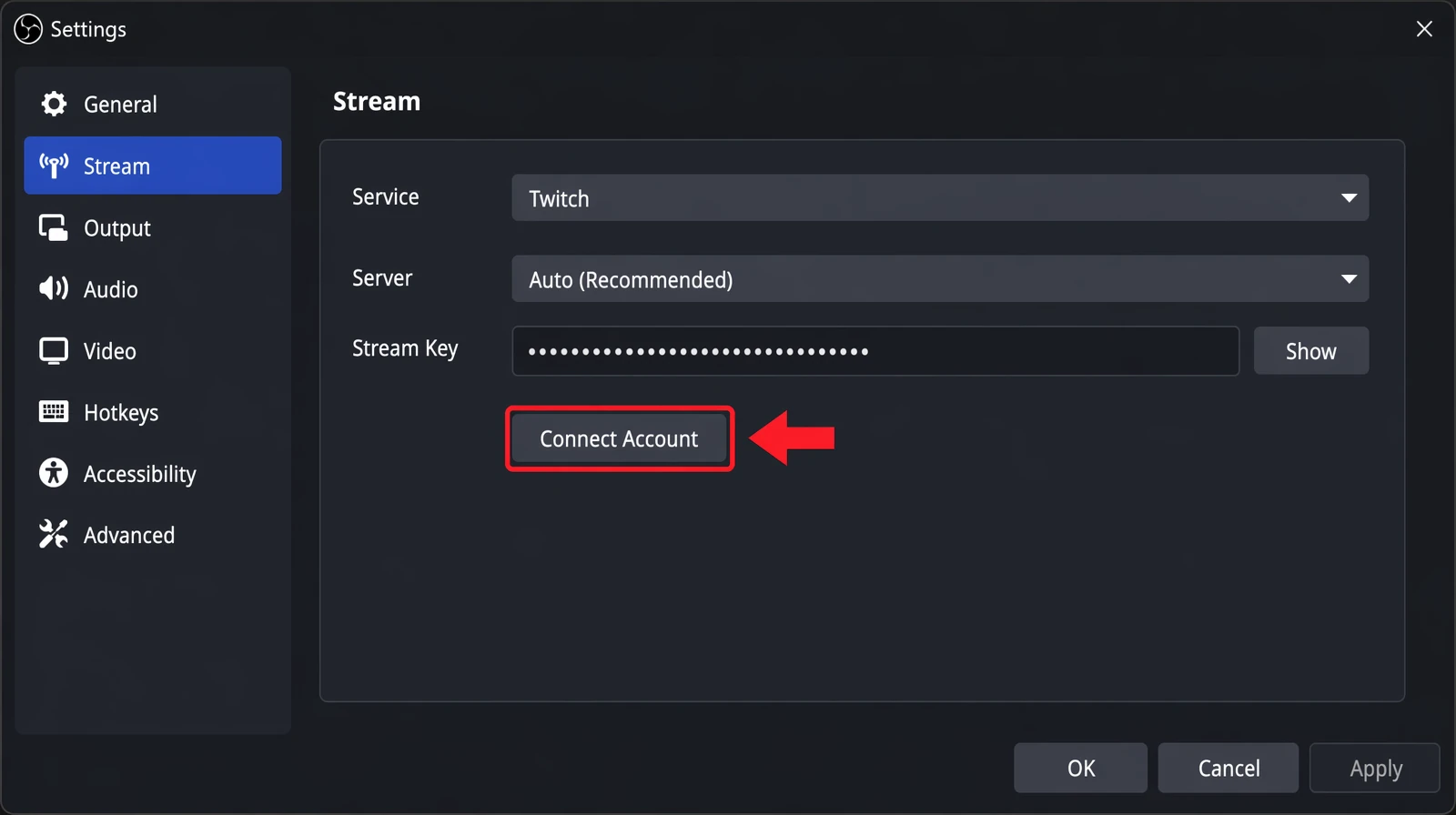
OBS Studio's Stream settings panel — click Connect Account to authenticate with Twitch and auto-import your stream key and recommended presets.
| Setting | Recommended Value | Notes |
|---|---|---|
| Video bitrate | 4,000–6,000 Kbps (720p/60fps or 1080p) | Twitch transcodes at 6,000 Kbps max for Partners |
| Audio bitrate | 160 Kbps | Minimum 128 Kbps; 320 Kbps for music streams |
| Encoder | NVENC (NVIDIA), AMD HW, or Apple VT | Hardware encoding reduces CPU load significantly |
| Base resolution | 1920x1080 | Match your display resolution |
| Output resolution | 1280x720 or 1920x1080 | Use 720p if upload speed is limited below 6 Mbps |
| FPS | 60 | 30 FPS acceptable for low-motion content |
| Keyframe interval | 2 seconds | Required by Twitch for smooth playback on all viewers |
Build these four scenes before your first stream:
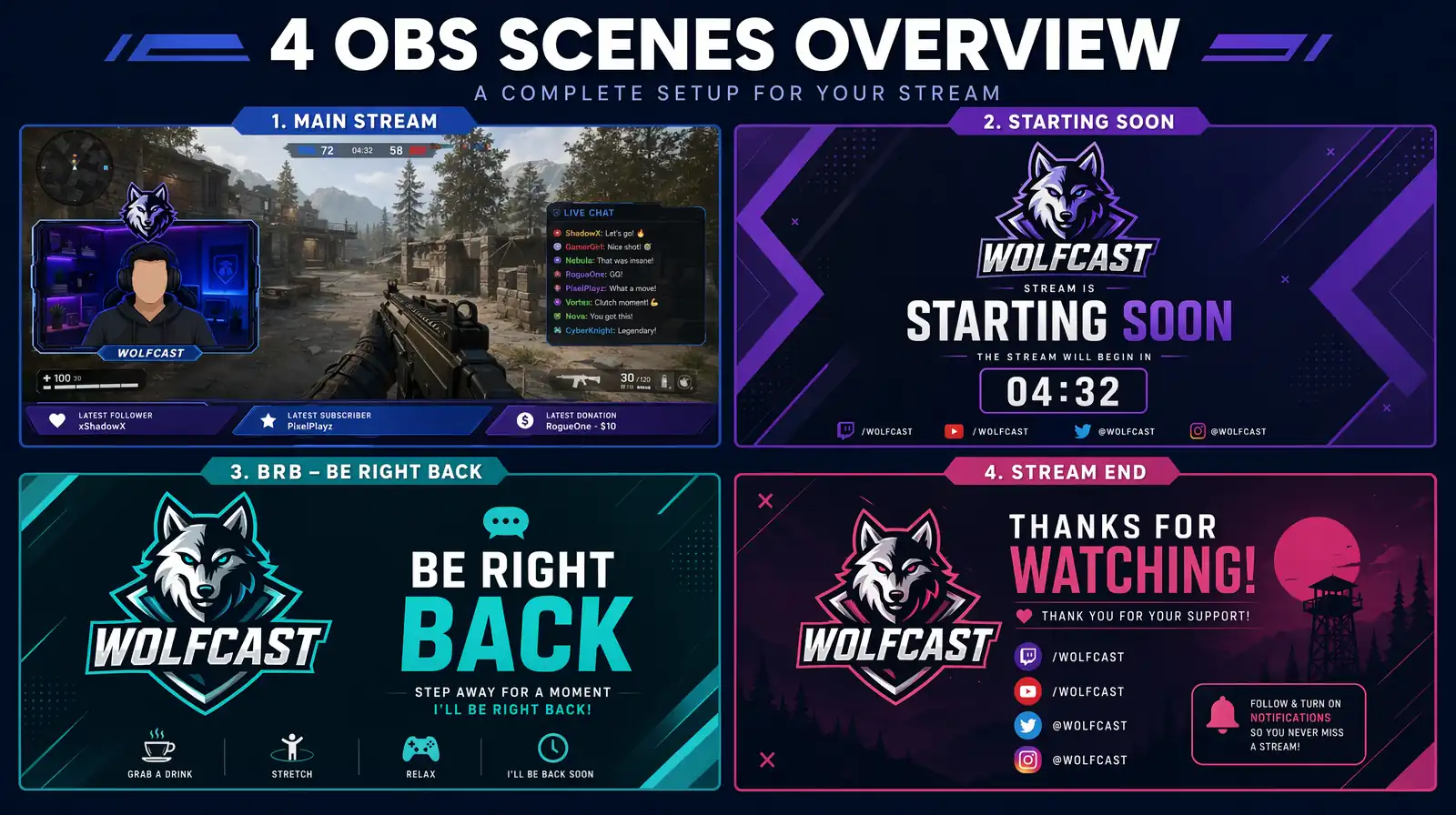
The four essential OBS scenes every Twitch streamer should build — Main Stream, Starting Soon, BRB, and Stream End — for a professional broadcast flow.
| Scene | Sources | Purpose |
|---|---|---|
| Main Stream | Display/Game Capture + Webcam + Mic + Audio + Overlay | Primary content |
| Starting Soon | Branded image + countdown + music | Pre-stream lobby |
| BRB | Branded image + looping animation | Brief breaks |
| Stream End | Branded outro + social links | Follow/subscribe CTA |
Add overlays (chat boxes, follower alerts, donations) via OBS Browser Sources pointed at Streamlabs, StreamElements, or OWN3D Pro.
Dropped frames are the most common OBS problem for new Twitch streamers, and they almost always come from one of three causes: network instability, CPU-bound x264 encoding, or a bitrate set higher than your upload can sustain. Open View > Stats in OBS while streaming — aim for 0% dropped frames, CPU usage under 70%, and encoding lag near zero. If your CPU sits above 80%, switch the encoder to NVENC (NVIDIA) or AMD HW H.264 so your GPU handles compression while the CPU runs the game. If dropped frames spike only during high-motion gameplay, lower the bitrate by 500 Kbps or drop the output resolution from 1080p to 720p — Twitch viewers almost never notice, and stability beats resolution every time.
Console streaming is available natively on PlayStation 5/4 and Xbox Series X/One. For PlayStation: Create/Share button → Broadcast Gameplay → Twitch. For Xbox: download the Twitch app from the Microsoft Store. Nintendo Switch does not support native Twitch broadcasting — you need an external capture card (Elgato HD60 X, AVerMedia Live Gamer Mini, or Razer Ripsaw HD) that takes HDMI out of the dock and feeds it into OBS on a PC or Mac. The same capture-card workflow lets PlayStation and Xbox streamers add custom overlays, alerts, and multi-scene layouts that native console streaming cannot produce, and it sidesteps the resolution and bitrate caps Sony and Microsoft enforce on in-console broadcasts.
You do not need expensive gear to start — a $30 USB microphone and a budget webcam are sufficient for your first streams.
Audio quality matters more than video quality for viewer retention on Twitch. In OBS, apply a Noise Suppression filter (RNNoise) and a Limiter to every microphone source.
| Budget Tier | Microphone | Price (Approx.) | Connection |
|---|---|---|---|
| Entry | FIFINE K669B | ~$30 | USB |
| Mid-range | Elgato Wave:3 | ~$150 | USB |
| Premium | Shure SM7B | ~$400 | XLR (requires audio interface) |
Streams with a visible streamer face consistently outperform faceless streams in average watch duration.
| Budget Tier | Webcam | Price (Approx.) | Max Resolution |
|---|---|---|---|
| Entry | Logitech C920 | ~$70 | 1080p/30fps |
| Mid-range | Razer Kiyo Pro | ~$200 | 1080p/60fps |
| Premium | Sony ZV-1 (as webcam) | ~$700 | 4K/30fps |
Good lighting improves perceived video quality more than any webcam upgrade. Three-point lighting uses a key light (45 degrees to one side of your face), a fill light (opposite side, at roughly half the brightness of the key), and a back light (behind and above you, separating you from your background). A $50–$100 ring light works for beginners, but pairing it with a single softbox or Elgato Key Light Mini produces markedly more flattering results on camera. Avoid overhead ceiling lights as your only source — they cast harsh shadows under the eyes and flatten skin tone, which is the exact opposite of what you want for long sessions where viewers are staring at your face.
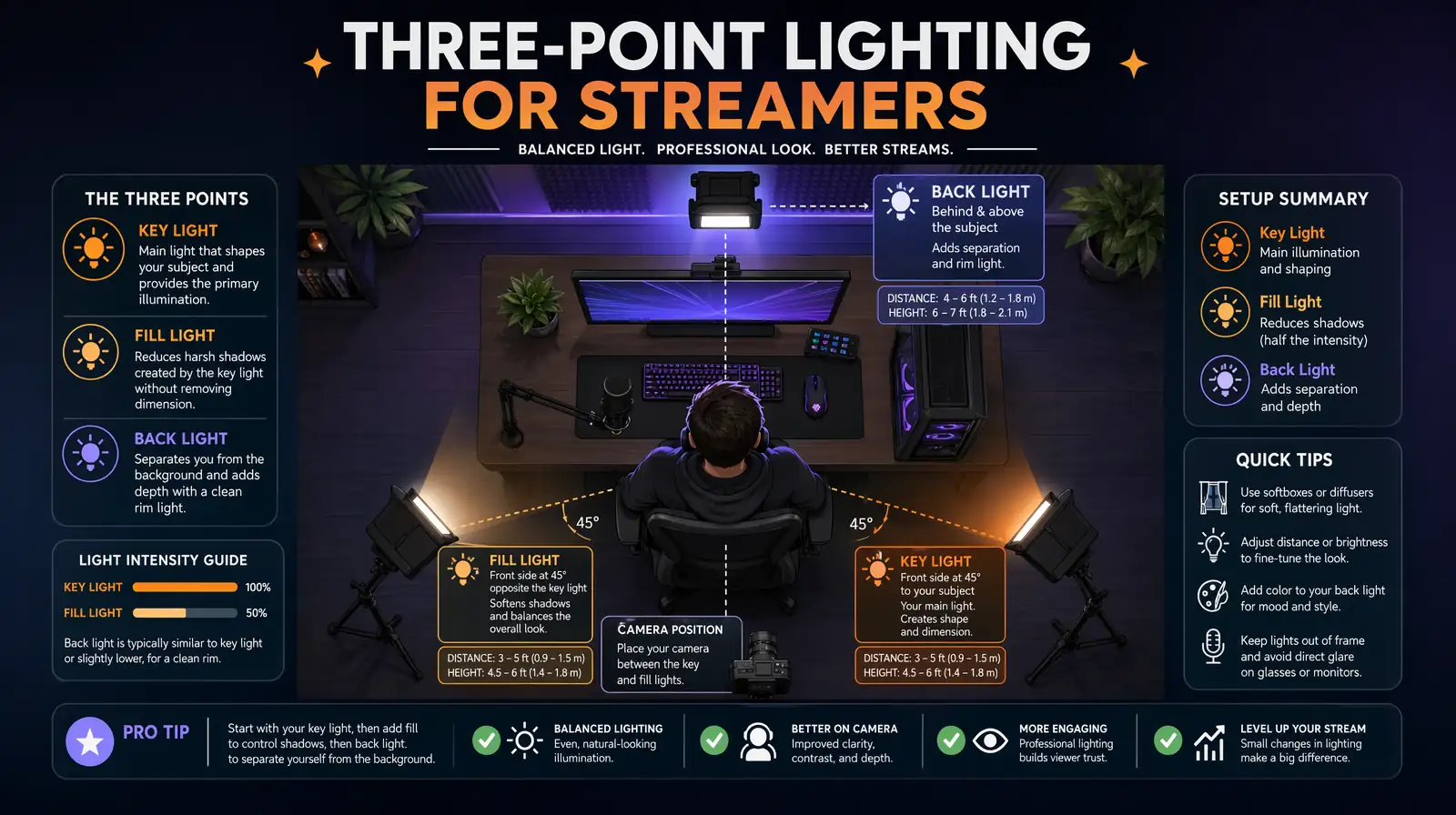
A classic three-point lighting setup — key, fill, and back light — flatters the streamer on camera and improves perceived video quality more than any webcam upgrade.
Your upload speed is the primary technical bottleneck for streaming quality. Twitch recommends a stable upload speed of at least 6 Mbps for 1080p/60fps streaming — "stable" being the key word.
| Stream Quality | Minimum Upload Speed | Notes |
|---|---|---|
| 720p @ 30fps | 3 Mbps | Lowest-quality acceptable option |
| 720p @ 60fps | 4.5 Mbps | Recommended minimum for gaming |
| 1080p @ 30fps | 5 Mbps | Good for camera-heavy or creative streams |
| 1080p @ 60fps | 6 Mbps | Twitch's recommended standard |
Always use a wired Ethernet connection for streaming. Wi-Fi introduces packet loss and variable latency causing dropped frames and viewer buffering, and this remains true even on Wi-Fi 6 and 6E setups because interference from neighbors, microwaves, and Bluetooth traffic is unpredictable in a way ethernet is not. A $10 Ethernet cable eliminates the majority of streaming stability issues, and most streamers who believe they have "internet problems" actually have a Wi-Fi problem they could fix in five minutes.
Before every public stream, run through these network optimization essentials: test upload speed using Twitch's Bandwidth Test tool (stream.twitch.tv/bandwidth-test) and confirm you have at least 1.5× headroom over your target bitrate, close bandwidth-heavy background applications (cloud backups, torrents, game patches, Windows Update), and configure your router's QoS settings to prioritize your streaming PC's traffic over every other device on the network.
Growing on Twitch in 2026 requires deliberate strategy. The platform's discovery algorithm surfaces channels with higher chat activity — a channel with 20 viewers where 15 are chatting outperforms one with 50 passive viewers.
| Strategy | Impact Level |
|---|---|
| Niche selection — stream a specific game/topic consistently | Very High |
| Consistent schedule — same days/times each week | High |
| Category optimization — choose less-saturated categories | High |
| Stream length — minimum 2 hours per session | Medium |
| Collaboration and raids — raid others at stream end; co-stream with similar-sized creators | High |
Category selection is the most underrated growth lever for new streamers. Target categories with 500–5,000 concurrent viewers at your streaming time — enough traffic that real viewers are actively browsing the category, but few enough competing streamers that your thumbnail lands on page one within your first month of streaming. Niche IRL categories, indie games with active communities, and recently released titles before the megastreamers arrive are consistently the easiest discovery pockets; use TwitchTracker to verify a category's concurrent viewer count at your actual go-live hour before you commit to it.
| Platform | Content Type | Strategy |
|---|---|---|
| TikTok / YouTube Shorts | 30–90 second highlights | Clip best moments; publish within 24 hours |
| YouTube | Full VODs or edited highlights | Long-term SEO value; drives passive Twitch traffic |
| Twitter/X | Stream announcements | "Going live" posts reach engaged followers |
| Discord | Dedicated community server | Push notifications reach loyal viewers directly |
For international audience reach, VideoDubber can translate highlight reels into 150+ languages, which opens up VOD and Shorts audiences outside your native language without you needing to re-record a single line of commentary.
Twitch monetization is a staged system tied to specific growth milestones, with different revenue streams unlocking at each tier.
| Requirement | Target |
|---|---|
| Unique broadcast days | 8 days |
| Average concurrent viewers | 3+ viewers |
| Total broadcast minutes | 500 minutes (~8–9 hours) |
| Followers | 50 followers |
Once Affiliate status is reached, you unlock Subscriptions, Bits, and Channel Points — three income streams that most streamers don't realize compound with each other: subscribers earn Channel Points faster, and active Channel Points redemptions signal to the Twitch algorithm that your chat is engaged, which modestly improves category sort order. Most consistent streamers reach Affiliate within 30–60 days of their first public broadcast, provided they stream on a fixed weekly schedule and put the minimum effort into cross-platform clip distribution.
| Requirement | Target |
|---|---|
| Stream days in 30 days | 25 days |
| Average concurrent viewers | 75+ viewers |
| Unique broadcast minutes | 12,500 minutes (~200 hours) |
Partners receive ad revenue control, a higher subscription revenue split (up to 70/30 vs. Affiliate's 50/50), priority transcoding so mobile viewers always get a 160p/360p/480p option alongside source quality, and 60-day VOD storage instead of the 14-day cap Affiliates live with.
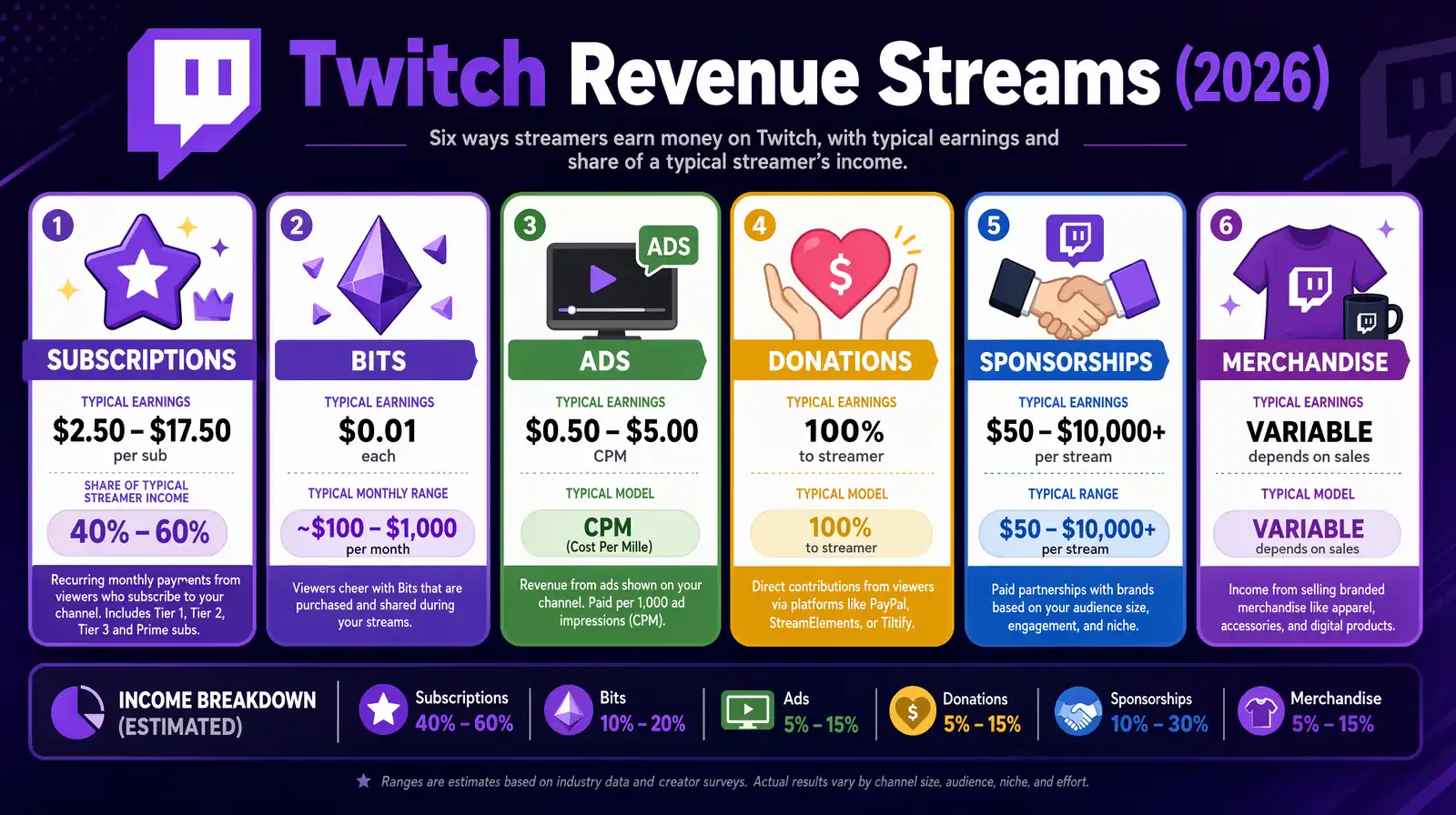
Twitch monetization stacks six revenue streams — subscriptions, bits, ads, donations, sponsorships, and merchandise — with subscriptions typically contributing 40–60% of full-time streamer income.
| Revenue Type | How It Works | Typical Earnings |
|---|---|---|
| Subscriptions | $4.99/$9.99/$24.99 per month; 50% (Affiliate) or up to 70% (Partner) | $2.50–$17.50 per sub/month |
| Bits | Viewers "cheer" with Bits; each Bit = $0.01 | $100–$1,000/month (mid-tier) |
| Ads | CPM varies by season; Partners control scheduling | $0.50–$5 CPM |
| Donations | PayPal, Ko-fi, StreamElements tips — no Twitch cut | Highly variable |
| Sponsorships | Brand deals for peripherals, games, services | $50–$10,000+ per stream |
| Merchandise | Via Teespring, Streamlabs Merch, Spring | Varies by product |
The most sustainable income model combines subscriptions (predictable monthly base) with periodic brand deals. Successful full-time streamers typically derive 40–60% of income from subscriptions, 20–30% from sponsorships, and the remainder from ads, merchandise, and tips.
| Average Concurrent Viewers | Estimated Sub Rate | Estimated Monthly Sub Revenue |
|---|---|---|
| 10–20 viewers | 5–10 subs | $12–$50/month |
| 50–100 viewers | 20–60 subs | $50–$300/month |
| 200–500 viewers | 100–300 subs | $250–$1,500/month |
| 1,000+ viewers | 500–2,000 subs | $1,250–$10,000/month |
Estimates based on industry subscription rate benchmarks of 1–3% of average concurrent viewers
| Bot | Best For | Standout Feature |
|---|---|---|
| Nightbot | Basic moderation and custom commands | Simple cloud-hosted setup; no server required |
| StreamElements | Full-featured bot with loyalty system | Industry-leading channel points and loyalty integration |
| Moobot | Advanced spam and follower-bot protection | Granular anti-spam controls with allow/block lists |
| PhantomBot | Self-hosted full control | Completely customizable for technically capable streamers |
| Tool | Best For | Price |
|---|---|---|
| OWN3D Pro | Professional animated overlays and alerts | Free tier available; paid plans from $4.99/month |
| Streamlabs Prime | Complete theme packages with widget support | $19/month |
| Nerd or Die | Creative, stylized, and artistic design elements | Free packs plus paid premium designs |
| Placeit | Customizable logo and overlay template builder | Subscription from $7.47/month |
Twitch Extensions let you embed interactive overlays on your channel page. Top extensions: Sound Alerts (channel point sound redemptions), Predictions Game (viewers stake points on outcomes), Kappamon (interactive virtual pets), and Streamlabs Leaderboard (top donors/subscribers in real time).
TwitchTracker provides free historical analytics — peak viewers, hours streamed, follower growth, and per-game breakdowns dating back to 2015 for any channel on the platform. Sullygnome offers deeper per-category analysis including which streamers raid each other most often, making it the best free tool for finding similarly-sized creators to collaborate with. The Twitch Creator Dashboard Insights tab shows viewer retention curves and follower conversion per stream, and reading those curves is where most 10-viewer channels learn that their "slow hour" is actually where they lose 40% of their audience every night — usually because they go silent during a loading screen or a repetitive grind segment.
| Checklist Item | Status |
|---|---|
| Twitch account created and 2FA enabled | |
| OBS installed, configured, connected via stream key | |
| Private test stream completed and recording reviewed | |
| Audio levels at -12 to -6 dB; noise suppression applied | |
| Webcam positioned, lighting set, background clean | |
| Four core scenes built (Main, Starting Soon, BRB, End) | |
| Chat bot configured with 3+ custom commands | |
| Friends invited to chat during first stream | |
| Stream title and category set in Dashboard | |
| "Starting Soon" scene active 5 minutes before start |
Run a private test stream before your public debut. Go live without publicizing for 5–10 minutes, then watch the recording. This catches audio sync issues, encoding errors, and overlay problems only visible in playback.
Most new Twitch channels fail for the same handful of reasons, and almost none of them are about production quality or talent. Reviewing these before your fifth stream — not your fiftieth — is the single cheapest way to avoid burning six months on habits that cap your growth.
You need 50 followers plus 500 broadcast minutes, 8 unique broadcast days, and 3 average concurrent viewers within any 30-day period to qualify as a Twitch Affiliate. Most consistent streamers reach Affiliate within 30–60 days.
Streamlabs Desktop is most accessible for beginners with pre-built alerts and themes. OBS Studio (free, open-source) is the stronger long-term choice with more control and lower CPU overhead. Both produce equivalent output quality.
Twitch recommends 3 Mbps minimum for 720p/30fps and 6 Mbps for 1080p/60fps. Always use wired Ethernet — Wi-Fi introduces packet loss causing dropped frames invisible to you but damaging to viewers.
Twitch Partnership typically takes 6 months to 2+ years, with the median around 12–18 months. The 75 average concurrent viewer requirement means building a community of hundreds of engaged followers.
Avoid highest-traffic categories (Fortnite, Minecraft, GTA V) where thousands of streamers bury new channels. Target categories with 500–5,000 concurrent viewers at your stream time — niche IRL categories and indie games are consistently effective starting niches.
Yes. The Twitch mobile app supports direct camera streaming, PlayStation 5/PS4 stream natively via the Share/Create button, and Xbox Series X/One supports Twitch via the Microsoft Store app. These options offer limited overlay and encoding control compared to PC.
Twitch takes 50% from Affiliates — a $4.99 subscriber generates $2.50 for the streamer. Partners negotiate individually, reaching up to 70/30 splits. External tips via Ko-fi or StreamElements go 100% to the streamer.
Yes, for creators motivated by community building. Twitch's monetization rewards loyalty over impressions — a smaller engaged community can be more sustainable than a larger passive following. Streamers combining Twitch with cross-platform distribution using tools like VideoDubber see the strongest growth.
Start streaming on Twitch → | Translate your stream highlights with VideoDubber →

With a background in AI and a passion for clear technical communication, I enjoy breaking down complex tools and processes. Exploring new software and sharing insights is a key focus.
How to record with OBS Studio in 2026: step-by-step setup, scenes, audio filters, bitrate settings, best plugins, and pro tips for crisp recordings.
How to start a YouTube channel in 2026: step-by-step setup, niche selection, SEO, algorithm mastery, Shorts strategy, and full monetization guide.
How much does TikTok pay in 2026? Creator Rewards pays $0.40–$1.00/1K views. All 6 income streams, RPM by region, brand deal rates, and real earnings scenarios.
Is CapCut banned in 2026? Country-by-country status, €530M EU fine, June 2025 ToS IP risks, biometric data facts, and best privacy-safe alternatives.
How to add subtitles to YouTube videos: step-by-step guide for YouTube Studio, SRT uploads, auto-captions, and third-party tools. Boost SEO and accessibility.