You can transcribe a video to text in Word using the built-in Transcribe feature in Word for the web — upload an MP4 (or audio file), and Word converts the speech into a text transcript with speakers and timestamps that you can edit and drop straight into your document. This guide shows the exact steps, the limits to watch for, free alternatives if you don't have Microsoft 365, and how to transcribe and translate a video into other languages.
Transcribing a video to text in Word is ideal for meeting recordings, interviews, lectures, and YouTube videos you want to repurpose into a written transcript, blog post, or captions — all without leaving Microsoft Word.
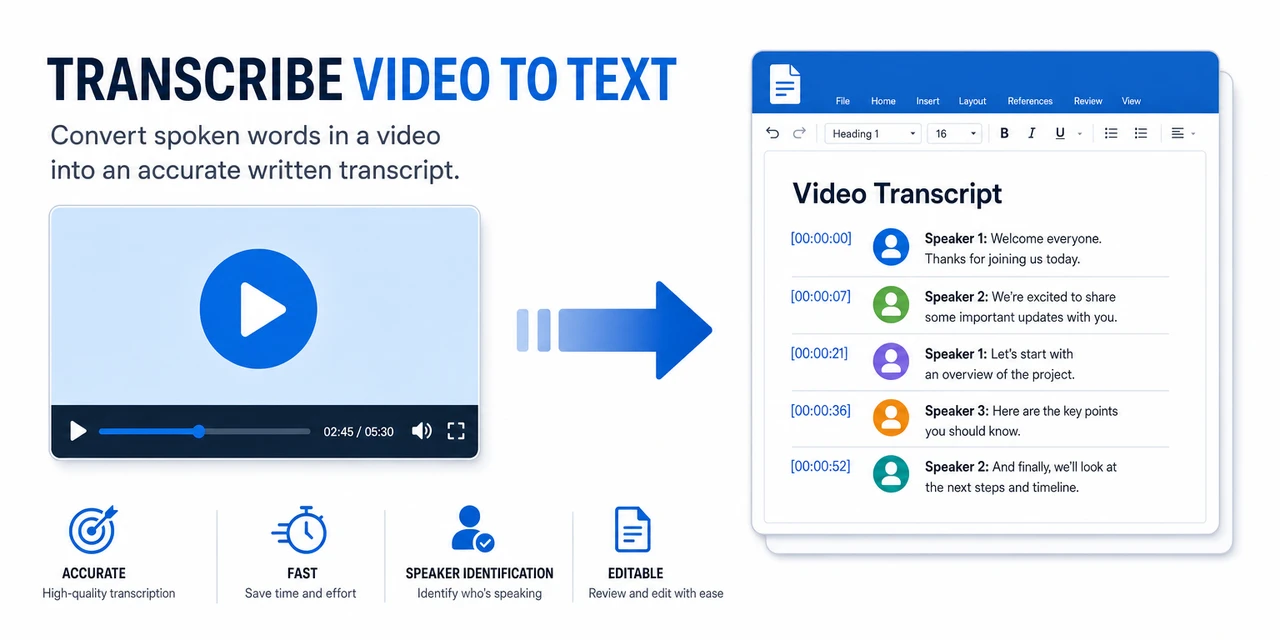
Word's Transcribe feature turns a video's speech into editable text with speakers and timestamps.
Quick Answer: Transcribe a Video to Text in Word
- Where: The Transcribe tool lives in Word for the web (web version), not the desktop app — under Home → Dictate → Transcribe.
- What you need: A Microsoft 365 subscription and a supported browser (Edge or Chrome).
- Supported files: MP4, WAV, MP3, and M4A (so you can upload a video file directly).
- Steps: Open Word online → Home → Dictate ▾ → Transcribe → Upload audio → select your video → wait → Add to document.
- Limit: 300 minutes per month of uploaded transcription on Microsoft 365.
- Free alternative: Use Microsoft Clipchamp or an online transcriber if you don't have a 365 subscription.
- Need other languages? Use VideoDubber's Video Translator to transcribe and translate the video into 150+ languages with natural voiceover.
Can You Transcribe a Video to Text in Word?
Yes — Word can transcribe a video to text using the Transcribe feature in Word for the web. It accepts video files (MP4) as well as audio (MP3, WAV, M4A), uses Microsoft's speech-to-text engine to convert the spoken words into text, and separates the result by speaker with timestamps you can edit.
Two things matter before you start:
- Transcribe is web-only. It is part of Word for the web (Word online), not the installed desktop version of Word. If you open the Transcribe button in desktop Word, it sends you to the browser.
- It needs Microsoft 365. Uploading a file for transcription requires a Microsoft 365 (work, school, or personal) subscription. Free Microsoft accounts can record-and-transcribe in limited cases but cannot upload long files.
Try VideoDubber's Video Translator free if you also need the transcript translated and voiced in another language.
How to Transcribe a Video to Text in Word (Step by Step)
Here is the full workflow for uploading a video file and transcribing it in Word for the web. It takes a few minutes plus the processing time, which is roughly as long as the video itself.
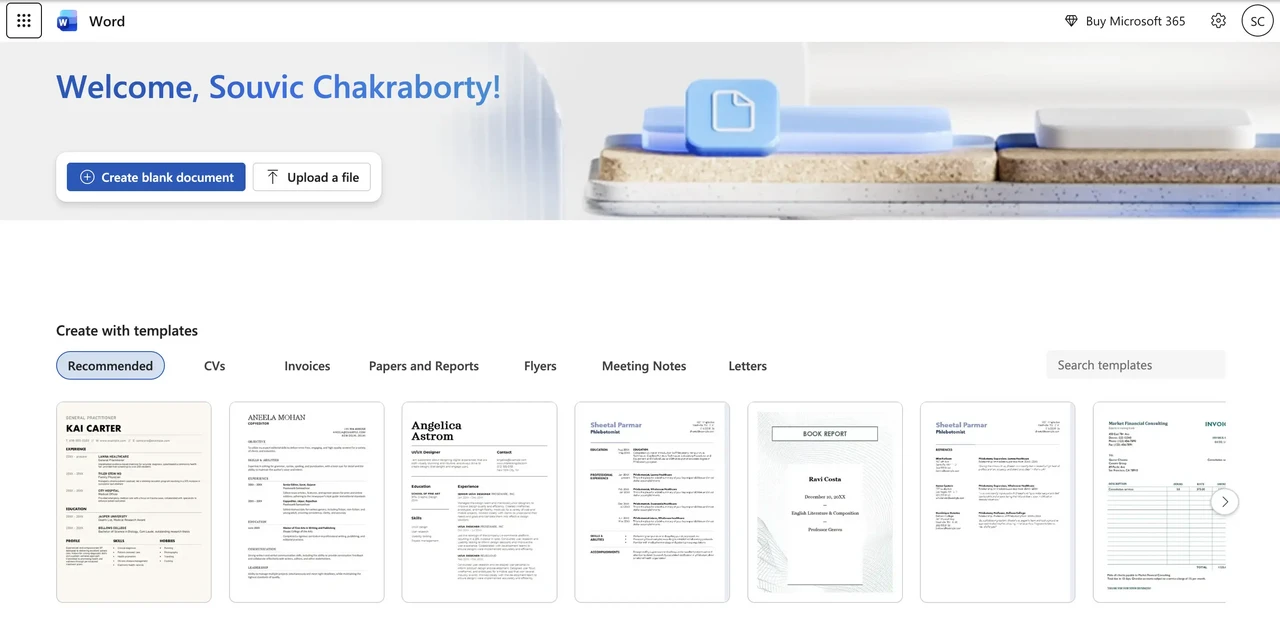
Word for the web is where Transcribe lives — open a blank document, then find Transcribe under Home → Dictate.
Step 1: Open Word for the web and sign in
Go to office.com, sign in with your Microsoft 365 account, and open a blank document in Word for the web. Transcribe only appears in the browser version.
Step 2: Open the Transcribe tool
On the Home tab, find the Dictate button on the right. Click the small dropdown arrow next to it and choose Transcribe. A transcription panel opens on the right side of the document.
Step 3: Upload your video file
In the panel, click Upload audio (this button accepts video too). Select your MP4 file — or an MP3, WAV, or M4A audio file — from your computer. Word uploads the file and starts transcribing.
Step 4: Wait for Word to transcribe
Word processes the file in the background. Larger files take longer, so keep the browser tab open. When it finishes, the transcript appears in the panel, broken into segments by speaker with timestamps.
Step 5: Review and edit the transcript
Play the audio inside the panel and fix any errors. You can rename speakers (e.g., "Speaker 1" → a real name), edit wording, and adjust segments. Editing here keeps the timestamps intact.
Step 6: Add the transcript to your document
Hover over a section and click the + to add a single segment, or use Add all to document to insert the entire transcript. You can add it with speakers and timestamps, with speakers only, or as plain text — then format and save like any Word file.
How to Record and Transcribe Directly in Word
You don't need an existing file to transcribe in Word. The Transcribe panel also records live:
- In Word for the web, open Home → Dictate ▾ → Transcribe.
- Click Start recording and allow microphone access.
- Speak (or play the video aloud near the mic) — Word transcribes in the background while you keep working in the document.
- Click Save and transcribe now when finished, then add the transcript to your document.
This is handy for live meetings or quick voice notes, though uploading the actual video file gives a cleaner, more accurate result.
Word Transcribe Limits You Should Know
Before relying on Word for a big project, know the constraints:
- 300 minutes per month. Uploaded transcription is capped at five hours (300 minutes) monthly per account; recording directly has no upload cap but is session-limited.
- Microsoft 365 required. No active 365 subscription means no file upload transcription.
- Web only. Transcribe is unavailable in the desktop and mobile Word apps — only Word for the web.
- One file at a time and a single uploaded file is limited to about 200 MB.
- Language support is limited. Transcribe works in a set list of supported languages and transcribes in one language at a time — it does not translate.
- Best with clear audio. Background noise, accents, and overlapping speakers reduce accuracy, so expect to proofread.
How to Transcribe a Video to Text in Word for Free
If you don't have Microsoft 365, you can still get a transcript with free Microsoft tools and online transcribers, then paste the text into Word.
Microsoft Clipchamp (free)
Clipchamp is Microsoft's free video editor (built into Windows 11) with auto-captions:
- Open Clipchamp and import your video.
- Add the video to the timeline and open the Captions tool.
- Click Transcribe media to auto-generate captions.
- Download the transcript (or the SRT subtitle file) and paste the text into Word.
Free online transcribers
Tools like HappyScribe, TurboScribe, or Go Transcribe let you upload a video and export a transcript or SRT, which you then open in Word. Most offer a limited number of free minutes before requiring a paid plan.
How Do I Generate a Transcript From a Video in Microsoft?
Microsoft offers transcription in three main places, depending on what you have:
| Tool | Best for | Cost | Notes |
|---|---|---|---|
| Word for the web (Transcribe) | Documents, interviews, transcripts | Microsoft 365 | Upload MP4/MP3, editable transcript with speakers |
| Microsoft Clipchamp | Video captions / SRT | Free | Auto-captions, export transcript |
| Microsoft Stream / Teams | Meeting & video recordings | Microsoft 365 | Auto-transcribes recorded meetings |
For a standalone video file you want as written text, Word for the web's Transcribe is the most direct route. For meeting recordings, Teams/Stream auto-generate a transcript you can copy into Word.
How to Transcribe AND Translate a Video Into Other Languages
Word transcribes in one language only — it cannot translate your video into another language or generate a voiceover. If you need the transcript (or the whole video) in another language, use a dedicated tool.
VideoDubber's Video Translator transcribes a video and translates it into 150+ languages, then regenerates natural AI voiceover — optionally cloning the original speaker's voice — while keeping the background music and timing. It is the fastest way to turn one video into a multilingual asset:
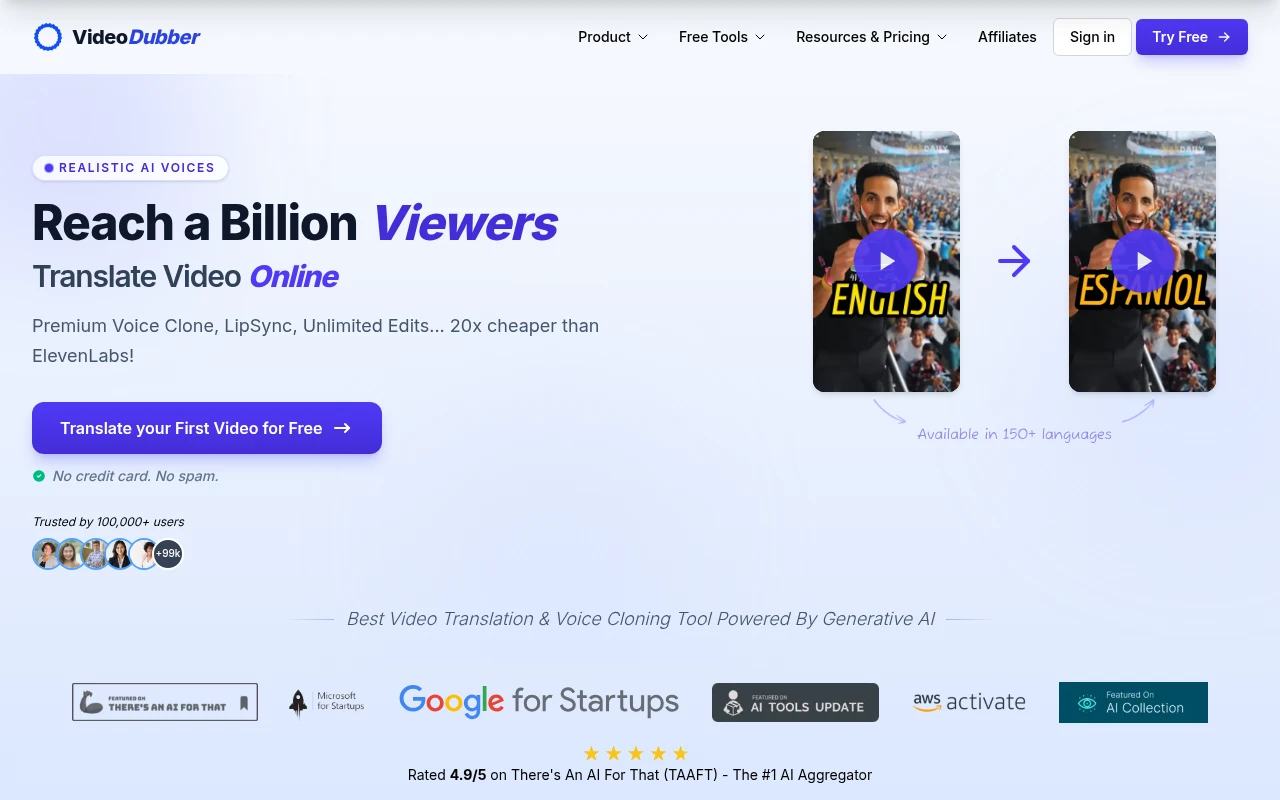
VideoDubber's Video Translator transcribes and translates a video into 150+ languages with natural AI voiceover.
- Upload your video to VideoDubber's Video Translator.
- Pick the source and target languages.
- Get a translated transcript plus a dubbed video with synced AI voices.
For subtitles specifically, VideoDubber's Subtitle Translator translates your SRT/VTT files into other languages, and the Audio Translator handles standalone audio. If you want to learn the basics first, see our guide on how to translate a video.
Word vs Online Transcription Tools
| Feature | Word for the web | Clipchamp (free) | VideoDubber |
|---|---|---|---|
| Transcribe video to text | ✅ MP4/MP3 upload | ✅ Auto-captions | ✅ |
| Cost | Microsoft 365 | Free | Free tier |
| Speakers + timestamps | ✅ | Captions only | ✅ |
| Monthly limit | 300 min upload | Generous free use | Free credits |
| Translate to other languages | ❌ | ❌ | ✅ 150+ languages |
| Dubbed voiceover | ❌ | ❌ | ✅ (voice cloning) |
| Export SRT/subtitles | ❌ | ✅ | ✅ |
Use Word when you just need an editable English (or single-language) transcript inside a document. Use VideoDubber when the video needs to reach a multilingual audience.
Frequently Asked Questions
How can I turn a video into a text transcript?
Upload the video to a transcription tool — Word for the web's Transcribe (Home → Dictate → Transcribe → Upload audio), Microsoft Clipchamp, or an online transcriber. The tool converts the speech to text, which you then edit and save. Word accepts MP4 video files directly.
Can I automatically transcribe a video?
Yes. Word's Transcribe, Clipchamp's auto-captions, Teams/Stream meeting transcripts, and AI tools like VideoDubber all transcribe automatically. You upload the file and the tool returns a text transcript without manual typing — you only proofread the result.
How do I generate a transcript from a video in Microsoft?
Open Word for the web, go to Home → Dictate ▾ → Transcribe, click Upload audio, and select your MP4 file. Word transcribes it into editable text with speakers and timestamps, which you add to your document. This requires a Microsoft 365 subscription.
Can ChatGPT transcribe video to text?
Not directly — ChatGPT cannot process a raw video file's audio on its own. You first transcribe the video with a speech-to-text tool (Word, Whisper, or a dedicated transcriber), then paste the text into ChatGPT to summarize or edit. For one-step transcription, use Word's Transcribe or VideoDubber.
Why is the Transcribe button missing in my Word?
Transcribe only appears in Word for the web with an active Microsoft 365 subscription and a supported browser (Edge or Chrome). It is not available in the desktop or mobile Word apps, and the option is greyed out for free Microsoft accounts.
How long does Word take to transcribe a video?
Transcription roughly matches the length of the recording — a 10-minute video takes around 10 minutes to process. Keep the browser tab open while Word works in the background. Uploads are capped at 300 minutes per month.
Further Reading
How to Translate Your Video Using VideoDubber.ai
Learn how to dub your video into multiple languages effortlessly with VideoDubber.ai. This guide walks you through the easy steps of uploading, translating, and adding voiceovers to your video for multilingual audiences.
Best SRT Translators for Video Translation in 2024
Explore the best SRT translators for video translation in 2024. Discover tools that help convert subtitles into multiple languages and learn how video dubbing solutions can elevate your content for global audiences.
Best Video Translator in 2024: My Honest Experience with the Top 10 Tools
Dive into my hands-on experience with the top 10 video translators of 2024. From speed and language options to usability, discover which tools truly deliver and why VideoDubber.ai stands out.
A Faster Alternative to Notta Video Translator
Discover a faster alternative to Notta Video Translator with VideoDubber.ai, a tool that offers rapid video translation, broad language support, and seamless background audio retention. Perfect for content creators, business professionals, and educational institutions, VideoDubber.ai enhances translation efficiency without sacrificing quality.
Why VideoDubber.ai is a More User-Friendly Alternative to Maestra for Video Translation
VideoDubber vs Maestra for video translation: compare onboarding, pricing clarity, dubbing workflow, lip sync, and editing. See why VideoDubber is easier for creators.