![How to Add Multilingual Audio Tracks to a Video: YouTube & Beyond [2026]](https://ahrefs.com/blog/wp-content/themes/Ahrefs-4/images/categories/icons/general-seo.svg)
How to Add Multilingual Audio Tracks to a Video: YouTube & Beyond [2026]
April 24, 2026 22 mins read
YouTube's multi-language audio feature is one of the most underused growth levers available to creators today — and its impact is quantifiable. Creators who add multilingual audio tracks to their videos see over 15% of total watch time come from non-primary-language viewers, according to YouTube's own early beta data.
Multilingual audio tracks are separate dubbed audio files attached to a single video upload, enabling viewers in different countries to hear the content in their preferred language without the creator publishing separate videos. A Brazilian viewer hears Portuguese; a Hindi speaker hears Hindi; a French viewer hears French — all from one URL, one view counter, and one set of algorithmic signals.
This guide covers the complete workflow: generating dubbed audio tracks with AI, uploading them to YouTube, and extending the strategy to other platforms — with practical tips on quality, language selection, and measuring results.
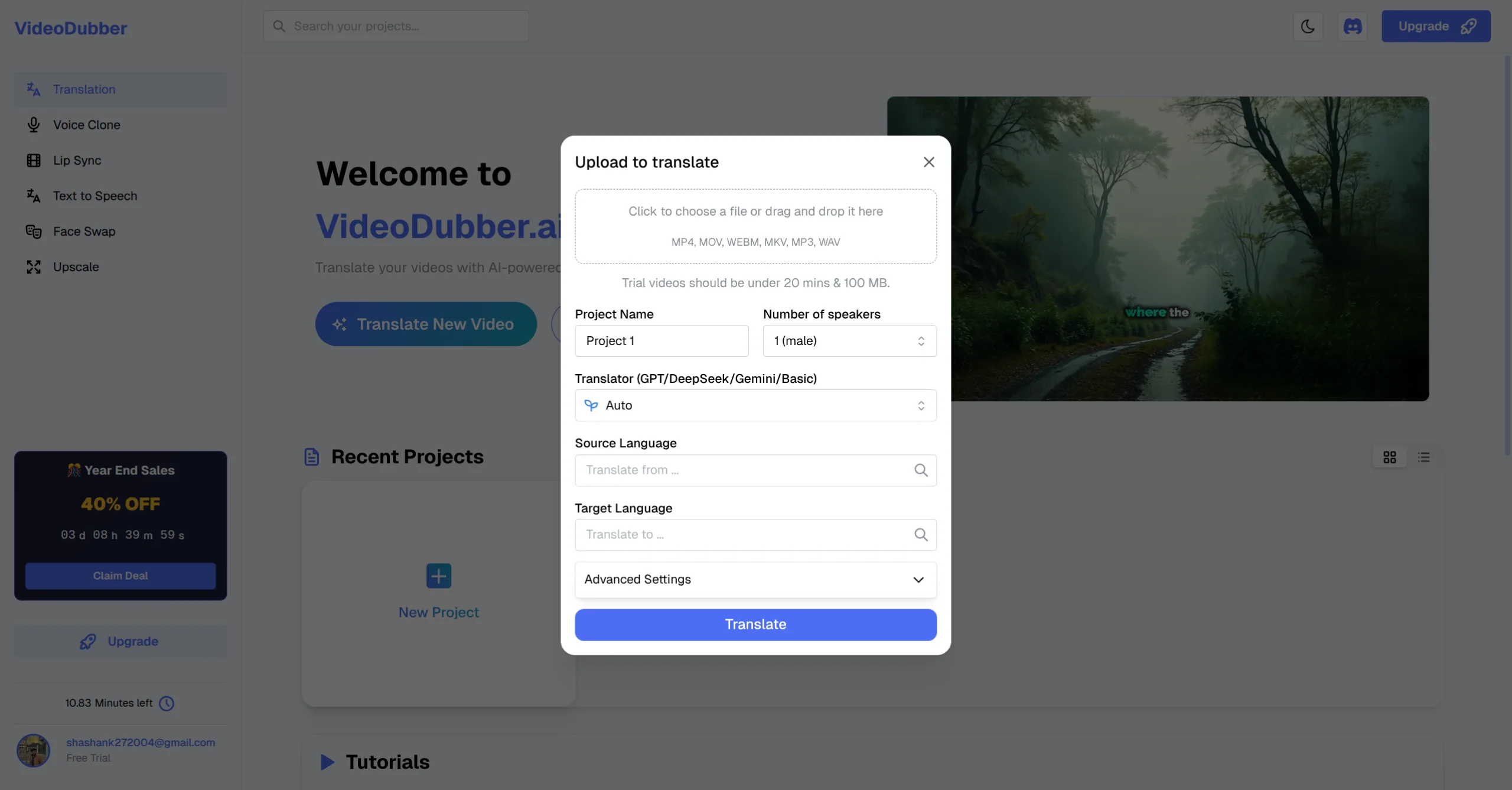
YouTube Import
| Question | Section |
|---|---|
| Why add multilingual audio tracks to your videos? | Why Multilingual Audio Tracks Are a Growth Multiplier |
| How does YouTube's multi-language audio feature work? | How YouTube's Multi-Language Audio Feature Works |
| Step 1: How do I generate dubbed audio tracks? | Step 1: Generate Dubbed Audio Tracks with AI |
| Step 2: How do I review and export audio? | Step 2: Review, Edit, and Export Audio Files |
| Step 3: How do I upload audio tracks to YouTube? | Step 3: Upload Multilingual Audio Tracks to YouTube |
| How do I add multilingual audio to other platforms? | Adding Multilingual Audio to Platforms Beyond YouTube |
| Which languages should I add first? | Which Languages to Prioritize for Maximum Impact |
| How does this affect YouTube SEO? | Multilingual Audio and YouTube SEO |
| Troubleshooting and common issues | Troubleshooting: Common Issues with Multi-Language Audio |
| Frequently asked questions | Frequently Asked Questions |
Adding multilingual audio tracks is a structural growth move — it extends the reach of existing content without creating new content or splitting your audience across multiple uploads.
Video with multilingual audio outperforms subtitles on every retention metric: viewers who hear content in their native language watch longer, engage more, and convert to subscribers at higher rates than viewers who read subtitles. The difference in watch time compounds into better algorithmic placement, which means dubbed videos accumulate views faster over time in target language markets.
Here is the growth mechanics breakdown:
| Factor | English-only video | Video with Spanish audio track |
|---|---|---|
| Spanish viewer average watch time | ~35% (subtitle reading overhead) | ~65–80% (native audio, no reading overhead) |
| Algorithm signal sent | Weak for Spanish-speaking market | Strong — high watch time signals quality |
| Recommendation frequency | Low in LATAM | High in LATAM — algorithm pushes it to more Spanish speakers |
| Subscriber conversion (Spanish viewers) | Low — generic, no personal connection | Higher — voice clone preserves creator personality |
English speakers represent fewer than 20% of the global internet population, according to Internet World Stats 2025 data. Every video you publish without multilingual audio is leaving 80%+ of potential reach untapped. Adding two or three audio tracks multiplies that reach without any new content production.
For a broader view of how this fits into a creator growth strategy, see How Content Creators Grow Views Using Video Dubbing.
YouTube's multi-language audio is a content feature that allows video creators to attach additional dubbed audio tracks to an existing video in YouTube Studio. When a viewer watches the video, YouTube automatically selects the audio track matching their device language settings — or allows them to manually switch tracks via the settings gear icon.
Before this feature existed, creators who wanted multilingual reach had to either add subtitles (inferior for retention) or upload separate dubbed videos (which split views across multiple URLs). Splitting views across separate uploads means each video accumulates algorithmic signals independently — and neither benefits from the combined engagement.
Multi-language audio consolidates all engagement onto a single video. A video with 100,000 English views and 50,000 Spanish views from an added audio track has 150,000 views and the combined watch time — dramatically stronger algorithmic signals than two separate videos with 100,000 and 50,000 views respectively.
YouTube is progressively rolling out multi-language audio upload to all creators. As of 2026, it is available to most channels through YouTube Studio. If you do not see the audio upload option, check that your channel is enrolled in the latest YouTube Studio features, or check YouTube's Help Center for current availability status.
Before uploading audio tracks to YouTube, you need to create them. Manually recording a dubbed version of a video requires a native speaker, a recording setup, and hours of post-production work — per language, per video. AI dubbing compresses this to minutes.
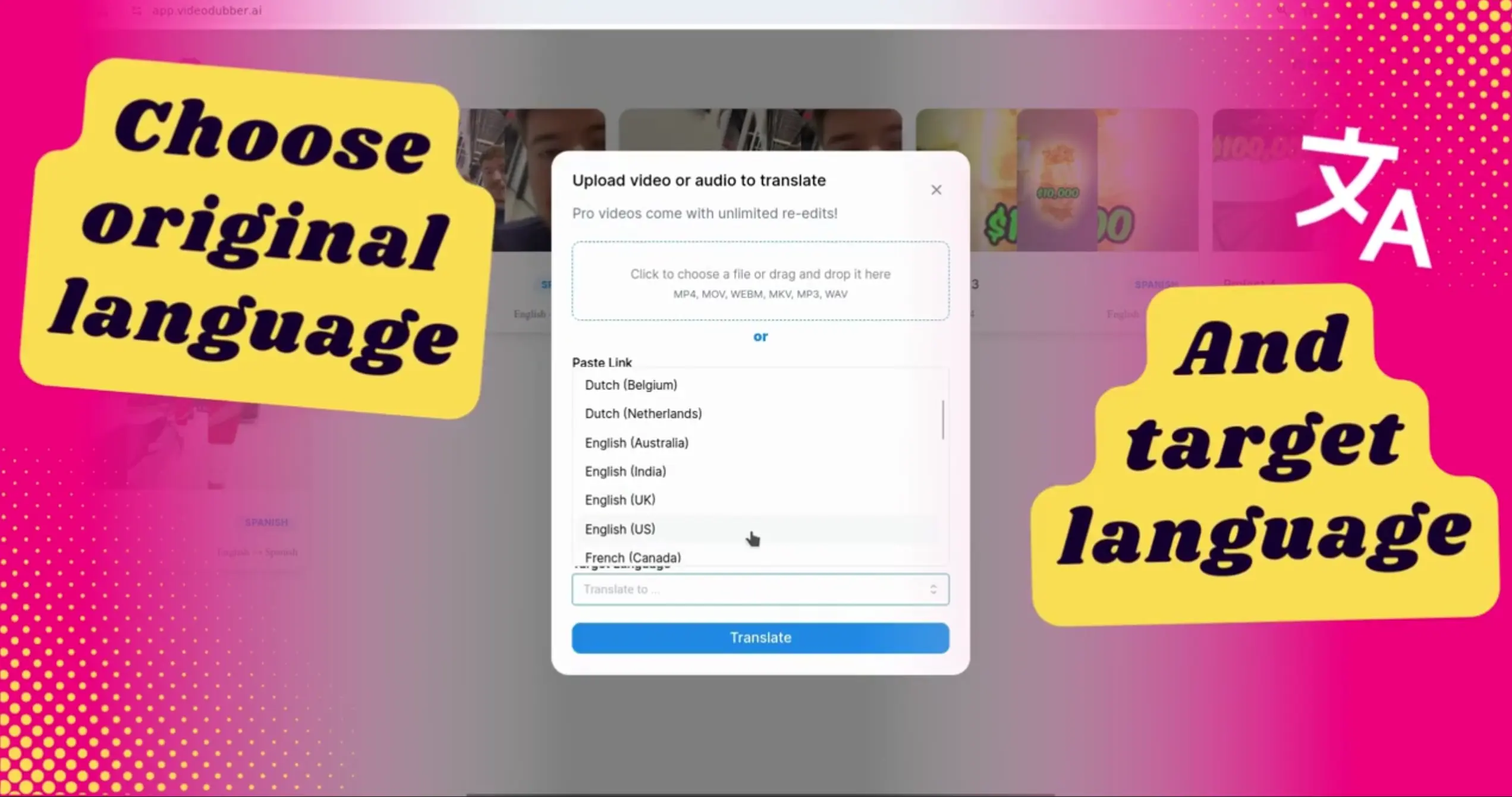
Language Selection
AI translation accuracy is consistently 90–97% for well-supported language pairs. However, review before publishing is important for two types of content:
The platform provides an interactive timeline editor that shows:
Click any segment to edit the translated text, then click Regenerate to re-synthesize that segment. This allows surgical correction without re-processing the entire video.
YouTube requires a standalone audio file (separate from the video) in MP3 or WAV format for multi-language audio uploads. In VideoDubber:
video_spanish.mp3, video_hindi.mp3).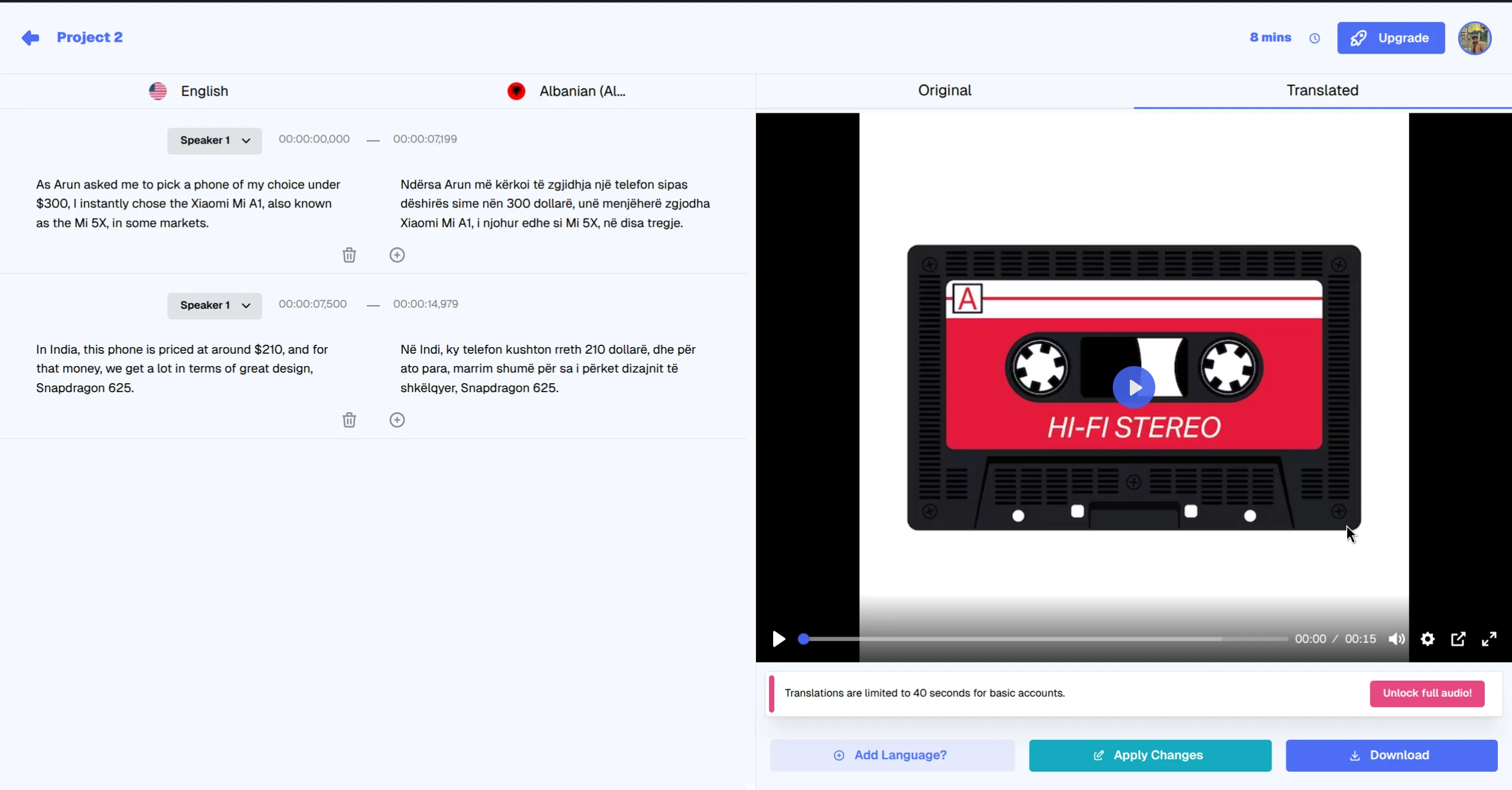
Output Interface
With your MP3 audio files ready, follow these steps in YouTube Studio to attach them to your existing video.
video_spanish.mp3 file.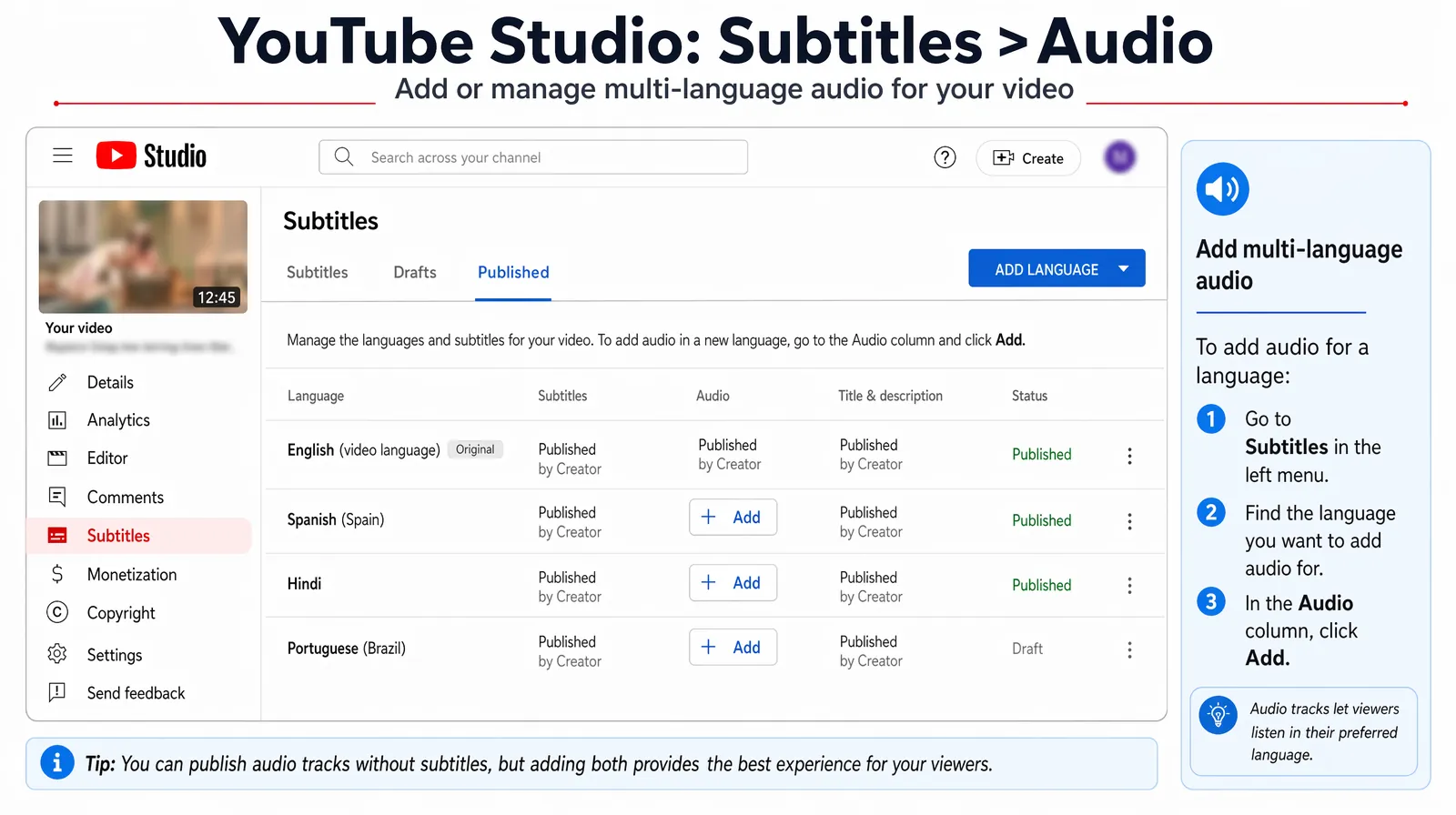
Inside YouTube Studio Subtitles, each added language shows a dedicated Audio column where you attach the dubbed MP3 before publishing.
YouTube is rolling this feature out progressively. If the Audio column is not visible under your Subtitles section, your channel may not yet have access. Check YouTube's Creator Insider channel or Help Center for the latest rollout status. The alternative while waiting is to upload the dubbed video as a separate video with a localized title and description — a viable but less algorithmically optimal approach.
YouTube multi-language audio is the most powerful platform mechanism, but other major platforms have their own multilingual content strategies.
TikTok does not support multi-language audio tracks on a single video as of 2026. For TikTok multilingual distribution:
Instagram Reels follow the same approach as TikTok: upload the complete dubbed video as a separate post with a translated caption. Use location-specific hashtags and tag relevant regional accounts to accelerate initial distribution to your target language audience.
Facebook does support multiple audio tracks on video uploads for Pages with access to the Creator Studio audio track feature. Upload process is similar to YouTube: navigate to your video in Creator Studio, select Edit → Audio, and upload the additional language audio file.
For embedded videos (on landing pages, help centers, or LMS platforms), the cleanest approach is to use a video player that supports multiple audio tracks natively — such as Vimeo or JW Player — or to use a language toggle that swaps between separate video embeds per language.
| Platform | Method | Notes |
|---|---|---|
| YouTube | Multi-language audio track in Studio | Best for consolidating views and watch time |
| TikTok | Separate video upload per language | Use localized caption and hashtags |
| Instagram Reels | Separate Reel per language | Use translated caption and regional hashtags |
| Facebook Watch | Audio track upload via Creator Studio | Available to most Pages |
| Website / LMS | Player with multi-track support or language toggle | Use Vimeo or JW Player for native multi-audio |
The optimal language selection depends on your existing audience data, but a general framework applies to most creators.
| Creator type | Recommended first language | Rationale |
|---|---|---|
| Technology and tutorial | Hindi or Portuguese (BR) | India and Brazil dominate non-English tech content demand |
| Entertainment and gaming | Spanish | 500M+ Spanish speakers, enormous YouTube gaming audience |
| Finance and business | Spanish or German | LATAM finance content is underserved; DACH has high CPM |
| Fitness and lifestyle | Hindi or Spanish | India and LATAM have massive fitness content audiences |
| Cooking and food | Spanish, Hindi, or Japanese | High cross-cultural interest in food content |
The five languages that deliver the broadest initial reach for most creators: Spanish, Hindi, Portuguese (BR), French, Arabic. These five cover roughly 2.5 billion native speakers across the most digitally active growth markets.
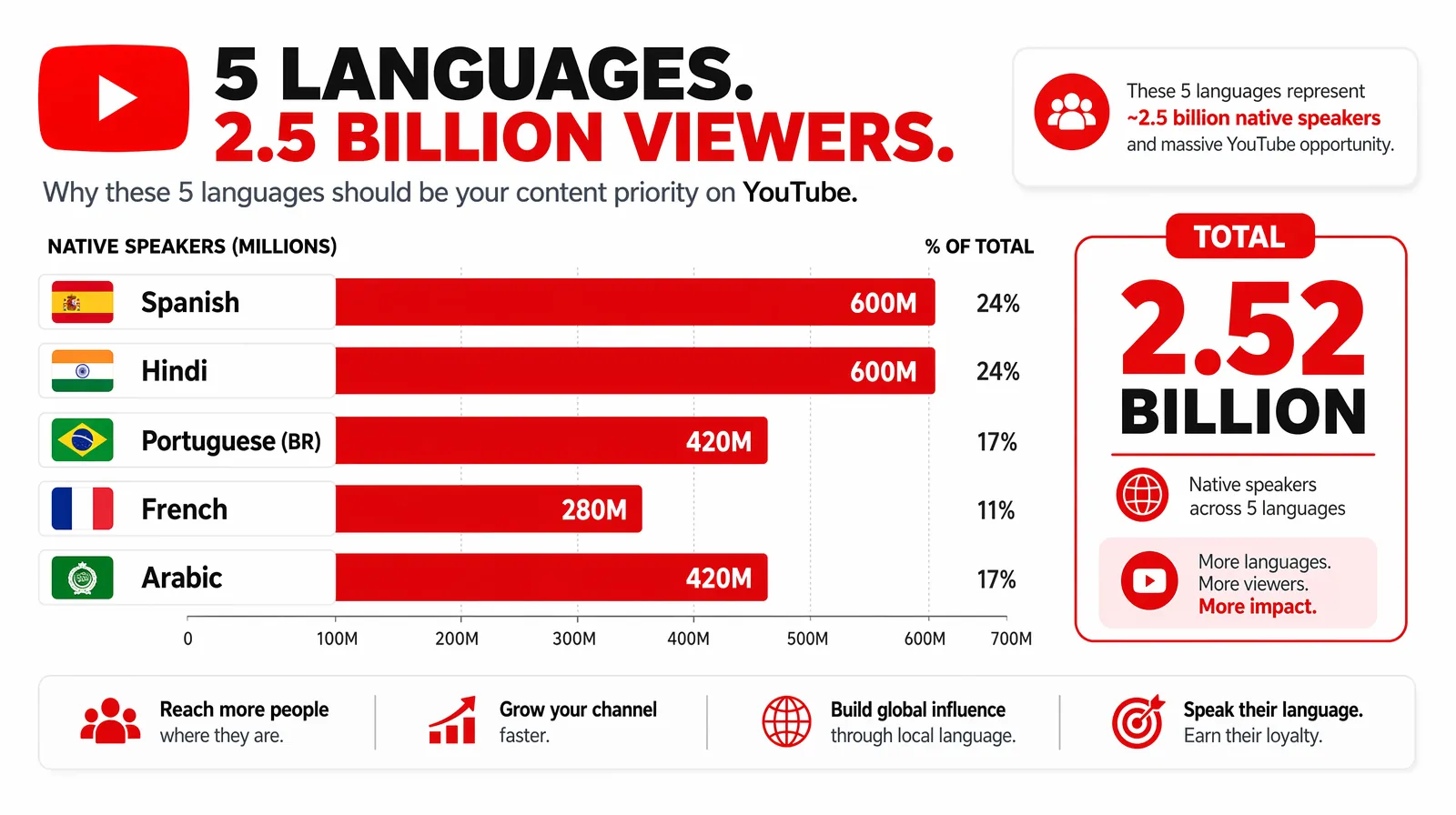
Spanish, Hindi, Portuguese (BR), French, and Arabic together unlock roughly 2.5 billion native speakers — the highest-ROI starting set for most channels.
Adding multilingual audio tracks directly improves your video's SEO performance in target language markets through several mechanisms.
YouTube's ranking algorithm for regional search results is heavily influenced by watch time from viewers in that region. A video with a Portuguese audio track accumulates watch time from Brazilian viewers at a higher rate than the same video with English audio only — because Brazilian viewers watch longer when they hear Portuguese. That regional watch time accumulation improves the video's ranking in Brazilian YouTube search results over time.
Adding a Portuguese audio track without Portuguese metadata (title, description, tags) captures the retention benefit but misses the search discoverability benefit. For maximum SEO impact:
For creator SEO strategy that combines dubbing with metadata translation, see How Brands Expand Globally Using Video Translation for the complete framework.
English-language search results on YouTube for most topics are extremely competitive. The equivalent Portuguese, Hindi, or Spanish search results for the same topic are frequently much less crowded. A video ranking #3 for "como aprender Python" (how to learn Python in Portuguese) may generate as many views as ranking #1 for "learn Python" in English — from a much smaller competitive field.
Cause: YouTube requires the audio file to be the same duration (within a few milliseconds) as the original video audio.
Fix: If your dubbed audio has timing drift, use VideoDubber's timing adjustment tools to align the audio length to within ±0.5 seconds of the original. Re-export and re-upload.
Cause: Audio tracks typically require 24–48 hours of YouTube processing before they are served to viewers.
Fix: Wait 48 hours, then test in an incognito browser window. If still not visible, check that you clicked Publish (not just Save) after the audio track was processed.
Cause: The dubbed audio timing does not align with the original video frames, creating a visual mismatch between lip movement and speech.
Fix: Use an AI dubbing platform with integrated lip-sync (such as VideoDubber) which adjusts video frames to match dubbed audio timing — rather than only replacing audio without visual adjustment.
Cause: Voice cloning was not enabled, so the platform used generic text-to-speech instead of the creator's voice model.
Fix: Re-process the video with voice cloning enabled. Ensure the source audio is clean and at least 30 seconds of the original speaker's speech is available for the voice model.
The complete workflow — generating dubbed audio with AI, reviewing the translation, and uploading to YouTube — takes 45–90 minutes per language for a 10-minute video. Most of that time is YouTube's processing after upload (typically 15–30 minutes). The AI generation step itself takes 5–15 minutes per language for a 10-minute video using a platform like VideoDubber.
No, adding audio tracks does not change how your video ranks for existing English-language queries. It adds a new layer of regional discoverability: the video becomes eligible for recommendation and search ranking in the languages of added audio tracks. This is additive, not competitive with your existing English performance.
Yes. YouTube's multi-language audio feature can be applied to any existing video in your YouTube Studio content library, regardless of upload date. Many creators start by adding audio tracks to their all-time highest-performing videos first — these have the strongest existing algorithmic signals and are most likely to achieve organic reach in new language markets.
YouTube does not publish a hard limit, but in practice, creators add between 2 and 10 audio tracks per video. Adding 5 languages (e.g., Spanish, Hindi, Portuguese, French, Arabic) alongside the English original gives a single video audience reach across most major global markets.
Voice cloning is not required — a generic AI voice will complete the translation and dubbing. However, voice cloning produces meaningfully better audience response: viewers form stronger parasocial bonds with the creator's actual voice personality, leading to higher subscriber conversion rates and better long-term retention. For external audience-facing content, voice cloning is strongly recommended.
YouTube labels each audio track in the player's settings gear menu (e.g., "Spanish — translated" or "Hindi — translated"). Viewers can see that the track is a dubbed version, not the original. YouTube's transparency here is intentional — it does not mislead viewers about language track origins.
For well-supported language pairs (English to Spanish, French, Portuguese, Hindi, German), AI translation accuracy is 90–97% for clear, conversational speech. Accuracy varies for:
Multilingual audio is not a future strategy — YouTube's infrastructure is already built for it. The creators building multilingual audiences now will compound that advantage over the next several years as global audiences grow.
How to use GPT-5.2 for video translation in VideoDubber: step-by-step, model comparison, context box tips, cost guide, and best practices for European languages. 2026.
How to use Gemini for video translation: complete 2026 guide. Step-by-step in VideoDubber, Asian-language strength (Japanese, Korean, Hindi), multimodal context, and when to pick Gemini vs GPT or DeepSeek.
How to add subtitles to YouTube videos: step-by-step guide for YouTube Studio, SRT uploads, auto-captions, and third-party tools. Boost SEO and accessibility.
Change speaker voices in video translation with step-by-step workflows for voice assignment, instant cloning, and Pro+ voice cloning. Full 2026 guide.
How to use DeepSeek for video translation: step-by-step guide, 50-70% cost savings vs GPT, Technical Mode, model comparison, and best practices for 2026.