Creators who add subtitles to their YouTube videos see up to 40% longer average watch time compared to videos without captions, according to a PLYMedia study.
Subtitles on YouTube are text overlays displaying spoken audio synchronized to playback. They serve hearing-impaired viewers, non-native speakers, and sound-off watchers, while providing YouTube's algorithm with indexable text that improves discoverability.
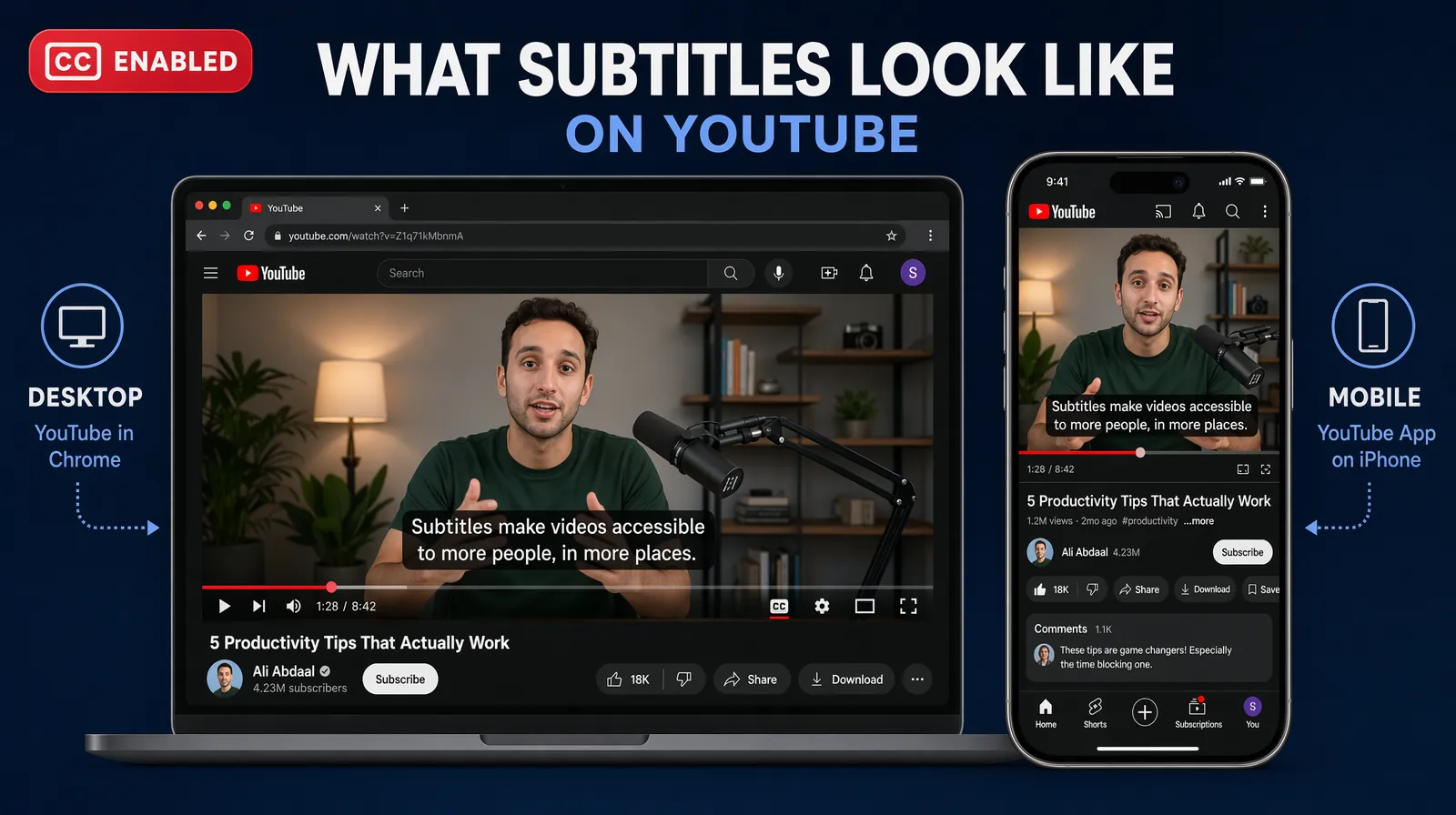
Subtitles keep viewers watching longer on mobile, in sound-off environments, and across 150+ languages.
Why Add Subtitles to YouTube Videos
Accessibility and Legal Compliance
Subtitles are the primary accessibility tool for the approximately 430 million people worldwide who have disabling hearing loss, according to the World Health Organization. Many jurisdictions — including the United States under the Americans with Disabilities Act — increasingly expect digital video content to be captioned, particularly for businesses and educational institutions.
Audience Expansion and Global Reach
Subtitles allow non-native English speakers to follow content they would otherwise skip. YouTube reaches over 2 billion logged-in users monthly, and a significant portion prefer text support. Combined with video translation and dubbing, subtitles become the foundation for multilingual reach.
Engagement in Sound-Off Environments
85% of Facebook video and a large share of YouTube mobile viewing happens with the sound off, according to Digiday research. Viewers watching during a commute, in a quiet office, or in a shared space will scroll past unsubtitled videos. Subtitles keep these viewers watching longer.
SEO and Discoverability
YouTube's algorithm cannot "listen" to your video, but it can read your subtitle file. When you upload an SRT or VTT file, YouTube indexes every word as searchable text. This means your video can surface for long-tail queries that appear only in your spoken content, not in your title or description.
Understanding Subtitle File Formats
A subtitle file is a plain-text document containing a video's spoken audio transcript alongside timestamps that tell the player when to display each line.
YouTube-Supported Subtitle Formats
| Format | Extension | Structure | Best For |
|---|---|---|---|
| SRT (SubRip) | .srt | Plain text with sequential timestamps | Most creators — simplest and most universal |
| VTT (WebVTT) | .vtt | Web standard with optional CSS styling | Web developers, advanced formatting needs |
| TTML (Timed Text Markup Language) | .ttml | XML-based with rich styling | Professional broadcast productions |
SRT Format Example
Each subtitle block contains a sequence number, a start-to-end timestamp, and the subtitle text:
For most creators, SRT is the best choice — universally compatible, exported by every subtitle tool, and processed by YouTube without issues. Use VTT only for CSS styling control; TTML is rarely needed outside broadcast environments.
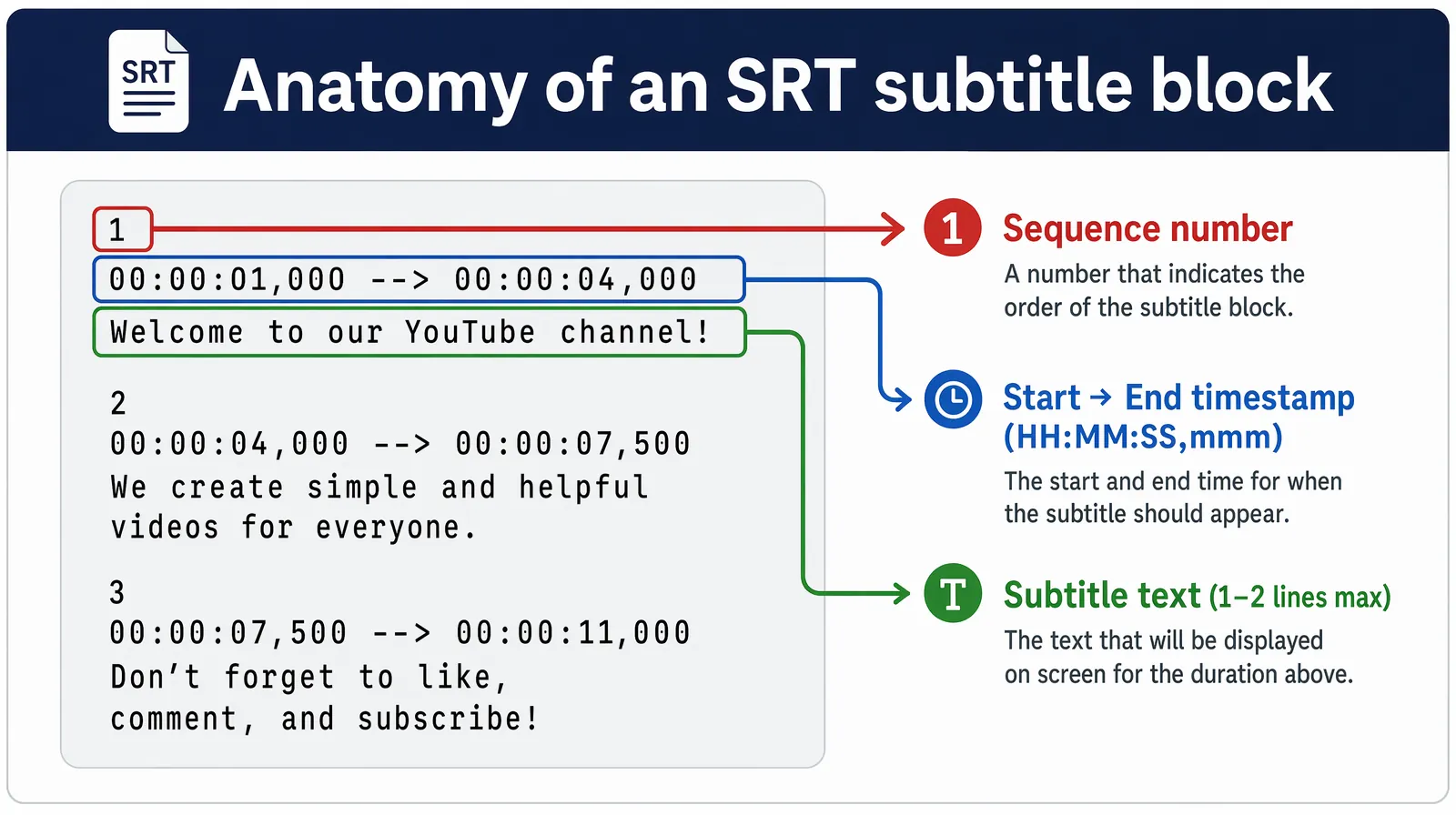
Every SRT block has three parts — sequence number, start-to-end timestamp in HH:MM:SS,mmm format, and the subtitle text.
Step-by-Step: Adding Subtitles in YouTube Studio
YouTube Studio supports three methods — file upload, auto-sync, and manual typing.
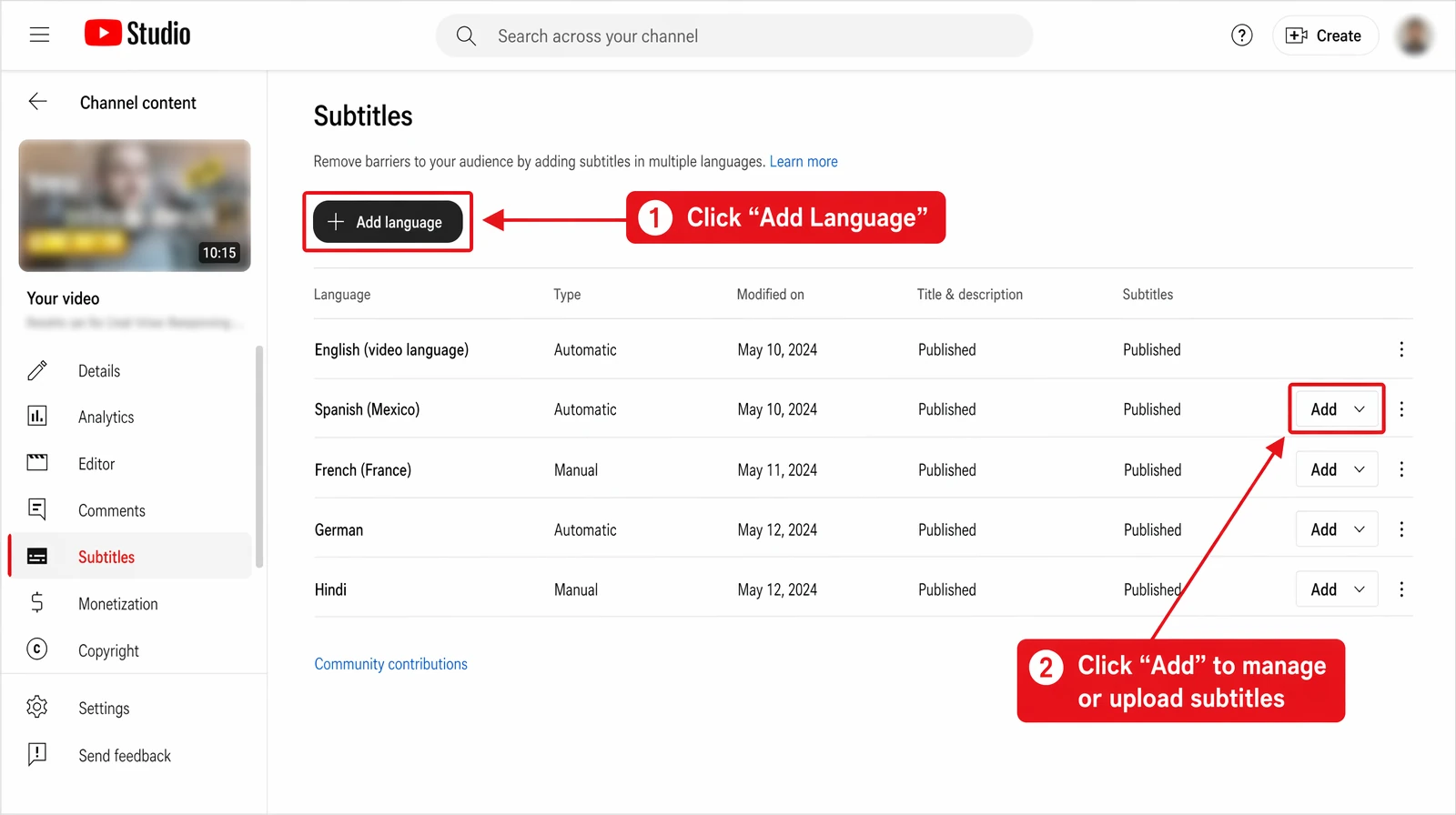
The YouTube Studio Subtitles panel is the single entry point for file upload, auto-sync, and manual typing workflows.
Method 1: Upload a Pre-Written Subtitle File
Uploading a pre-prepared SRT or VTT file gives you the most control over content and timing.
Sign in to YouTube, click your profile picture, and select YouTube Studio.
In the left sidebar, click Subtitles. Click the target video's title to open the subtitle management panel.
Click Add Language and select the subtitle language (e.g., "English (United States)").
Click Add → Upload file → "With timing" for SRT/VTT files → Choose file and select your .srt or .vtt.
YouTube previews subtitles synced to your timeline. Scrub through key sections, correct errors, then click Publish.
Method 2: Auto-Sync with a Transcript
Auto-sync is ideal when you have a transcript but no timed subtitle file. YouTube matches text to audio and assigns timestamps automatically.
Write a verbatim transcript matching the audio precisely. Save as a plain .txt file.
Follow Steps 1–3 from Method 1. Click Add → Auto-sync.
Paste your transcript into the text field. Keep speakers on separate paragraphs. Click Set timings.
Processing takes a few minutes. Review segments and timestamps, make corrections, then click Publish.
Method 3: Manual Typing in YouTube Studio
Manual typing takes 30–60 minutes per 10 minutes of video but produces the highest-quality results for short-form content.
Click Add → Type manually. The video player and text entry panel open side by side.
Play the video and type each line as words are spoken. Keyboard shortcuts:
| Shortcut | Action |
|---|---|
| Spacebar | Play / Pause |
| Left arrow | Seek backward 5 seconds |
| Right arrow | Seek forward 5 seconds |
| Enter | Create a new subtitle segment |
| Shift + Enter | Add a line break within the same segment |
Click each segment in the timeline to fine-tune start and end times. Aim for 1–7 second segments with natural speech-pause boundaries.
Play through the entire video with subtitles enabled, check for errors, then click Publish.
Best Third-Party Subtitle Tools for YouTube
Third-party AI captioning platforms offer higher accuracy, faster turnaround, and features like speaker diarization and multi-language export.
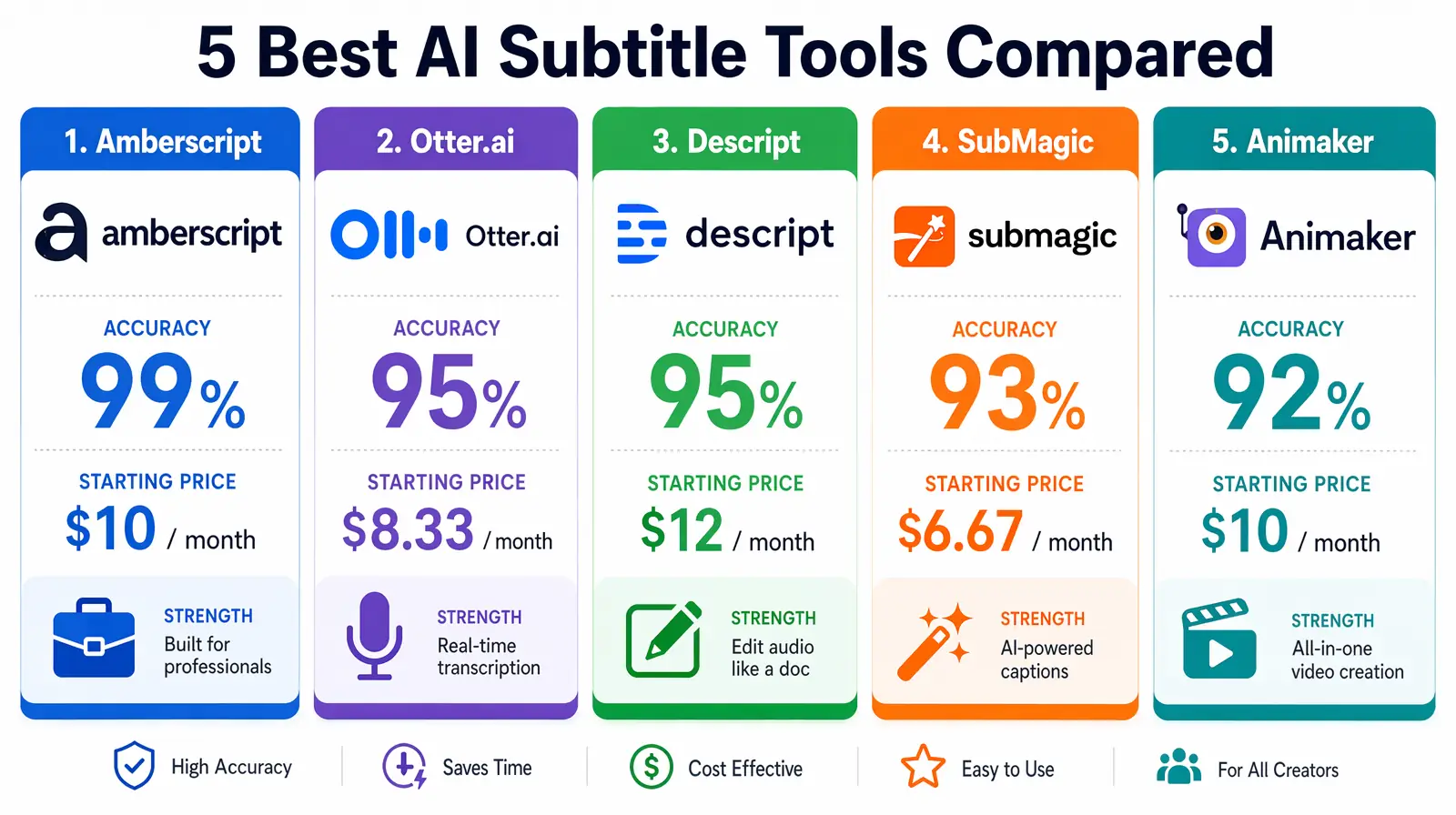
Side-by-side accuracy and pricing comparison of the top AI captioning tools creators use alongside YouTube Studio in 2026.
AI-Powered Captioning Tools
| Tool | Accuracy | Key Feature | Starting Price | Best For |
|---|---|---|---|---|
| Amberscript | 99%+ (human review) | Hybrid AI + human editing | ~$10/hour | Professional & educational content |
| Otter.ai | ~95% | Live transcription, speaker ID | Free tier; $17/mo Pro | Interviews, multi-speaker videos |
| Descript | ~95% | Edit video by editing transcript | $24/mo | Video editors who write first |
| SubMagic | ~93% | Trendy animated captions | $20/mo | Social media / short-form content |
| Animaker | ~92% | Auto-subtitle with style templates | Free tier available | Content creators, beginners |
Human-Powered Captioning Services
For mission-critical accuracy — legal, medical, or enterprise training videos — human captioning delivers near-perfect results. Rev.com charges $1.50/minute with 12–24 hour delivery. 3Play Media offers enterprise captioning with ADA compliance documentation for universities and broadcasters. Human services are ideal when automatic tools struggle with technical jargon, multiple overlapping speakers, or heavy accents.
Free Subtitle Tools
YouTube's built-in auto-captions are free and generated automatically within hours. Accuracy ranges from 80–95% — acceptable as a starting point but rarely publish-ready without manual review. Aegisub is a free, open-source subtitle editor for full manual control with no subscription fees. Kapwing also offers a free tier for basic subtitle editing and export.
When to Use VideoDubber for Multilingual Subtitles
If your goal is reaching international audiences, VideoDubber adds AI translation and dubbing on top of subtitle generation — producing translated subtitle files or full AI-dubbed audio in 150+ languages from a single English video.
Choosing the Right Method: Decision Guide
| Your Situation | Recommended Approach |
|---|---|
| Have an SRT/VTT file ready | YouTube Studio file upload (Method 1) |
| Have a script but no timestamps | YouTube Studio auto-sync (Method 2) |
| Short video under 3 minutes | Manual typing (Method 3) |
| Professional or branded content | Amberscript or Rev.com + file upload |
| Multi-language expansion needed | VideoDubber batch translation |
| Limited budget, long video | YouTube auto-captions + manual correction |
| Live streams or recurring content | Otter.ai for real-time transcription |
Automatic Captions vs. Manual Subtitles
Automatic captions are generated by YouTube's speech-recognition AI — they appear within hours but make errors with proper nouns, technical vocabulary, and accents. Manual subtitles are human-written or human-reviewed caption files with high precision. Understanding when to use each (or a hybrid combination) determines both your time investment and final subtitle quality.
| Factor | Automatic Captions | Manual Subtitles |
|---|---|---|
| Accuracy | 80–95% (varies by audio quality) | 98–100% (human-reviewed) |
| Time to create | 0 minutes (auto-generated) | 30–90 min per 10 min of video |
| Cost | Free | Time cost or $1–$3/minute (outsourced) |
| Punctuation & formatting | Poor (often missing) | Excellent |
| Technical vocabulary | Error-prone | Handled correctly |
| SEO value | Moderate (errors reduce indexing quality) | High (clean, accurate text) |
| Accessibility compliance | Partial (may not meet ADA standards) | Full compliance |
The Hybrid Approach
The most efficient workflow: let YouTube generate automatic captions first, then correct them in YouTube Studio. Corrections take roughly 10–20 minutes per 10 minutes of video — far less than manual typing. For high-importance videos (product tutorials, brand content, courses), professionally transcribed subtitles are worth the investment. This hybrid method balances quality with time efficiency.
How to Add Multi-Language Subtitles
YouTube supports multiple subtitle tracks on a single video — viewers switch between them using the CC menu. Adding multi-language subtitles is one of the fastest ways to grow international viewership without creating separate video content for each market.
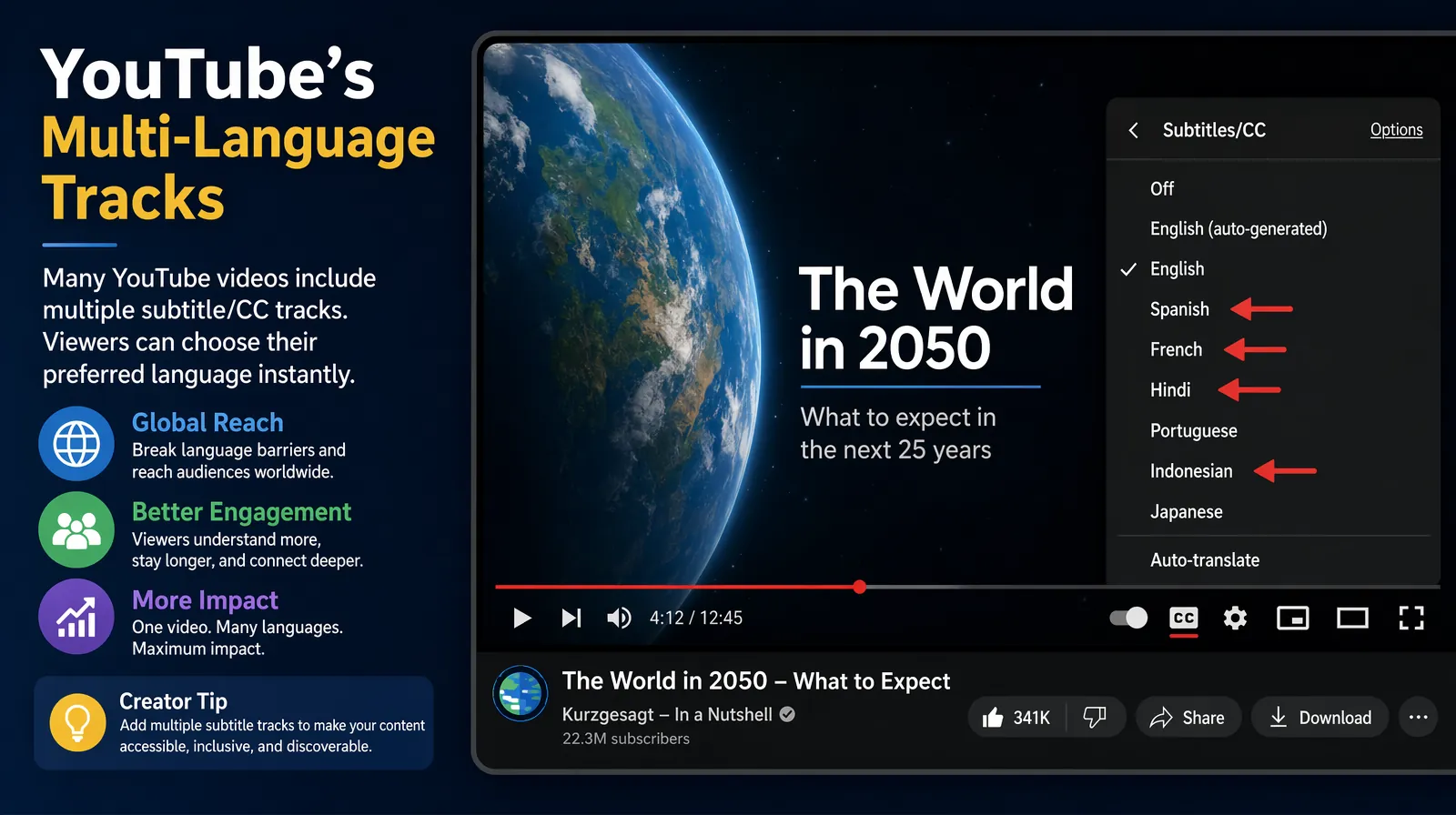
A single video can expose dozens of language tracks through the CC menu — each one a new ranking surface and audience entry point.
Option 1: YouTube's Auto-Translate Feature
With an English subtitle track published, click Auto-translate and select the target language. Works well for common pairs (Spanish, French, German) but may produce awkward phrasing for complex translations.
Option 2: Upload Translated Subtitle Files
Prepare translated SRT files for each target language and upload them using the file-upload workflow from Method 1. Each language gets its own subtitle track visible via the CC menu. This approach gives you full editorial control over every translation.
Option 3: Use an AI Translation Platform
VideoDubber and similar platforms translate your subtitle file into 150+ languages in one batch workflow, reducing multilingual subtitle management from days to hours. This is the most scalable option for creators publishing weekly or managing large video libraries.
Recommended Language Priority
Prioritize languages based on your existing audience analytics and these general YouTube viewership patterns:
| Priority | Languages | Rationale |
|---|---|---|
| Tier 1 | Spanish, Portuguese, French | Largest non-English YouTube audiences |
| Tier 2 | German, Hindi, Japanese, Korean | High-value, highly engaged demographics |
| Tier 3 | Indonesian, Turkish, Arabic | Fast-growing YouTube markets |
Best Practices for High-Quality Subtitles
Timing and Reading Speed
The standard reading pace is 3–4 words per second (120–160 characters per minute). Break segments at natural speech pauses — sentence boundaries, comma pauses, and clause breaks — rather than mid-phrase. Each segment should last 1–7 seconds.
Line Length and Formatting
Keep each subtitle line to 32–42 characters maximum (5–7 words per line). Limit each segment to two lines maximum. Use standard sentence case and correct punctuation throughout.
Accessibility-Specific Formatting
Identify different speakers with labels: [Interviewer] or — Souvic:. Describe important non-speech audio in brackets: [upbeat music], [door slams], [audience applause]. This ensures deaf and hard-of-hearing viewers receive full context.
Consistency Throughout the Video
Maintain consistent style choices across all segments. If you abbreviate "for example" as "e.g." once, do it every time. Capitalize terms like "AI" uniformly. Consistent formatting improves readability and professionalism.
Color and Positioning
Avoid placing subtitles over on-screen text or graphics. If your video has lower-third graphics, position subtitles at the top of the frame. Use high-contrast white text on a semi-transparent dark background for maximum legibility across devices. YouTube's default styling works for most cases, but VTT files allow custom positioning via CSS-like declarations for advanced creators.
How Subtitles Boost YouTube SEO
Every word in a published subtitle file is indexed by YouTube's search algorithm, making your video discoverable for queries that appear only in spoken content. A 10-minute tutorial contains 1,500–2,000 spoken words — all searchable once subtitles are published, versus 200–500 words in a typical description.
Subtitles also improve watch time and viewer satisfaction. According to a 2024 Zubtitle analysis, creators who added captions saw an average 15% increase in views within 30 days. Higher watch time signals quality to YouTube's recommendation engine, creating a compounding visibility loop.
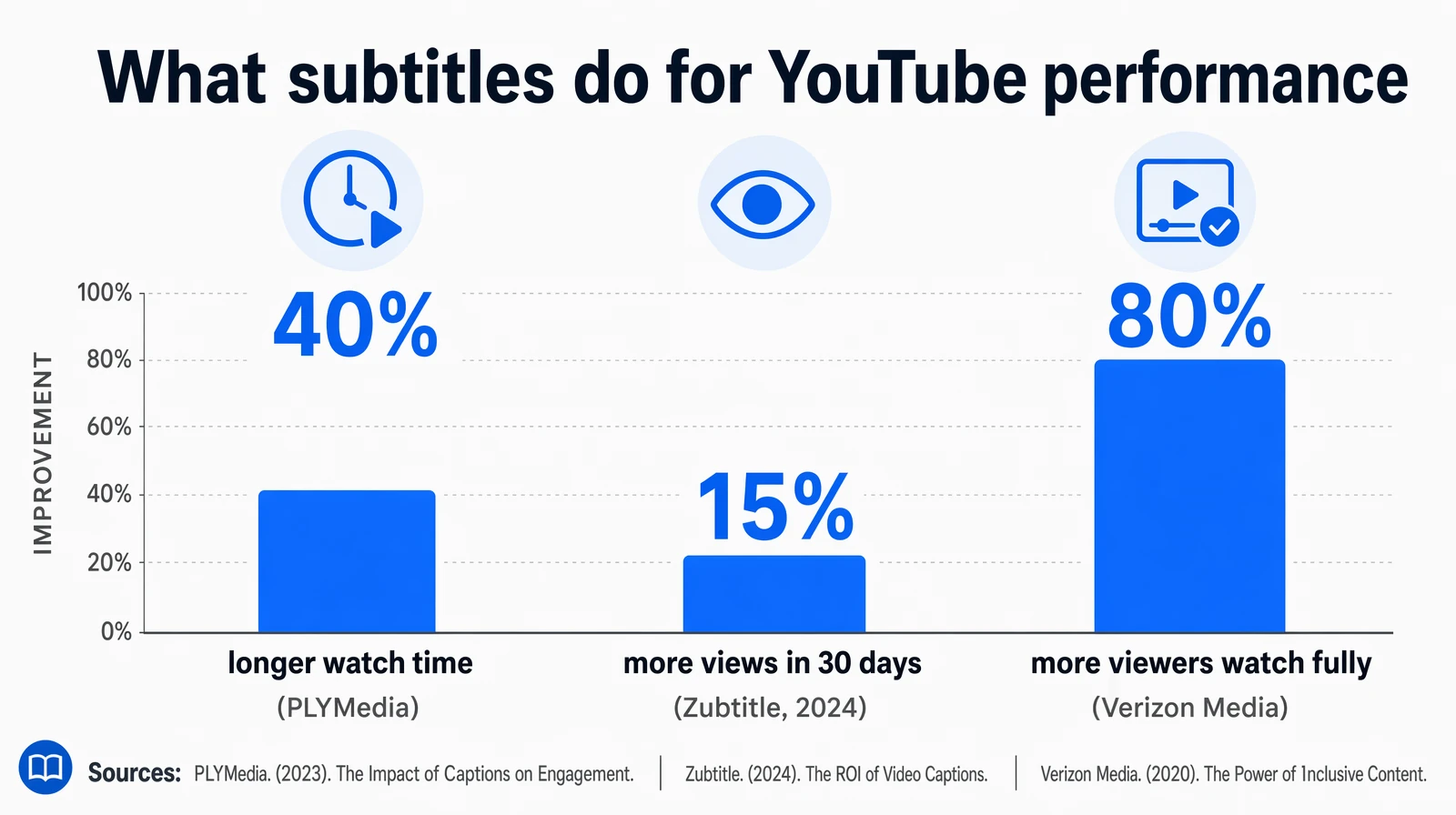
Three independent studies converge on the same finding — subtitled videos consistently outperform unsubtitled videos on every key metric.
SEO Optimization Tips for Subtitles
- Include target keywords naturally in your speech — they automatically appear in subtitle text
- Upload subtitles in the primary language your target audience searches in
- Use accurate punctuation so YouTube can parse sentence boundaries correctly
- Add subtitles within 48 hours of publishing for maximum algorithmic benefit during the initial promotion window
- For videos targeting multiple keywords, ensure those terms appear in spoken content early (first 60 seconds)
Troubleshooting Common Subtitle Issues
File Upload Errors
Save with UTF-8 encoding (not UTF-16 or Windows-1252). Check that timestamps follow HH:MM:SS,mmm --> HH:MM:SS,mmm exactly. Strip "smart quotes" or em-dashes auto-inserted by word processors. If upload still fails, validate your SRT at a free online subtitle validator before re-uploading.
Timing Synchronization Problems
Subtitles consistently early or late usually indicate a frame rate mismatch. Re-export with the correct frame rate (24fps, 30fps). For section-specific sync issues, adjust individual segment times in YouTube Studio's timeline editor.
Auto-Captions Not Appearing
If auto-captions haven't appeared after 24 hours, causes include excessive background music, heavy accents, non-English audio, or minimal speech. A directional microphone and reduced background noise improve accuracy. Re-uploading the video or manually triggering captioning via the Subtitles panel can also resolve stalled processing.
Subtitles Not Visible to Viewers
Confirm the track is set to Published (not Draft) and the language matches viewer expectations. Viewers must enable subtitles via the CC button.
Mobile Display Issues
Keep lines under 32 characters to prevent mobile overflow. Test on an actual mobile device — the YouTube app renders subtitles differently than desktop. Font size, positioning, and line breaks may all differ between iOS, Android, and desktop browsers, so verify on at least one mobile platform before publishing.
Frequently Asked Questions
How long does it take to add subtitles to a YouTube video?
Uploading a pre-made SRT takes 5–10 minutes. Editing auto-captions takes 15–20 minutes per 10 minutes of video. Manual typing takes 30–60 minutes per 10 minutes. Services like Rev.com deliver within 12–24 hours.
Does adding subtitles really improve YouTube SEO?
Yes — every word in a published subtitle file becomes searchable text, multiplying keyword surface area beyond title, description, and tags. Subtitled videos also generate higher mobile watch time, a key ranking signal.
Are YouTube's automatic captions good enough without editing?
Generally no. Accuracy is 80–95% for clear English audio, meaning 50–150 errors per 10-minute video. Editing auto-captions takes only 10–20 minutes and is worthwhile for professional content.
Can I add subtitles in multiple languages to the same video?
Yes — upload separate SRT files for each language, use auto-translate, or use VideoDubber to batch-translate into dozens of languages at once.
What is the difference between subtitles and closed captions?
Subtitles typically provide language translation. Closed captions (CC) include non-speech sounds like [music] or [applause] for accessibility. YouTube Studio manages both in the same panel.
How do I make subtitles appear automatically for all viewers?
You cannot force subtitles — viewer YouTube settings control this. Those who previously enabled captions see them by default. Mention subtitle availability in your description to encourage adoption.
Does subtitle quality affect watch time?
Yes — poorly timed or inaccurate subtitles hurt retention. Verizon Media research found 80% of viewers were more likely to watch a full video when captions were available.
Can I use third-party subtitle tools instead of YouTube Studio?
Yes — most creators use tools like Amberscript, Descript, or Rev.com for generation, then upload the finished SRT to YouTube via "Upload file."
Summary
- YouTube Studio offers three free methods: file upload (fastest with SRT), auto-sync (best with a transcript), and manual typing (most precise).
- SRT is the best file format for most creators — universally compatible and accepted by every major tool.
- Edited auto-captions are the most efficient workflow: let YouTube generate captions, then correct errors (10–20 min per 10 min of video).
- Third-party tools like Amberscript, Rev.com, and Descript deliver higher accuracy for professional content.
- Multi-language subtitles expand international reach — start with Spanish and Portuguese.
- Subtitles improve YouTube SEO by indexing every spoken word and boosting watch time metrics.
Start translating your videos into 150+ languages with VideoDubber →
This guide covers YouTube subtitle features as of April 2026. For platform updates, refer to the YouTube Creator Help Center. For AI-powered video translation beyond subtitles, see our guide to how to translate videos to multiple languages.
Further Reading
How to Start a YouTube Channel in 2026: The Complete Creator's Playbook
How to start a YouTube channel in 2026: step-by-step setup, niche selection, SEO, algorithm mastery, Shorts strategy, and full monetization guide.
How to Record with OBS Studio: The Complete 2026 Guide for Creators and Businesses
How to record with OBS Studio in 2026: step-by-step setup, scenes, audio filters, bitrate settings, best plugins, and pro tips for crisp recordings.
How to Stream on Twitch: The Complete Beginner's Guide (2026)
How to stream on Twitch in 2026: step-by-step OBS setup, gear recommendations, internet requirements, audience growth strategies, and monetization explained.
Best Video Translator in 2024: My Honest Experience with the Top 10 Tools
Dive into my hands-on experience with the top 10 video translators of 2024. From speed and language options to usability, discover which tools truly deliver and why VideoDubber.ai stands out.
Best SRT Translators for Video Translation in 2024
Explore the best SRT translators for video translation in 2024. Discover tools that help convert subtitles into multiple languages and learn how video dubbing solutions can elevate your content for global audiences.