

How to Install Clawdbot (OpenClaw) on Linux and Top Use Cases
February 13, 2026 4 mins read
In the rapidly evolving landscape of personal AI assistants, Clawdbot (now officially known as OpenClaw) has emerged as a powerful, self-hosted solution for developers and power users. Unlike cloud-based assistants that run on remote servers, OpenClaw runs locally on your machine, giving you unprecedented control and privacy.
In this guide, we will walk you through how to install Clawdbot on Linux and explore the top use cases that make it a game-changer for your workflow.
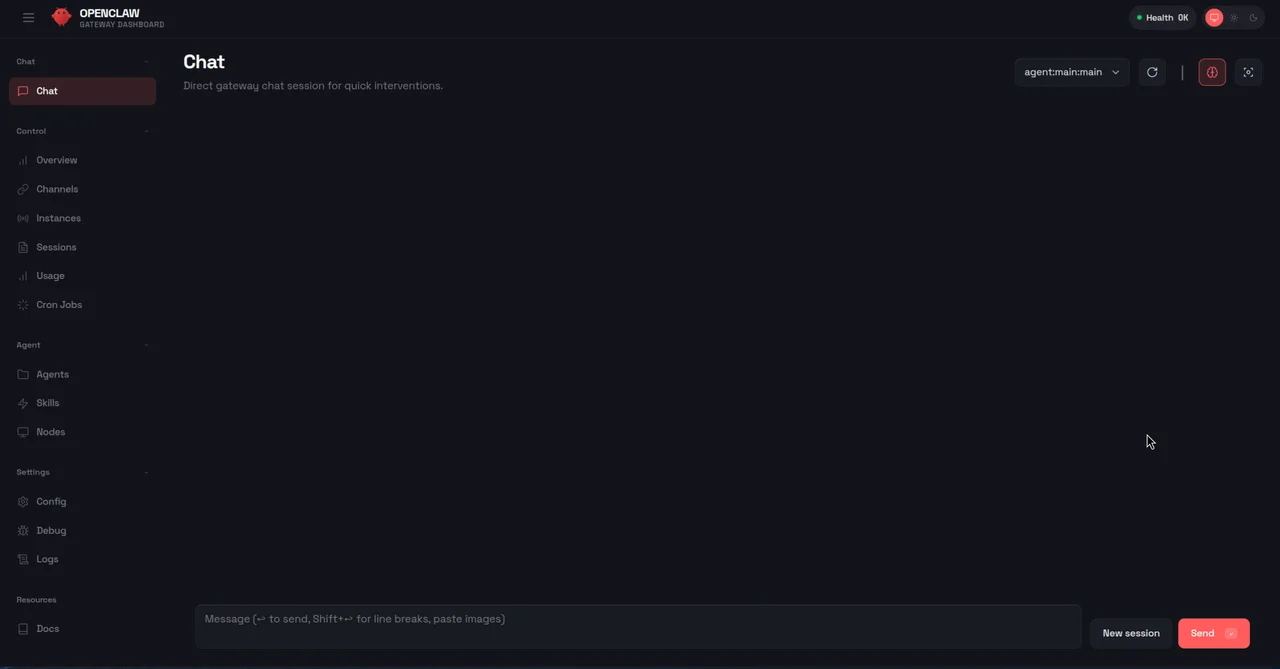
Clawdbot Interface
Clawdbot (OpenClaw) is an open-source personal AI assistant developed by Peter Steinberger. It is designed to be a "second brain" that lives on your computer. It can execute commands, manage files, and integrate with your favorite chat applications like Discord, Telegram, and WhatsApp.
Key features include:
Before installing, ensure your Linux system meets the following requirements:
npm (usually comes with Node.js) or pnpm.Follow these steps to get OpenClaw up and running on your Linux machine.
OpenClaw requires Node.js version 22+. Check your current version:
If you need to install or upgrade, we recommend using nvm (Node Version Manager):
You can install OpenClaw using the official installer script or via npm.
Option A: Quick Installer (Recommended)
Run the following command in your terminal:
Option B: Manual Installation via NPM
If you prefer manual control, install it globally using npm:
Once installed, run the onboarding wizard to configure your assistant and install the daemon:
Follow the on-screen prompts to connect your accounts and set up your preferences.
Why should you use a local AI assistant? Here are the most compelling use cases:
OpenClaw can execute terminal commands for you. You can ask it to:
As a developer, you can use OpenClaw to:
Since it runs locally, OpenClaw can index your documents and notes. You can ask:
Integrate OpenClaw with Discord or Telegram to control your server remotely. send a message like "/deploy production" to trigger a deployment script running on your Linux server.
Clawdbot (OpenClaw) represents the future of personalized, local AI. By installing it on Linux, you unlock a powerful toolkit that can automate mundane tasks and enhance your productivity without compromising on privacy.
Whether you are a developer looking to streamline your workflow or a power user updating your home lab, OpenClaw is an essential tool to add to your arsenal.
Step-by-step guide to adding multilingual audio tracks to your YouTube videos using VideoDubber for massive global reach.
Learn how to translate videos into 150+ languages using VideoDubber.ai. Complete step-by-step guide with voice cloning, lip-sync, and professional-quality dubbing.
Learn how to translate videos without subtitles using voice-only dubbing. Step-by-step guide for 2026: when to use it, best tools, and how to turn off subs for a clean, professional look.
Learn how to localize corporate training and internal communications for global teams efficiently.
How to use GPT-5.2 for video translation: step-by-step in VideoDubber, model comparison (GPT vs Gemini vs DeepSeek), cost and credits, best practices for European languages. Try free.