
![How to Translate Videos Without Subtitles: Complete Voice-Only Guide [2026]](https://ahrefs.com/blog/wp-content/themes/Ahrefs-4/images/categories/icons/general-seo.svg)
How to Translate Videos Without Subtitles: Complete Voice-Only Guide [2026]
March 15, 2026 15 mins read
Roughly 80% of viewers would rather watch a video in their language than read subtitles—and for cinematic, presentation, or brand content, on-screen text can undercut the very look you want. Translating videos without subtitles means using voice-only translation (dubbing) so your visuals stay clean while the audience hears the message in their language. This guide shows you exactly how to do it, when to choose it over subtitles, and which tools deliver the best results.
Voice-only video translation is the process of replacing a video's original spoken audio with a translated voiceover in the target language while leaving no subtitle or caption track on the final video—giving you a clean, cinematic, or professional look with no text overlay. You upload one video, pick your languages, enable AI dubbing (and optionally voice cloning), then turn subtitles off before export. The result is a localized video that looks and sounds native, without a single word on screen.
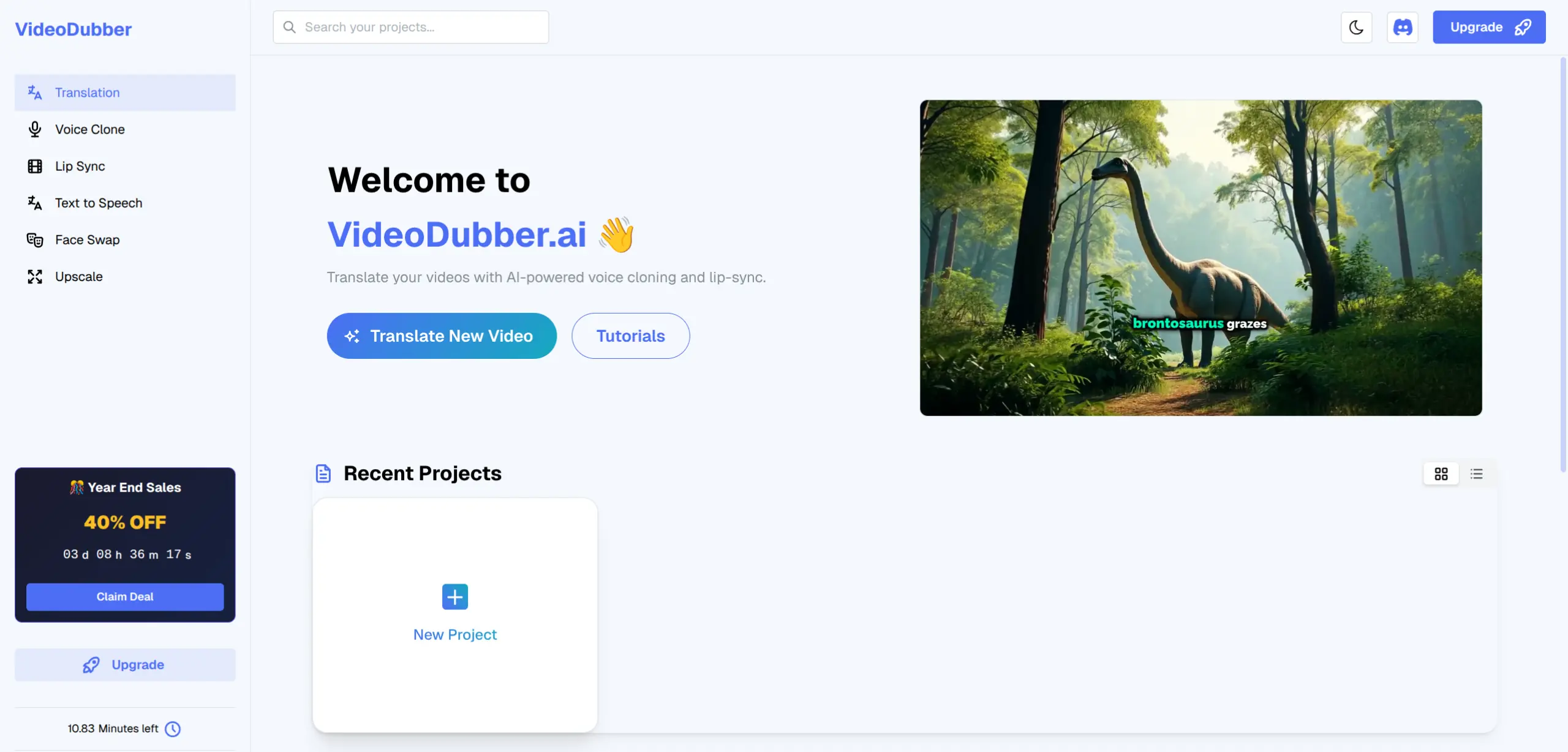
Dashboard Overview
Whether you're a creator, marketer, or L&D lead, here are the questions this guide answers:
| Question | Where to find it |
|---|---|
| What is voice-only video translation? | What Is Voice-Only Video Translation? |
| Why would I choose no subtitles over subtitles? | Why Choose Voice-Only Over Subtitles? |
| When should I use voice-only vs subtitles? | When to Use Voice-Only vs Subtitles |
| How do I translate a video without burning subtitles? | How to Translate Videos Without Subtitles: Step-by-Step |
| Which tools support voice-only dubbing? | Best Tools for Voice-Only Translation |
| What mistakes should I avoid when going subtitle-free? | Common Mistakes When Going Subtitle-Free |
| Does voice-only translation work for YouTube and social? | FAQ: Platform and format questions |
| How much does it cost to dub a video without subtitles? | FAQ: Cost and quality |
| Is AI dubbing good enough for professional content? | FAQ: Quality and accessibility |
Voice-only video translation is a localization method where the video's original spoken track is replaced (or supplemented) with a translated voiceover in one or more target languages, and no subtitle or caption track is burned into the video or published. The viewer hears the translation; they do not read it on screen. It is sometimes called "dubbing without subtitles," "clean dubbing," or "subtitle-free translation."
Unlike subtitle-based translation (see video localization vs. translation vs. dubbing for the full picture), which adds a text layer over the image, voice-only translation keeps the picture untouched. That makes it ideal for content where visuals are the focus: travel vlogs, product demos, ads, internal training, and any format where text would feel distracting or unprofessional. Tools like VideoDubber handle transcription, translation, and AI voice synthesis (with optional voice cloning and lip-sync)—as in what is video translation—so you can produce voice-only versions in 150+ languages from a single master video.
Going voice-only isn't just an aesthetic choice—it affects comprehension, accessibility, and brand perception.
| Factor | With subtitles | Voice-only (dubbed) |
|---|---|---|
| On-screen clutter | Text overlays compete with graphics and faces | No text; full frame for visuals |
| Viewer attention | Split between reading and watching | Eyes on the content; ears on the message |
| Brand feel | Can feel "translated" or utilitarian | Feels produced and native |
Cleaner visuals matter when your video already has lower-thirds, titles, or key graphics. Adding subtitles can make the frame busy and reduce impact. Voice-only keeps the look you designed.
For narrative, documentary, or emotional content, subtitles can break immersion. Viewers are pulled out of the story to read. Dubbed audio lets them stay in the moment—especially when the dub uses voice cloning so the speaker still sounds like the same person. According to Wyzowl's video marketing research, 68% of consumers prefer video over text for learning; for many, listening in their language without reading is the preferred experience. 80% of viewers would rather watch a video than read an article on the same topic—voice-only dubbing serves that preference without adding on-screen text.
Some audiences prefer or need audio over text: low literacy, screen fatigue, or "listen while doing" (e.g. driving, cooking). Voice-only translation serves them without forcing subtitles on everyone. You can still offer optional captions in the same language for accessibility (many platforms let you upload a caption file separately so it's toggleable rather than burned in).
Choosing between voice-only and subtitles depends on content type, audience, and platform.
| Use case | Voice-only (dubbed, no subs) | Subtitles (with or without original audio) |
|---|---|---|
| Cinematic / vlog / documentary | Strong fit; keeps immersion | Can feel utilitarian |
| Product demos and ads | Clean, premium look | Useful for skimmers and SEO |
| Training and how-to | Good for follow-along; eyes on screen | Helpful for review and accessibility |
| Accessibility (deaf/hard of hearing) | Not sufficient alone | Essential; pair with optional captions |
| Social / short-form | Often better for full-screen vertical | Depends on sound-on vs mute viewing |
| Cost and speed | Same as dubbing; turn subtitles off | Cheaper if translation-only; faster to produce |
For cinematic, branded, or presentation-style content where you want zero text on screen, voice-only translation is the better choice. For support, education, or compliance content, dubbing plus optional captions is the best practice—dubbed audio for the main experience, captions for accessibility and preference. So: translate without burning subtitles when the goal is a clean look; still offer optional subtitles/captions where the platform allows (e.g. YouTube, Vimeo) so everyone can choose.
Here is a concrete workflow to translate a video without any subtitle track on the final file. The steps assume you use an AI dubbing platform (e.g. VideoDubber); the principle—dub first, then disable or omit subtitles at export—applies to any tool that supports it.
Go to your dubbing platform (e.g. VideoDubber dashboard) and upload the source video. You can upload a file from your computer or paste a YouTube (or other) link. Ensure the source has clear speech and minimal background noise; quality of the original audio directly affects the quality of the dubbed track, according to best practices from leading AI dubbing providers.
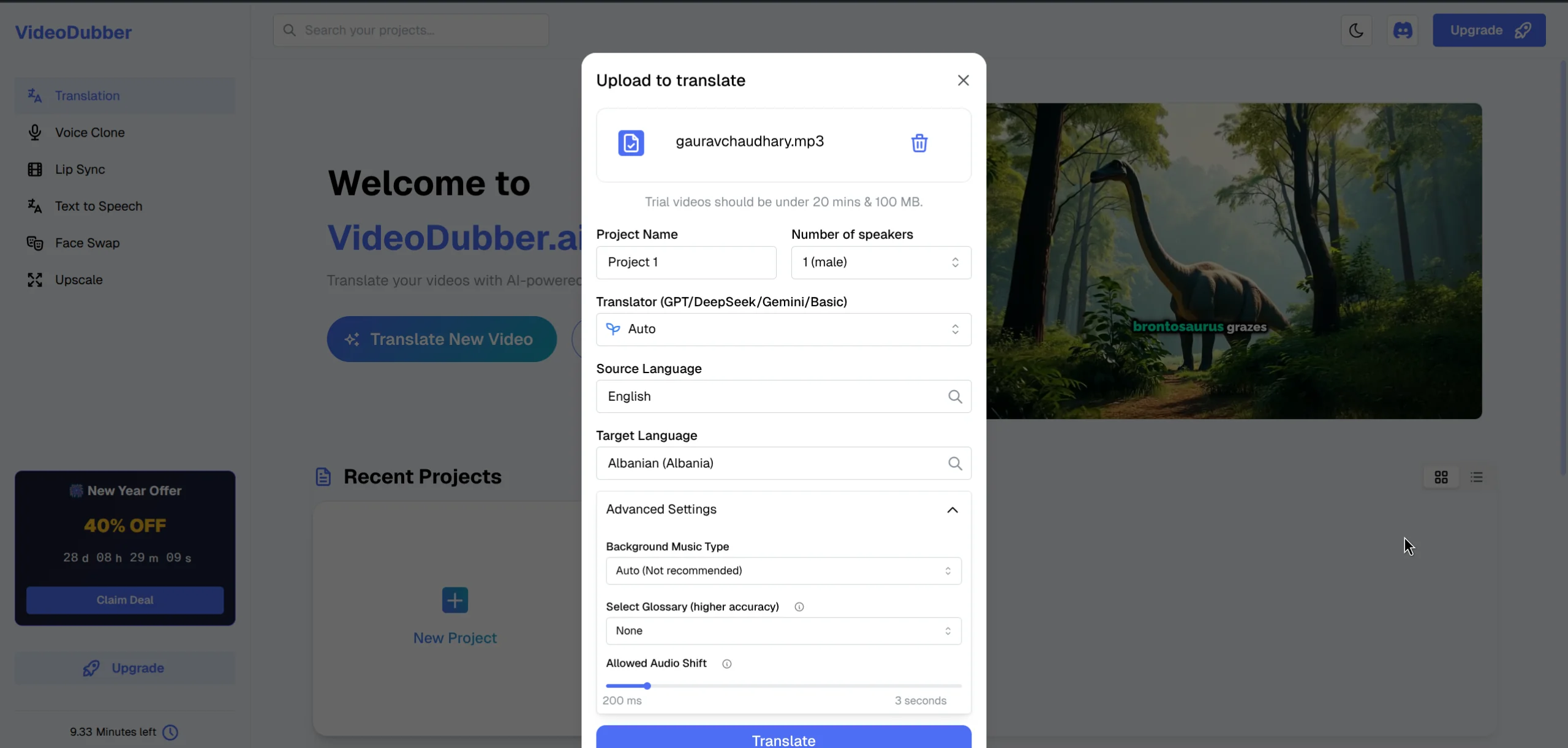
Upload Interface
Choose the language(s) you want (e.g. Spanish, French, German, Japanese). For the best result with voice-only output, enable Voice Cloning if your tool supports it. That keeps the speaker's tone and style in the translated audio, so the video still feels like one coherent piece rather than "original picture + generic voice." Some platforms also offer lip-sync so the on-screen mouth movements align with the new language—especially important when you are not using subtitles and the viewer is watching the speaker.

Voice Cloning Selection
This is the step that makes the output voice-only. In the editor or export settings, find the Subtitles or Captions option. Set it to OFF, or remove/delete the subtitle track so it is not included in the rendered video. Your timeline may still show the translated script for editing—that is for your reference; the key is that the exported file has no burned-in subtitles and no embedded subtitle track if you want a truly clean delivery. Double-check the preview before exporting.
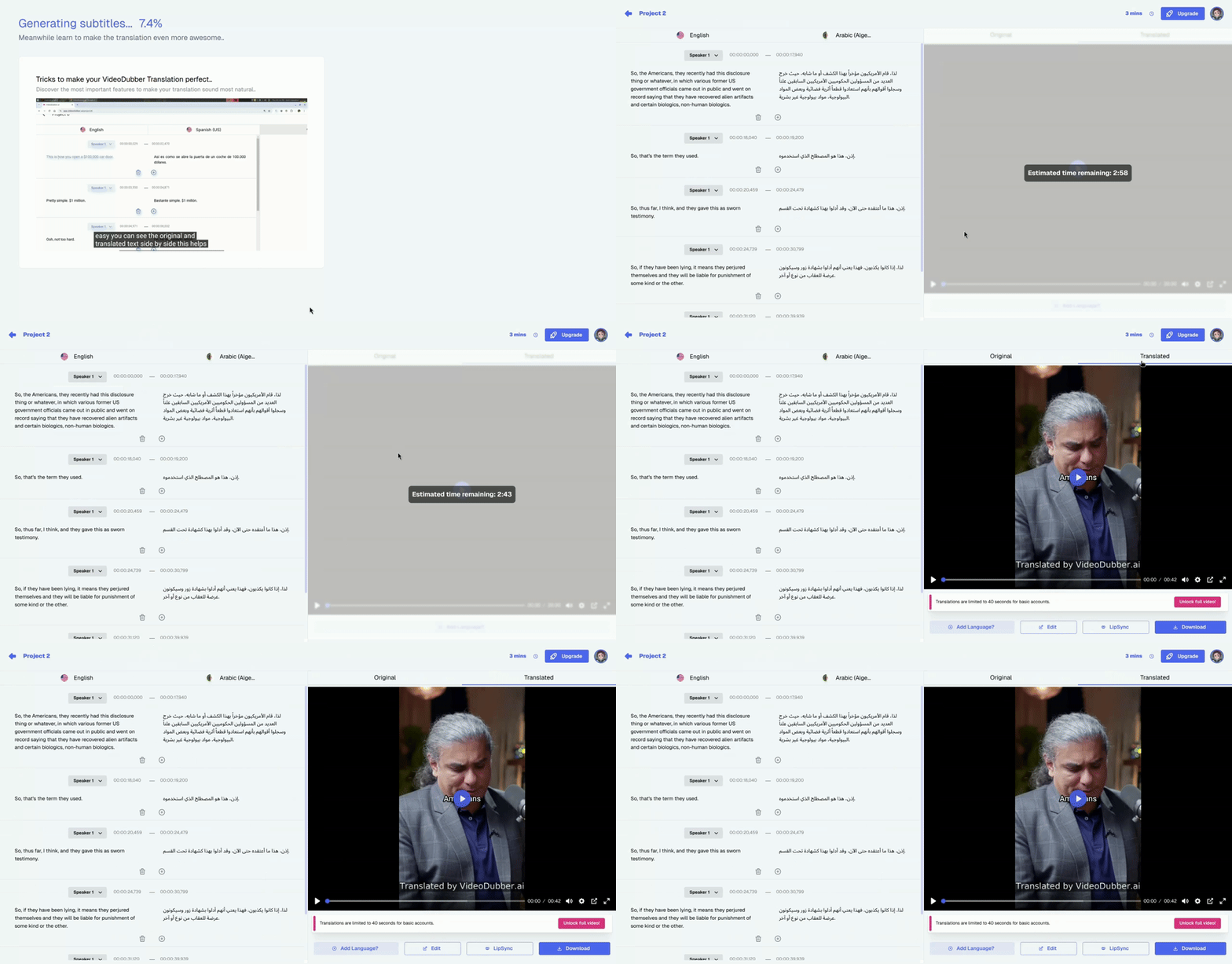
Disable Subtitles
Click Export (or equivalent). The platform will render the video with the new language audio and no subtitle layer. Download the file and, if needed, upload it to YouTube, Vimeo, your LMS, or your CMS. For platforms that support multiple audio tracks (e.g. multilingual audio tracks on YouTube), you can upload the same video with several voice-only dubbed tracks so viewers pick their language without seeing any on-screen text.
| Step | Action |
|---|---|
| 1 | Upload video (file or URL) to your AI dubbing tool |
| 2 | Select target language(s); enable voice cloning (and lip-sync if available) |
| 3 | In export/editor settings, turn subtitles OFF or remove the subtitle track |
| 4 | Export and download; publish with no burned-in subtitles |
Not every translation tool gives you full control over whether subtitles appear on the final video. The following table summarizes common approaches and how they support voice-only output.
| Tool type | Voice-only possible? | Notes |
|---|---|---|
| AI dubbing with subtitle toggle (e.g. VideoDubber) | Yes | Dub the video, then disable subtitles in the editor/export. Optional voice cloning and lip-sync. |
| Subtitle-only translators | No | They only add a subtitle/caption file; no new audio. Not suitable for voice-only. |
| Manual dubbing (studio) | Yes | Studio can deliver video with only the new audio; expensive and slow. |
| Simple TTS dubbing | Yes, if tool allows | Some tools burn subtitles by default; check for "no subtitles" or "audio only" export. |
For scaling voice-only translation across many languages without studio cost, AI dubbing platforms that support a subtitle-off option are the practical choice. VideoDubber is built for this: you get translated, dubbed audio (with voice cloning and lip-sync in 150+ languages), and you simply turn the subtitle track off before export to get a clean, voice-only video. One master video becomes many language versions with no text on screen.
Avoid these pitfalls when translating videos without subtitles.
| Mistake | Why it hurts | Fix |
|---|---|---|
| Relying on voice-only for accessibility | Deaf and hard-of-hearing users need captions. | Export voice-only for the main asset; provide optional captions (same language) separately where the platform allows. |
| Poor source audio | Garbage in, garbage out: unclear speech worsens dub quality. | Use a clear voice track and reduce background noise before dubbing. |
| Skipping the subtitle toggle | Exporting with "default" settings often burns subtitles. | Explicitly turn subtitles OFF or remove the track before export. |
| Ignoring platform options | Some platforms auto-show captions if you upload a caption file. | For voice-only look, do not attach a caption file, or use platform settings to hide captions by default. |
| One size fits all | Same asset might need voice-only for ads and dubbed+captions for support. | Choose per use case: voice-only for clean creative; add optional captions for learning and support. |
In practice, teams that go voice-only for brand or cinematic content and still offer optional captions for the same language see the best engagement and inclusivity—without cluttering the default viewing experience.
Voice-only video translation is when a video is localized by replacing (or adding) the spoken audio in another language and no subtitles or captions are shown on the final video. The viewer hears the translation; the image stays free of text. It is ideal for cinematic, presentation, and branded content where a clean look matters.
You might choose no subtitles to keep cleaner visuals, a cinematic or immersive feel, or a more professional look when the frame already has graphics or text. Many viewers also prefer listening in their language rather than reading subtitles, and voice-only serves that preference while keeping the design intact.
Use voice-only when the goal is a clean, text-free frame (e.g. ads, vlogs, demos, presentations). Use subtitles when you need to support deaf/hard-of-hearing viewers or when the platform favors captions (e.g. sound-off browsing). Best practice: dub for the main experience and offer optional same-language captions for accessibility where possible.
In the VideoDubber editing interface, locate the Subtitles toggle or track. Set it to OFF or delete the subtitle track before clicking Export. Your exported video will contain only the dubbed audio and no burned-in subtitles. You can still download or use captions separately if needed for accessibility.
Yes. You upload the rendered video (dubbed audio, no subtitles) to YouTube, Instagram, TikTok, or other platforms like any other video. For YouTube, you can also add multiple audio tracks (one per language) so viewers select their language in the player—all voice-only, no on-screen text—as described in our guide on adding multilingual audio tracks.
The cost is the same as dubbing in general; turning subtitles off does not add cost. AI dubbing (e.g. VideoDubber) is typically a few dollars per minute per language, versus $50–$150+ per minute per language for studio dubbing, according to industry benchmarks from Gartner and Forrester on localization spend. So voice-only translation is not more expensive—you are simply choosing not to burn a subtitle track into the file.
Modern AI dubbing with voice cloning is suitable for many professional use cases: marketing, training, support, and creator content. Quality is best with clear source audio and supported language pairs. For high-stakes brand or theatrical content, some teams still use studio dubbing; for scale and cost, AI dubbing with the subtitle toggle off is the approach most teams use for voice-only output. Always review a sample before rolling out.
Yes. Voice-only refers to the main video file (no burned-in subtitles). You can still provide optional captions in the same language (e.g. SRT/VTT) so viewers can turn them on for accessibility or preference. On YouTube and similar platforms, you upload the caption file separately; the default view stays voice-only with no text on screen.
Start creating voice-only translated videos with VideoDubber →
Learn how to translate videos into 150+ languages using VideoDubber.ai. Complete step-by-step guide with voice cloning, lip-sync, and professional-quality dubbing.
Learn what video translation and AI dubbing are, how they work, and why VideoDubber.ai is the best solution for translating videos while preserving voice, tone, and emotion. Complete guide covering benefits, use cases, and best practices.
Complete guide to editing translated videos on VideoDubber.ai. Learn how to edit subtitles, fix translations, adjust timestamps, and change voice settings with unlimited free edits.
Learn how to add subtitles to YouTube videos with this comprehensive guide. Covers YouTube Studio, third-party tools, best practices, and troubleshooting tips.
Explore the best SRT translators for video translation in 2024. Discover tools that help convert subtitles into multiple languages and learn how video dubbing solutions can elevate your content for global audiences.