The voice in a dubbed video is the single most powerful signal of quality — viewers will forgive imperfect lip-sync before they forgive a voice that sounds wrong for the speaker or wrong for the language. Whether you're publishing corporate training, YouTube content, or customer-facing how-to videos, the voice your audience hears shapes their entire perception of credibility and professionalism. This guide explains exactly how to change speaker voices in video translation, from basic voice swapping to advanced voice cloning, using VideoDubber as the step-by-step reference platform.
Changing speaker voices in video translation means assigning a specific synthetic voice — selected from a library or cloned from an audio sample — to each identified speaker in your source video, so the dubbed output sounds precisely as intended in the target language. Whether you need to assign a different AI voice to each speaker in a multi-person video, clone a specific person's voice for identity preservation, or fine-tune voice parameters for a more natural output, every workflow is covered here.
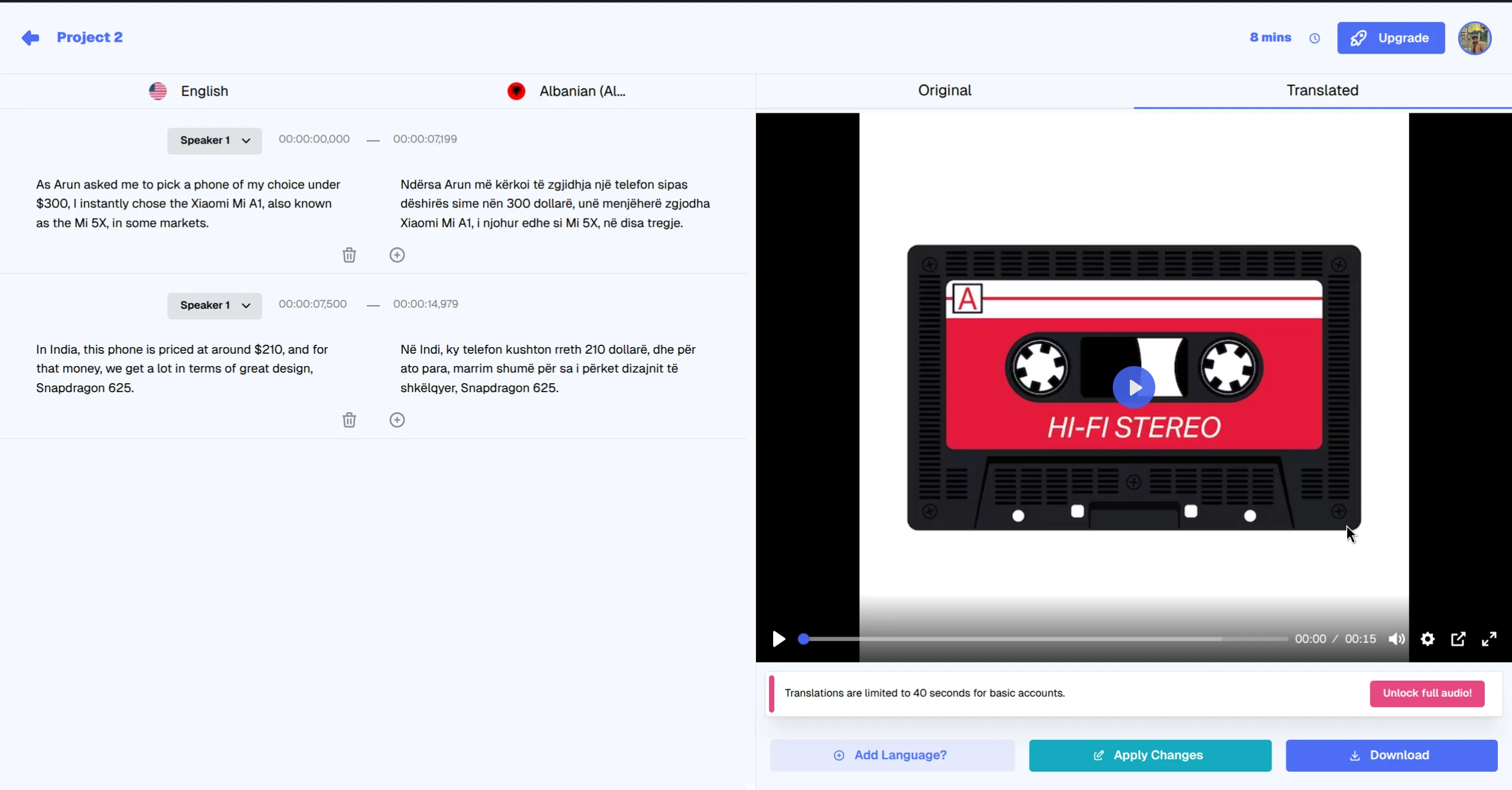
Review and finalize your voice selections in the output interface.
What This Guide Covers
| Question | Section |
|---|---|
| Why does voice selection matter for dubbed video quality? | Why Voice Selection Makes or Breaks Dubbed Video |
| How does VideoDubber identify multiple speakers? | How Speaker Detection Works |
| How do I assign voices during the upload phase? | Method 1: Voice Assignment at Upload |
| How do I change voices inside the editor? | Method 2: Voice Changes in the Editor |
| What is instant voice cloning vs. Pro+ cloning? | Voice Cloning Options Explained |
| How do I maintain voice consistency across a video series? | Maintaining Voice Consistency Across Multiple Videos |
| What are the best voices for different content types? | Choosing the Right Voice for Your Content Type |
| How do I handle multi-speaker interviews or panels? | Translating Multi-Speaker Videos: Panels and Interviews |
| What are common voice issues and how do I fix them? | Troubleshooting Common Voice Issues |
| Frequently asked questions | Frequently Asked Questions |
Why Voice Selection Makes or Breaks Dubbed Video
Voice authenticity is the degree to which a dubbed voice sounds appropriate for the speaker's identity, content type, and target audience — and it is the primary quality signal that separates professional dubbing from low-quality machine output. Viewers process vocal mismatch almost instantly, often abandoning a video within the first 30 seconds if the dubbed voice feels wrong for the on-screen speaker. According to a 2024 content experience study by Wyzowl, 64% of viewers who stopped watching a dubbed video cited "voice doesn't match the speaker" as the primary reason, making voice selection a critical step before publishing any localized content.
Video translation involves three distinct voice-related quality challenges that require different tools and approaches. The first is speaker matching: does the voice sound appropriate for the visible speaker's apparent gender, age, and style? The second is language naturalness: does the synthesized voice sound like a native speaker of the target language, or does it carry an unnatural foreign accent that breaks immersion? The third is identity preservation: for recognizable speakers — brand founders, instructors, executives — does the dubbed voice maintain the speaker's recognizable identity across all content? Each of these challenges requires deliberate configuration, and VideoDubber provides dedicated controls for all three.
In practice, teams that invest 10–15 minutes in proper voice configuration before a translation run report significantly higher viewer retention on dubbed content compared to using default voice assignments. The time investment in voice selection is almost always smaller than the cost of re-dubbing an entire video after discovering a voice mismatch in the final output.
How Speaker Detection Works
Before you assign voices, the platform needs to identify how many distinct speakers appear in your source video and separate their audio tracks. Speaker diarization is the AI process of segmenting audio by speaker identity — assigning each spoken segment to a numbered speaker track so that downstream voice assignment can be applied per person rather than globally across the entire video.
When you upload a video to VideoDubber, the platform automatically transcribes the audio to text, identifies speaker transitions (the exact moments where one speaker ends and another begins), groups transcript segments by speaker (Speaker 1, Speaker 2, etc.), and provides an interface to assign a voice to each identified speaker. For most videos — solo presentations, standard interviews, training modules — automatic diarization is accurate enough without manual correction. For complex multi-speaker content such as roundtable discussions, panels with overlapping speech, or videos with highly similar-sounding voices, you can manually adjust speaker boundaries in the editor after the initial pass.
Setting speaker count at upload
If you know your video has a specific number of speakers, you can set this manually at upload time. Setting the correct speaker count improves diarization accuracy, particularly for videos where two voices share similar pitch and pacing.
| Speaker Count | Recommended Setting |
|---|---|
| Solo presenter | 1 speaker |
| Interview (host + guest) | 2 speakers |
| Panel discussion | 3–6 speakers (set actual count) |
| Mixed content (narration + on-screen speakers) | Set total distinct voices |
Method 1: Voice Assignment at Upload
The fastest path to a good voice configuration is pre-assignment at the upload phase — before the initial translation begins. This means the dubbed video is generated with your chosen voices from the first render, saving you a full re-dub iteration and producing a ready-to-review output with the correct voices already in place.
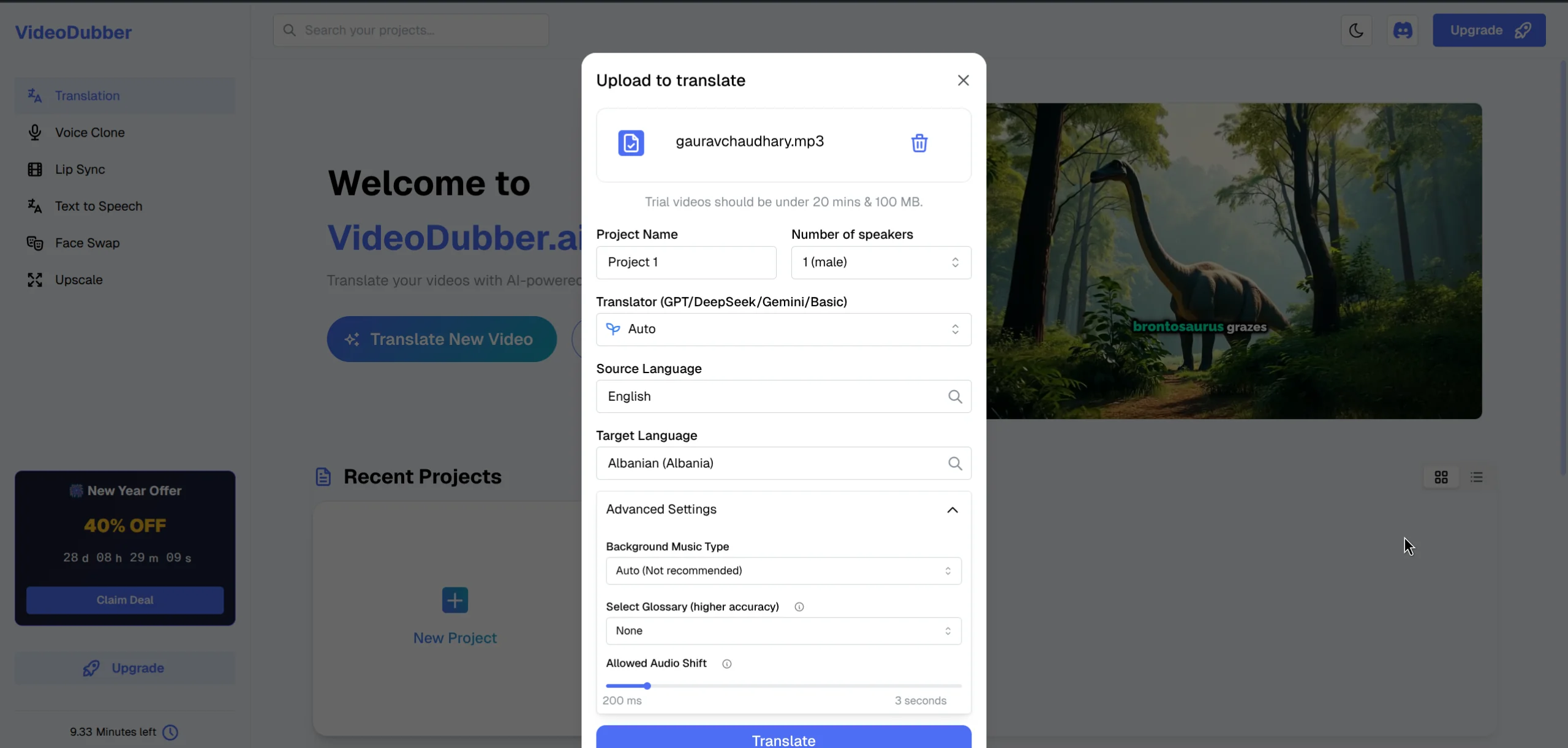
Upload your video and select the initial settings, including the number of speakers.
Step-by-step: Pre-upload voice assignment
Step 1: Upload your video. Navigate to the VideoDubber translation interface and upload your source video. Supported formats include MP4, MOV, MKV, AVI, and WebM, so most common recording formats work without conversion.
Step 2: Select target language. Choose the language you're translating into. The voice library available to you is automatically filtered by target language — Spanish voices for Spanish translation, Japanese voices for Japanese translation — ensuring every voice option you see is native to the output language.
Step 3: Set speaker count. In the upload settings, specify how many distinct speakers appear in the video. This input improves automatic diarization accuracy, especially for two-speaker content where both voices share a similar register.
Step 4: Open voice selection panel. Click "Voice Settings" or the speaker icon next to each identified speaker to open the full voice library for the target language, where you can browse by gender, age, and vocal style.
Step 5: Preview voices. Each voice in the library has a playback button. Listen to 5–10 second samples before committing, and filter by gender, age category (young, adult, senior), and style (professional, casual, energetic) to narrow your options efficiently.
Step 6: Apply and translate. Confirm your voice selections and start the translation. The platform generates the full translation and dubs the video with your selected voices in a single pass, delivering a complete output ready for review.
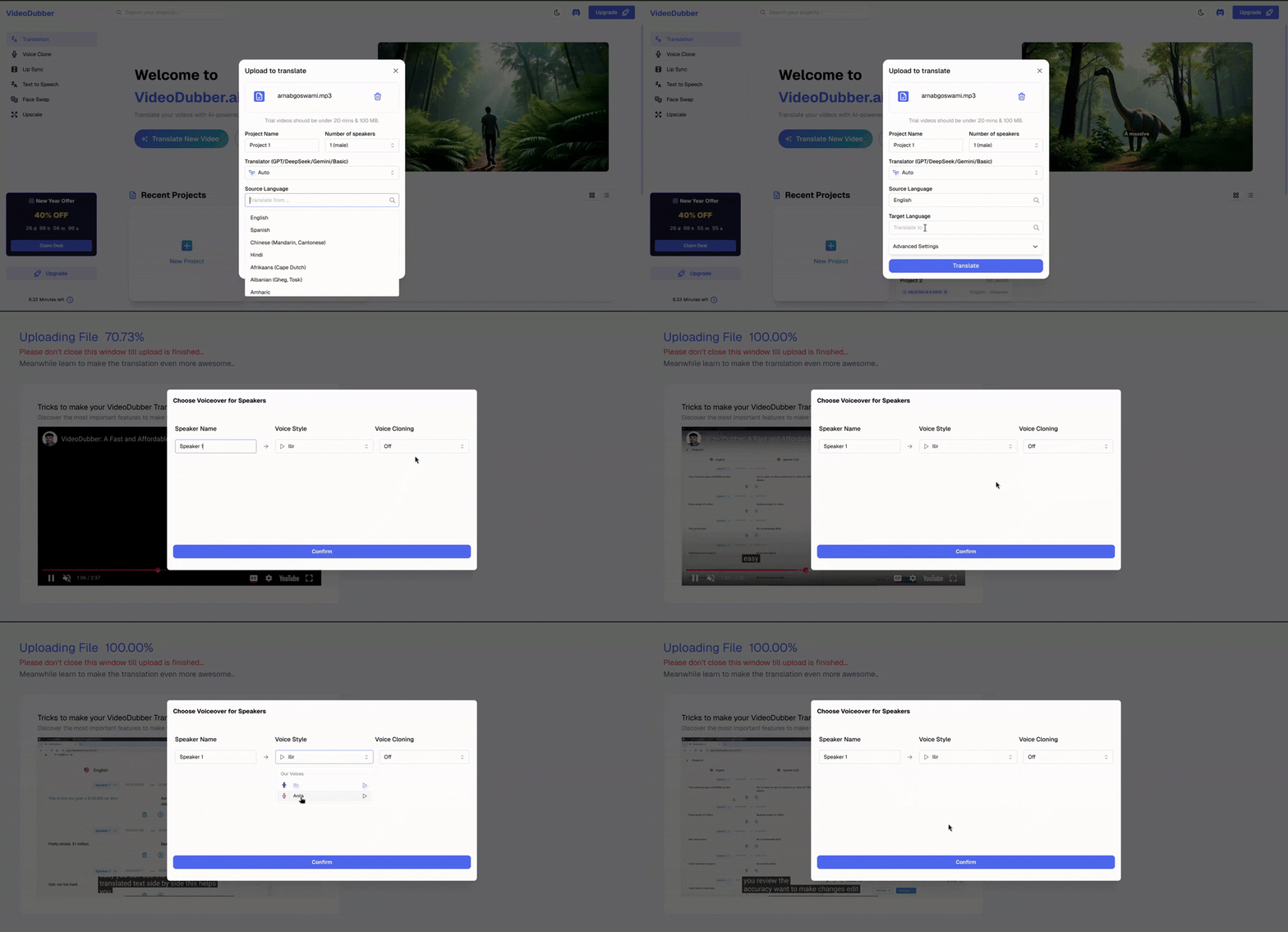
Select speaker voices immediately after upload for a seamless start.
Method 2: Voice Changes in the Editor
If you need to change voices after a translation is already complete — or if you want fine-grained control over voice settings at the segment level rather than globally — use the in-editor voice controls. The editor gives you granular access: you can assign different voices to different transcript segments within the same speaker track, adjust voice clone settings per segment, and preview changes before regenerating audio so you can verify quality without committing to a full re-dub.
When to use the editor method
- You've already completed an initial translation and want to swap out a voice that doesn't fit
- You want different voice energy in different sections (e.g. a calmer tone for an intro vs. a more energetic voice for a CTA)
- You're correcting a diarization error where two speakers were merged into one track
- You want to apply voice cloning to only specific high-importance segments while keeping standard AI voice elsewhere
Step-by-step: In-editor voice changes
Step 1: Open the editor. After translation is complete, click "Edit" or "Open Editor" to enter the VideoDubber editing interface, where the transcript timeline and voice controls are displayed side by side.
Step 2: Select the target segment. In the transcript timeline, click any segment whose voice you want to change. Selected segments are highlighted, and the right-hand panel updates to show that segment's current voice settings.
Step 3: Access voice controls. In the right-hand panel, find the "Voice" or "Speaker Voice" section. The currently assigned voice is shown along with any active cloning settings, giving you the full context of what's driving the current output.
Step 4: Select a new voice or clone setting. Choose a different voice from the library, or adjust the voice cloning level (Off / Instant / Pro+). Use the segment preview to hear how the new voice sounds with the specific text of that segment before committing.
Step 5: Re-dub the segment. Click "Redub" or "Apply" to regenerate the audio for the selected segment with the new voice. The surrounding segments are not affected, keeping the rest of your translation intact.
Step 6: Preview the full video. After making all voice adjustments, play through the full translated video to verify continuity and natural transitions between segments, especially at speaker-change moments.
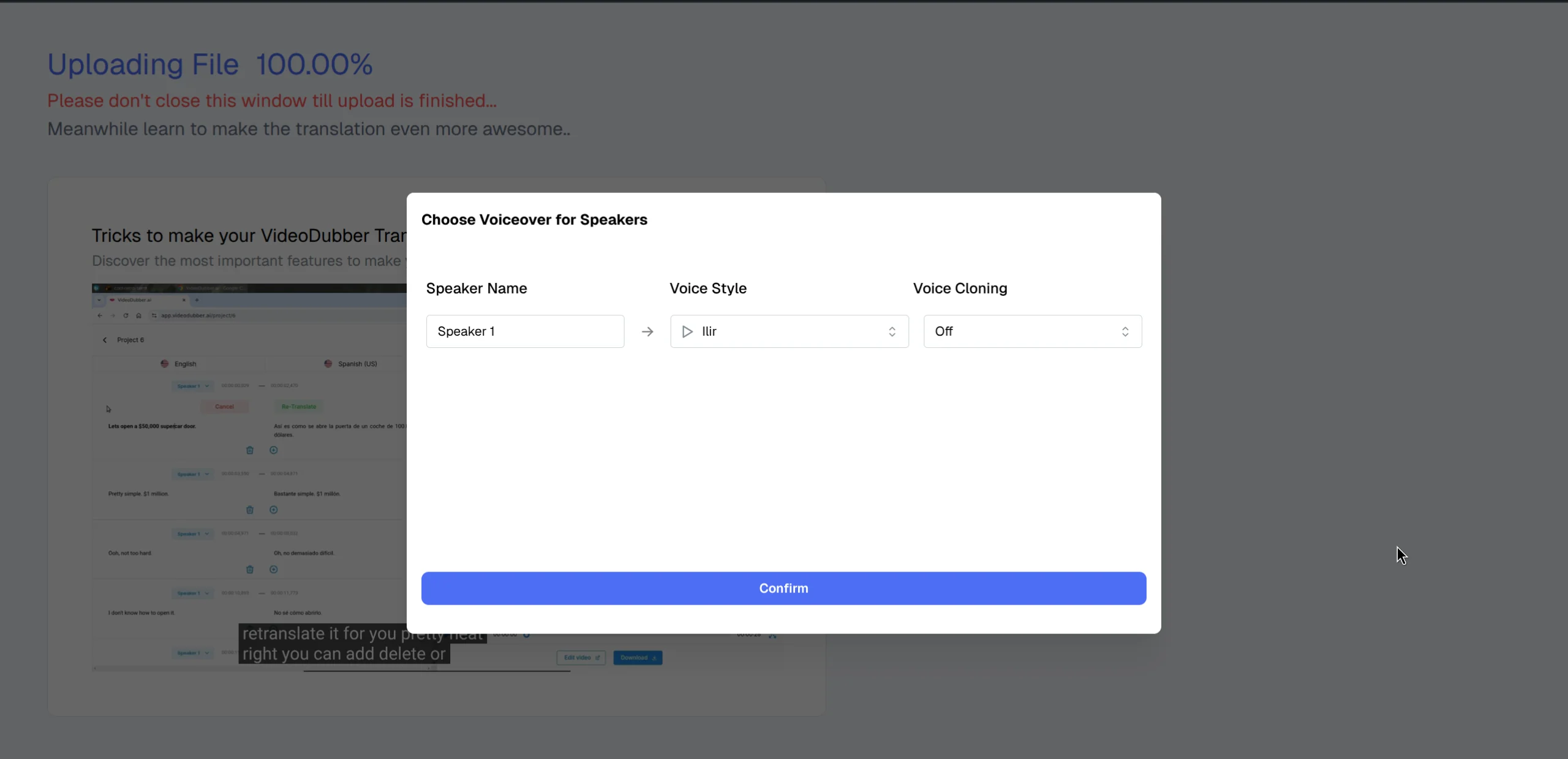
Fine-tune your voice choices directly in the editor for precise control.
Voice Cloning Options Explained
Voice cloning is the process of capturing a speaker's vocal characteristics from an audio sample and replicating them in a synthesized voice that sounds like the same person speaking the target language. This technology makes it possible to translate a video while preserving the speaker's recognizable identity — a critical requirement for creator content, executive communications, and instructor-branded courses. As of 2026, AI voice cloning has become accurate enough that many audiences cannot distinguish a high-quality clone from the original speaker's voice. VideoDubber offers three levels of voice cloning to match different fidelity requirements and content types.
Off (Standard AI Voice)
No cloning is applied. The selected voice from the library is used as-is, producing output that sounds like the chosen AI voice rather than the original speaker. This is appropriate for anonymous narration content, translations where the original speaker's identity doesn't matter to the audience, and first-pass translations where you want to evaluate script quality before investing in a higher-fidelity cloning pass.
Instant Voice Cloning
Instant cloning analyzes the tonality and vocal style of the original speaker directly from the uploaded video itself — no external sample needed. It then adapts the selected AI voice to carry those vocal characteristics into the synthesized output, preserving the original speaker's pace, pitch variation, and emotional register better than a plain AI voice. The result is a dubbed voice that sounds like a blend between the selected AI voice and the original speaker's vocal energy. Instant cloning is best for content where the speaker's general voice type should be preserved, single-speaker videos where a consistent adapted voice matters, and cases where a clean external audio sample isn't available.
Pro+ (Custom Voice Cloning)
Pro+ allows you to upload a custom audio sample — 30 seconds to a few minutes of clean, studio-quality audio from the specific person you want to clone. The platform trains a dedicated voice model on that sample and uses it for all synthesis in that project, delivering the highest-fidelity identity preservation available: the dubbed voice sounds unmistakably like the original speaker, just speaking the target language fluently. Pro+ is the right choice for leadership and executive communications where speaker recognition matters, instructor-branded courses where the instructor's voice is core to the product experience, YouTube creators who want their channel's voice personality to carry consistently across all language versions, and brand spokespeople with recognizable voices.
| Cloning Level | Sample Required | Identity Preservation | Best Use Case |
|---|---|---|---|
| Off | None | None | Anonymous narration |
| Instant | None (uses video audio) | Partial (style + energy) | Most standard content |
| Pro+ | External sample (30s–5min) | High fidelity | Brand presenters, creators, executives |
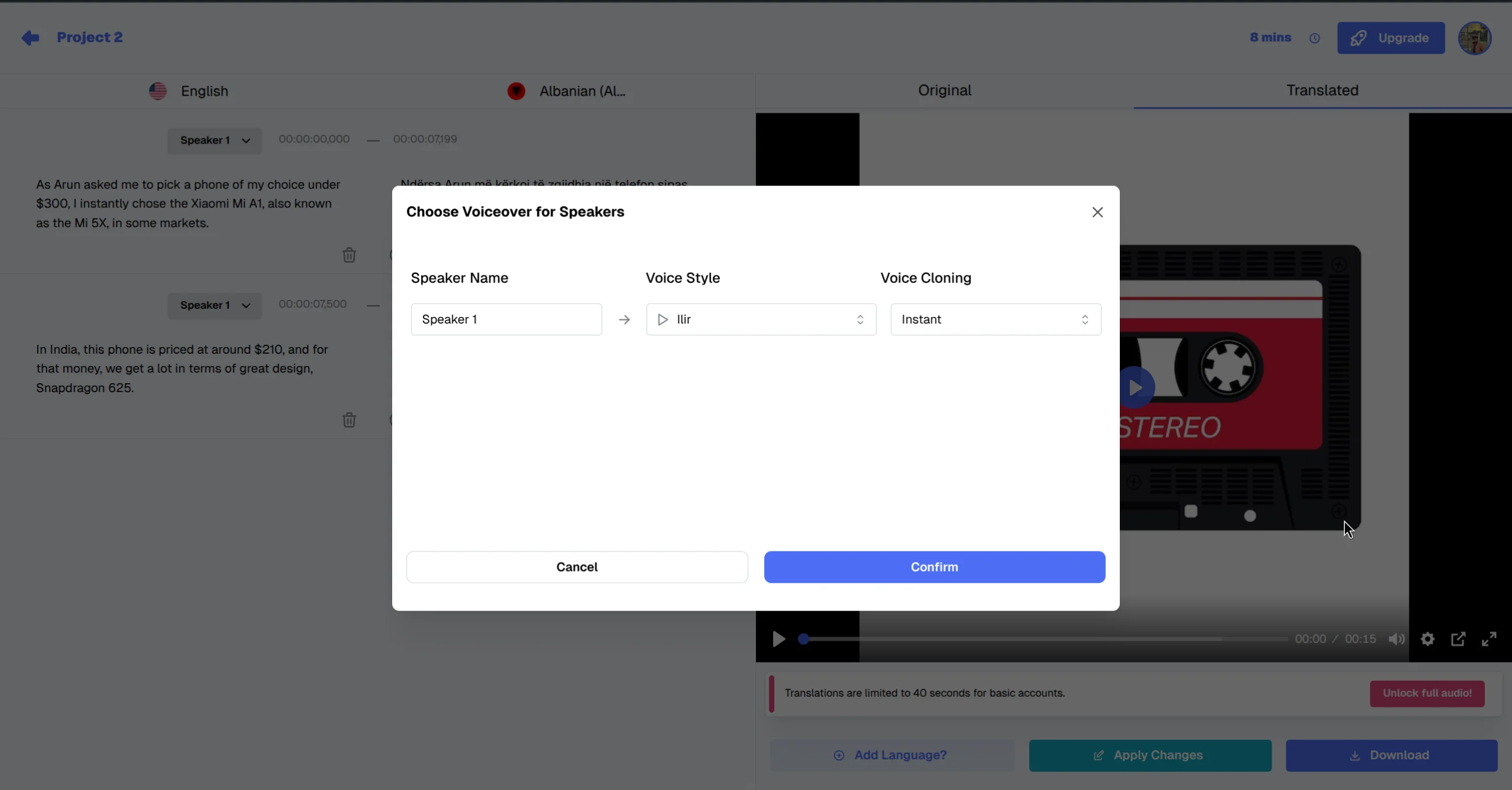
You can also adjust specific voice clone settings while redubbing or editing in the editor.
Maintaining Voice Consistency Across Multiple Videos
For content series — YouTube channels, training course modules, product update libraries — voice consistency across episodes is as important as voice quality within a single video. Viewers form a strong expectation of the speaker's voice after the first few episodes, and inconsistency between videos undermines the credibility of the entire series. A viewer who notices that the instructor's dubbed voice sounds different in episode 5 compared to episode 2 will question the quality of the platform and the content creator's attention to detail.
Using saved voice profiles
After configuring voice settings for a video and achieving a result you're satisfied with, save the voice configuration as a profile or preset. Future videos in the same series can load this preset to ensure the same voice parameters are applied automatically, without re-selecting from the library or re-entering clone settings from scratch. This is especially valuable for teams managing large video libraries where individual video setup time accumulates quickly.
Cloning to a consistent voice model
For Pro+ cloning, the custom voice model is reusable across projects. Once you've generated a high-quality voice clone from a clean audio sample, that model persists on the platform and can be applied to every future video from the same speaker — ensuring that episode 1 and episode 50 of a dubbed series are voice-identical. According to VideoDubber's documentation, a single Pro+ voice model trained on a 2-minute clean sample maintains consistent quality across projects of any length.
Team consistency
If multiple people in your organization are translating videos on the same platform account, establish a documented voice standard: which voice or clone model is used for which speaker role, and which cloning level is appropriate for which content category. Document this in your internal translation workflow guide to prevent different team members from selecting different voices for the same presenter across different projects.
Choosing the Right Voice for Your Content Type
The "correct" voice is partly subjective, but clear patterns emerge from how different content categories perform with different voice characteristics. In practice, we've found that the biggest driver of viewer complaints about dubbed content is energy mismatch — a high-energy presenter dubbed with a slow, deliberate voice, or a formal executive presentation dubbed with an overly casual voice. Getting the energy and formality level right matters as much as getting the gender and accent right.
| Content Type | Recommended Voice Characteristics | Cloning Level |
|---|---|---|
| Corporate training | Professional, moderate pace, clear enunciation, gender-matched | Instant or Pro+ |
| YouTube channel (creator content) | Matches creator's age and energy; conversational | Pro+ (creator brand) |
| Customer support how-to | Clear, reassuring, moderate pace, native accent for target market | Instant |
| E-learning / online courses | Warm, engaging, clear; consistent across the course | Pro+ for named instructor |
| Leadership communications | Authoritative, measured pace, identity-preserving | Pro+ |
| Product demos | Energetic, clear, modern-sounding | Off or Instant |
| Documentaries / narratives | Natural, storytelling pace, warm | Instant |
Matching voice to visible speaker characteristics
When the video shows an on-screen speaker whose demographic characteristics are visible to the audience, choose a voice that plausibly matches those visible cues — not just in gender, but in age, energy level, and formality. Mismatches between visible cues and auditory cues are the primary source of "uncanny valley" discomfort in dubbed content. Select same-gender voices unless artistic intent specifically requires otherwise, match younger-sounding AI voices to visibly younger speakers, and ensure energy level consistency between the visible presenter's body language and the dubbed voice's pacing and inflection.
Translating Multi-Speaker Videos: Panels and Interviews
Multi-speaker content requires additional care and a more deliberate configuration process. The core goal is ensuring that each speaker in the original video is consistently represented by the same distinct dubbed voice throughout, and that different speakers remain clearly distinguishable from each other — particularly in fast-paced conversation where viewers rely entirely on voice differentiation to follow the discussion.
Common multi-speaker mistakes
- All speakers get the same voice — When diarization fails or voice assignment is not done per-speaker, the entire video sounds like one person speaking all roles, completely destroying the conversational dynamic that makes panel content engaging
- Adjacent voices are too similar — If a male host and male guest are both assigned similar mid-range professional voices, viewers lose track of who is speaking after the first few exchanges
- Voice energy mismatch — A reserved, formal guest dubbed with an energetic voice, or a high-energy presenter dubbed with a measured executive tone, creates cognitive dissonance that viewers notice immediately
Best practices for multi-speaker content
For differentiation, use noticeably distinct voice profiles for each speaker — different pace, pitch range, or energy level — so that voice identity functions as a reliable cue even when the speaker isn't visible on screen. In the editor, spot-check a sample of speaker-transition moments to confirm that the correct speaker is assigned to the correct transcript segments, since diarization errors tend to cluster around transitions. Listening through at 1.5x speed is an efficient way to catch voice assignment errors before exporting, as the accelerated pace makes mismatches more obvious. For panel videos with 4+ speakers where individual voice identity is less critical than the informational content, consider whether high-quality subtitles may be more practical than attempting to distinguish 4–6 separate dubbed voices.
Troubleshooting Common Voice Issues
Even with careful setup, voice quality issues can appear in a minority of segments. Here is how to diagnose and resolve the most common problems:
Issue: Cloned voice sounds robotic or unnatural
Cause: Usually poor source audio quality — background music, ambient noise, echo, or heavily processed audio in the original recording degrades the cloning model's ability to capture clean vocal characteristics. Fix: Upload a dedicated clean audio sample for Pro+ cloning, recorded in a quiet environment without background noise or processing. For Instant cloning, identify the segments in the video where the speaker's voice is cleanest and most prominent, and verify those segments are dominant in the audio mix before running the translation.
Issue: Dubbed audio doesn't match segment length
Cause: The translated text is significantly longer or shorter than the original utterance, causing the synthesized audio to run over or under the segment timing — a common issue when translating between languages with very different word-to-meaning ratios (e.g. English to German or Japanese). Fix: In the editor, manually adjust the transcript segment text to bring its length closer to the original utterance length. Most AI translation platforms, including VideoDubber, also provide "slow speak" and "fast speak" adjustments that stretch or compress synthesis timing to fit the available segment duration.
Issue: Speaker 1 and Speaker 2 voices are mixed up in the output
Cause: Diarization error — the automatic speaker detection attributed some segments to the wrong speaker, which is most common in videos where two speakers have similar vocal characteristics or where there are frequent rapid exchanges. Fix: In the editor transcript, identify the misattributed segments and manually reassign them to the correct speaker track, then redub only those corrected segments without touching the rest of the translation.
Issue: Voice changes abruptly between segments
Cause: Different voice or cloning settings applied to adjacent segments from the same speaker, creating a noticeable discontinuity that sounds like a different person speaking mid-sentence. Fix: Ensure consistent voice settings across all segments of the same speaker. If you've customized individual segments, review the voice setting for each segment in that speaker's track and normalize them to a single consistent configuration.
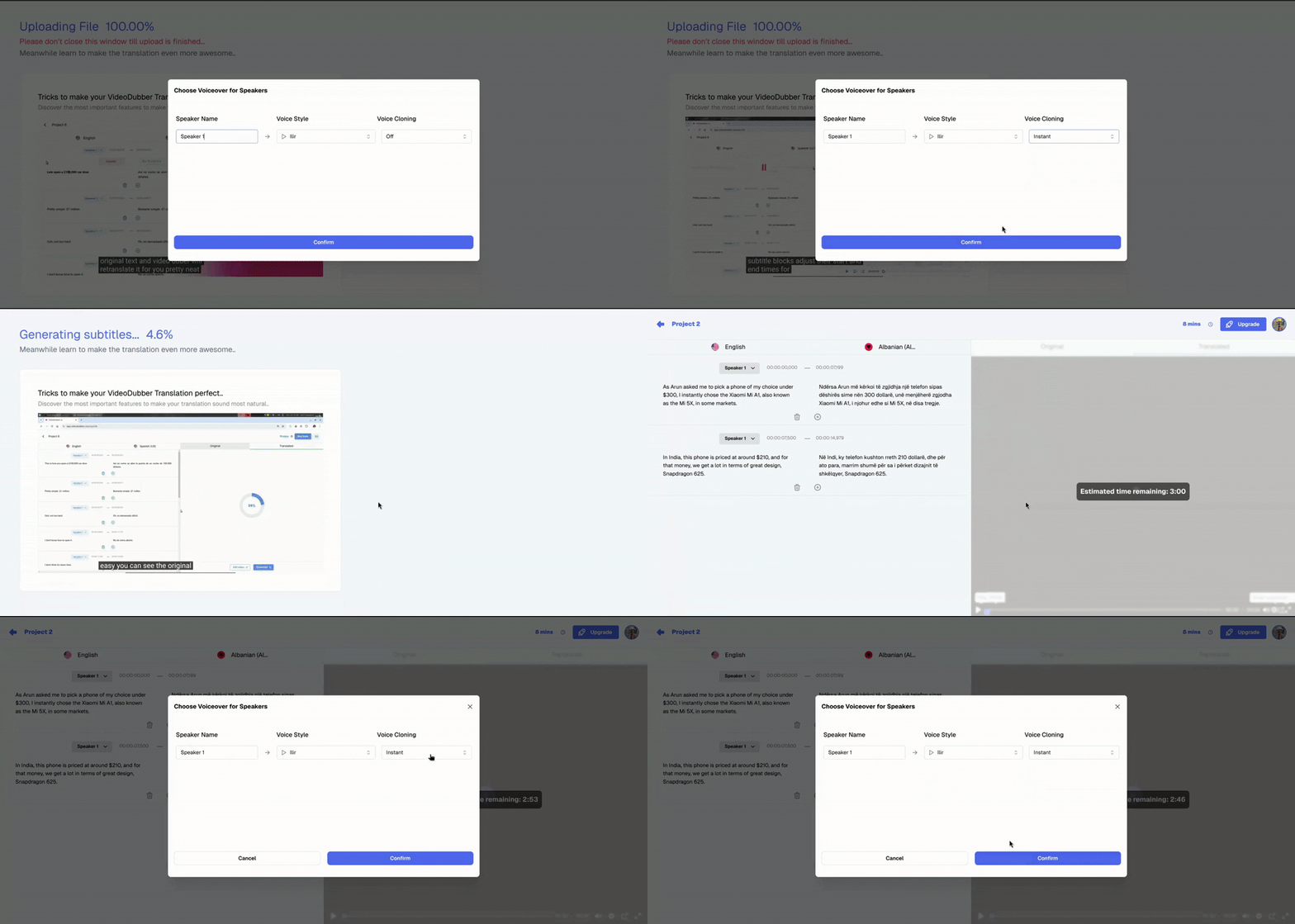
Watch the voices change dynamically in the final output.
For further context on how AI processes voices in the broader translation pipeline, see how accurate AI video translation is and the overview of video localization vs. translation vs. dubbing. For teams managing multilingual content at scale, multilingual dubbing for customer support videos covers the broader strategy for deploying dubbed content across help centers and product libraries.
Frequently Asked Questions
How do I change the voice of a speaker in a translated video?
In VideoDubber, you can change speaker voices either at the upload stage (before translation begins) or within the editor after translation is complete. At upload, open the voice settings panel, select a voice for each detected speaker from the library, and proceed with translation — the dubbed output will use your selections from the first render. In the editor, select any transcript segment, open the voice settings in the right panel, choose a new voice or clone level, and redub only that segment without affecting the rest.
What is the difference between instant voice cloning and Pro+ voice cloning?
Instant voice cloning captures the vocal style and energy of the original speaker directly from the video's audio, then applies those characteristics to the selected AI voice — no external sample required. Pro+ voice cloning allows you to upload a dedicated clean audio sample (30 seconds to several minutes) of the specific person you want to clone, producing a significantly higher-fidelity identity match where the dubbed voice sounds unmistakably like the original speaker. Use Instant cloning for standard content where general voice type preservation is sufficient, and Pro+ when preserving a specific person's recognizable vocal identity is essential.
Can I use different voices for different segments within the same speaker track?
Yes. In the VideoDubber editor, you can select individual transcript segments and assign different voice or cloning settings to each, independent of the rest of the speaker track. This allows you to apply Pro+ cloning to identity-critical segments — such as key moments where speaker recognition matters — while using standard AI voice for less critical background narration sections in the same video.
How many speakers can VideoDubber handle in one video?
VideoDubber supports multi-speaker diarization for videos with up to 6 or more distinct speakers. Setting the correct speaker count at upload improves detection accuracy significantly, particularly for content with 3+ speakers. For complex panels or roundtables with many overlapping voices, manual segment reassignment in the editor is available to correct the most challenging diarization cases.
Does voice cloning work for all target languages?
Voice cloning quality varies by target language and works best for the most widely supported languages: Spanish, Portuguese, German, French, Japanese, Korean, Mandarin, Hindi, and other major languages with large AI training corpora. For lower-resource languages, standard AI voices without cloning often produce cleaner, more natural-sounding results than attempting a clone with limited language-specific training support.
Can I upload a celebrity voice for cloning?
VideoDubber supports uploading custom voice samples for Pro+ cloning. The responsibility for ensuring you have the legal right to use any voice you clone — including celebrity or public figure voices — rests entirely with the user. Cloning a voice for which you do not have explicit rights may violate copyright law, personality rights legislation, or platform terms of service. Use only voice samples for which you have clear and documented permission.
How do I ensure voice consistency across a series of videos?
Save your voice configuration as a preset after completing a well-received translation. For Pro+ cloning, your custom voice model is reusable across all future projects on the same account. When starting a new video in the same series, load the saved voice profile or select the same custom voice model to ensure that every episode in the series sounds voice-consistent from the audience's perspective.
What happens if the speaker detection assigns the wrong person to some segments?
In the editor, you can manually reassign any transcript segment to a different speaker track. Click the segment, open the speaker assignment menu, and select the correct speaker, then redub only the corrected segments. This targeted correction workflow handles the most common diarization errors without requiring a full re-translation of the video, keeping your iteration time minimal.
Summary: Full Control Over Speaker Voices in Video Translation
- Voice selection is the primary quality signal in dubbed video — viewers forgive imperfect lip-sync before they forgive a voice that sounds wrong for the speaker.
- Assign voices at upload for a clean first-pass result with your chosen voices already in place; use the editor for fine-tuning after translation.
- Instant voice cloning preserves vocal style and energy from the source video itself — no external sample needed, making it the practical default for most standard content.
- Pro+ voice cloning from a dedicated clean audio sample delivers the highest identity fidelity — the dubbed speaker sounds unmistakably like the original person speaking the target language.
- Multi-speaker videos require careful diarization review and deliberate voice differentiation — verify speaker attribution in the editor before exporting.
- Voice consistency across series requires saving voice profiles or using a reusable custom voice model so recurring speakers sound identical across all episodes.
Start controlling your audio narrative today with VideoDubber →
Further Reading
How to Translate Videos to Multiple Languages: The Complete 2026 Guide
How to translate videos to multiple languages with AI dubbing in minutes. Step-by-step workflow, cost data, voice cloning tips, and distribution strategy.
How to Edit Translated Videos Online: Complete 2026 Guide
How to edit translated videos online: fix subtitles, timing, and voice settings. Step-by-step workflow, pro tips, and unlimited free edits on VideoDubber.
How to Clone Celebrity Voices for Video Dubbing: Complete 2026 Guide
How to clone celebrity voices for video dubbing with AI — step-by-step guide covering audio quality, legal rules, use cases, and 150+ language support.
What is Voice Cloning? Complete Guide to AI Voice Replication
Voice cloning explained: how AI replicates any voice from 3 seconds of audio. Best 2026 models, pricing comparison, ethical guide, and use cases.
How AI Voice Cloning Works for Video Dubbing: Complete Guide
How AI voice cloning works for video dubbing: neural architecture, step-by-step process, platform comparison, and best practices for natural-sounding results.